This document introduces how to quickly run the Audio/Video Calling Demo. By following this guide, you can get the Demo running within 10 minutes and experience a 1v1 video social feature with a complete UI.
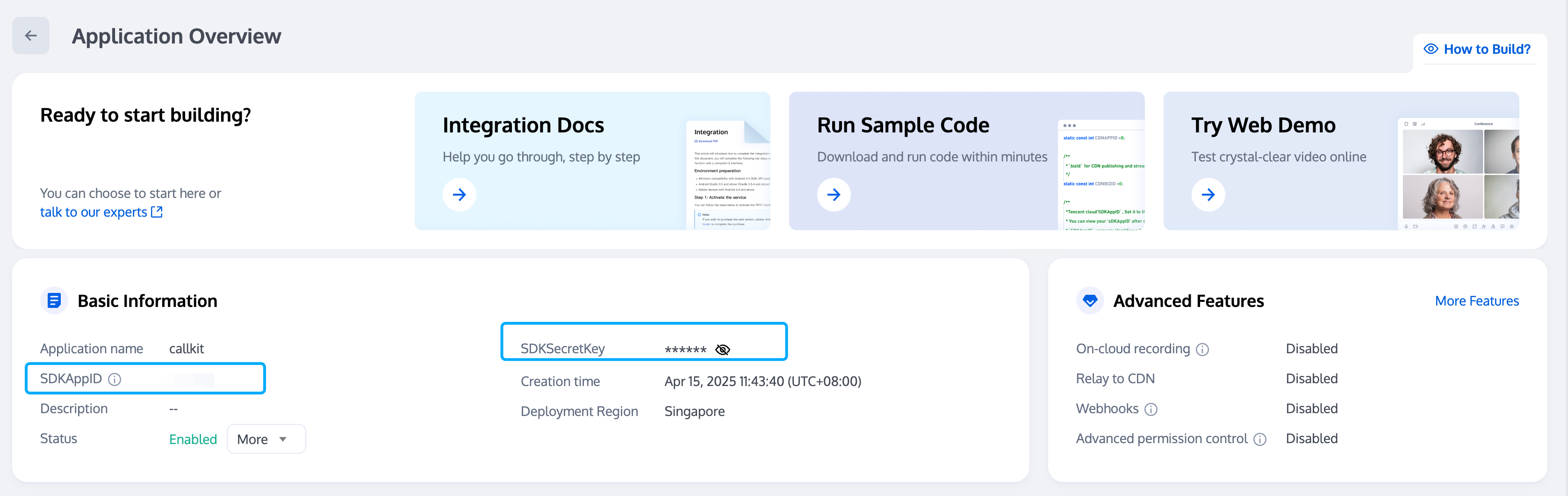
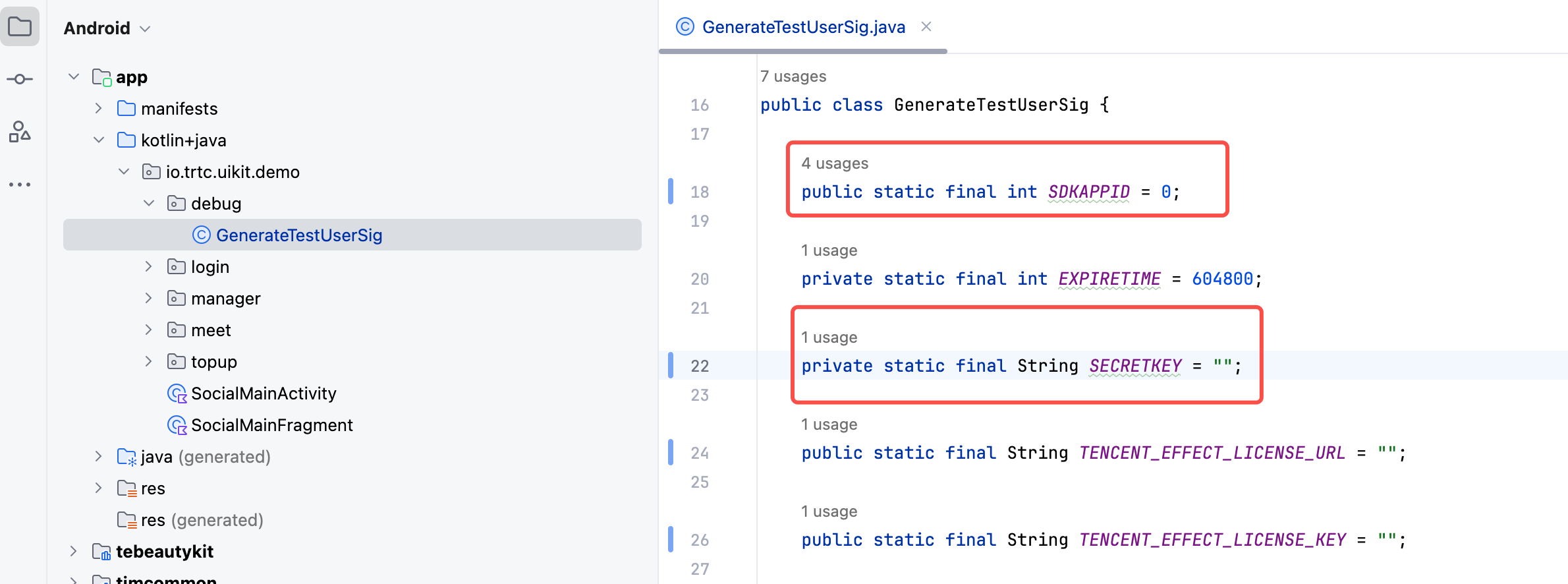
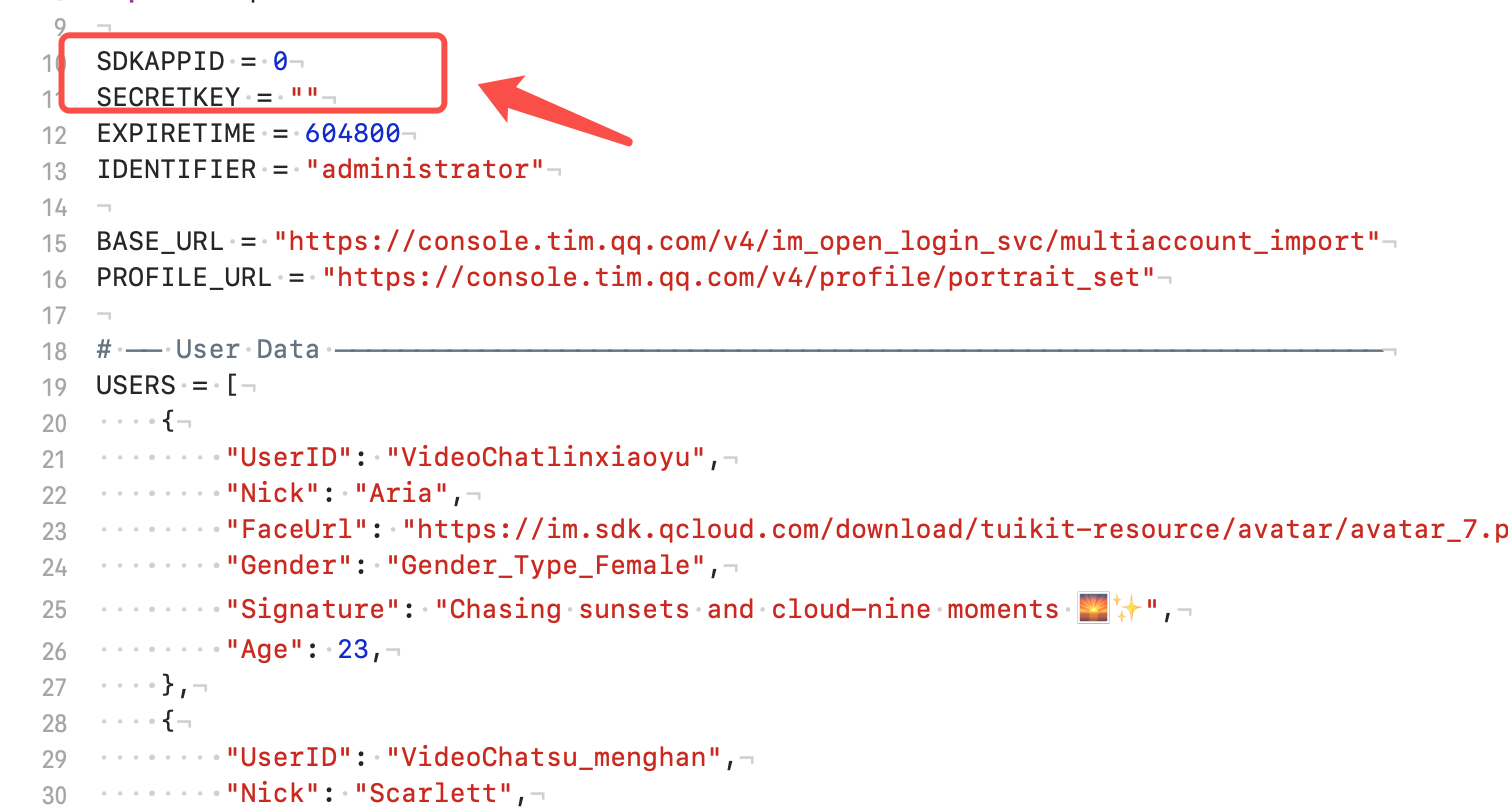
1. Configure SDKAppID and SecretKey (Required): Open the video-chat-solution/blob/main/android/app/src/main/java/io/trtc/uikit/demo/debug/GenerateTestUserSig.java file, and enter the SDKAppID and SDKSecretKey obtained when enabling the service:
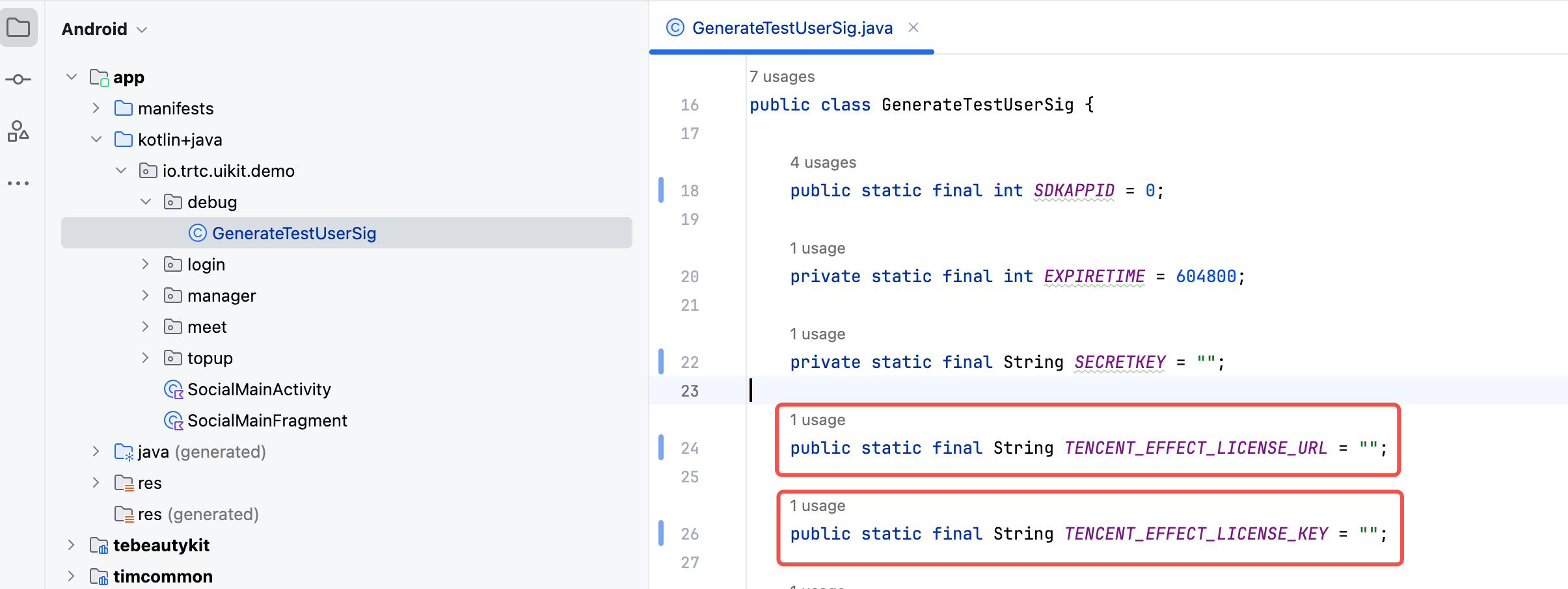
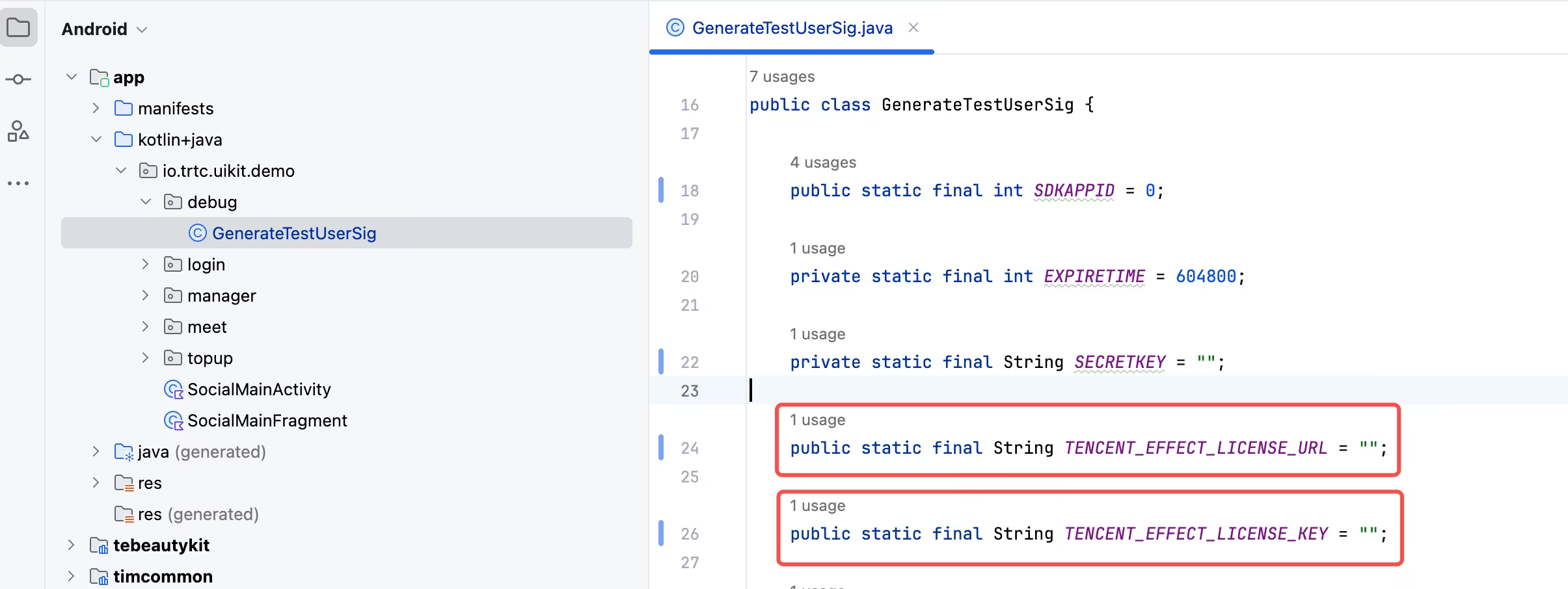
2. Configure Beauty Filters (Optional): The Demo integrates Tencent's basic beauty filters by default, but a License must be configured for them to take effect. Please refer to the License Guide to obtain the LicenseURL and LicenseKey, and enter them into the video-chat-solution/android/app/src/main/java/io/trtc/uikit/demo/debug/GenerateTestUserSig.java file.
Step 3: Test the Demo
1. Import test users: For quick testing, please run the video-chat-solution/tools/import_users_to_video_chat.py script (you will need to enter your AppID and SecretKey). This script will automatically register 6 recommended test accounts. Once logged in, you will be able to see them in the "Social" module.
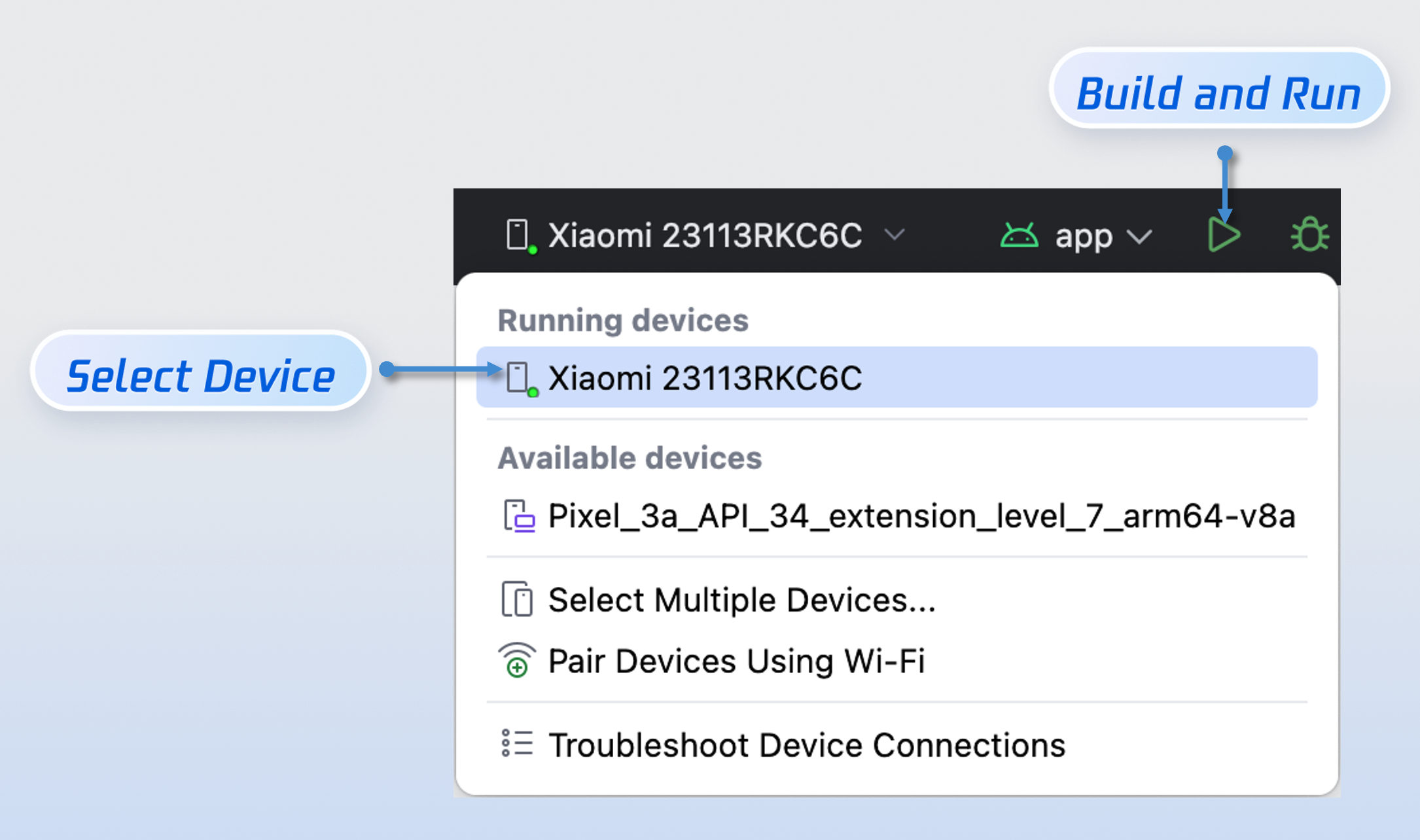
2. Build and run: Select a target device and run the Demo.
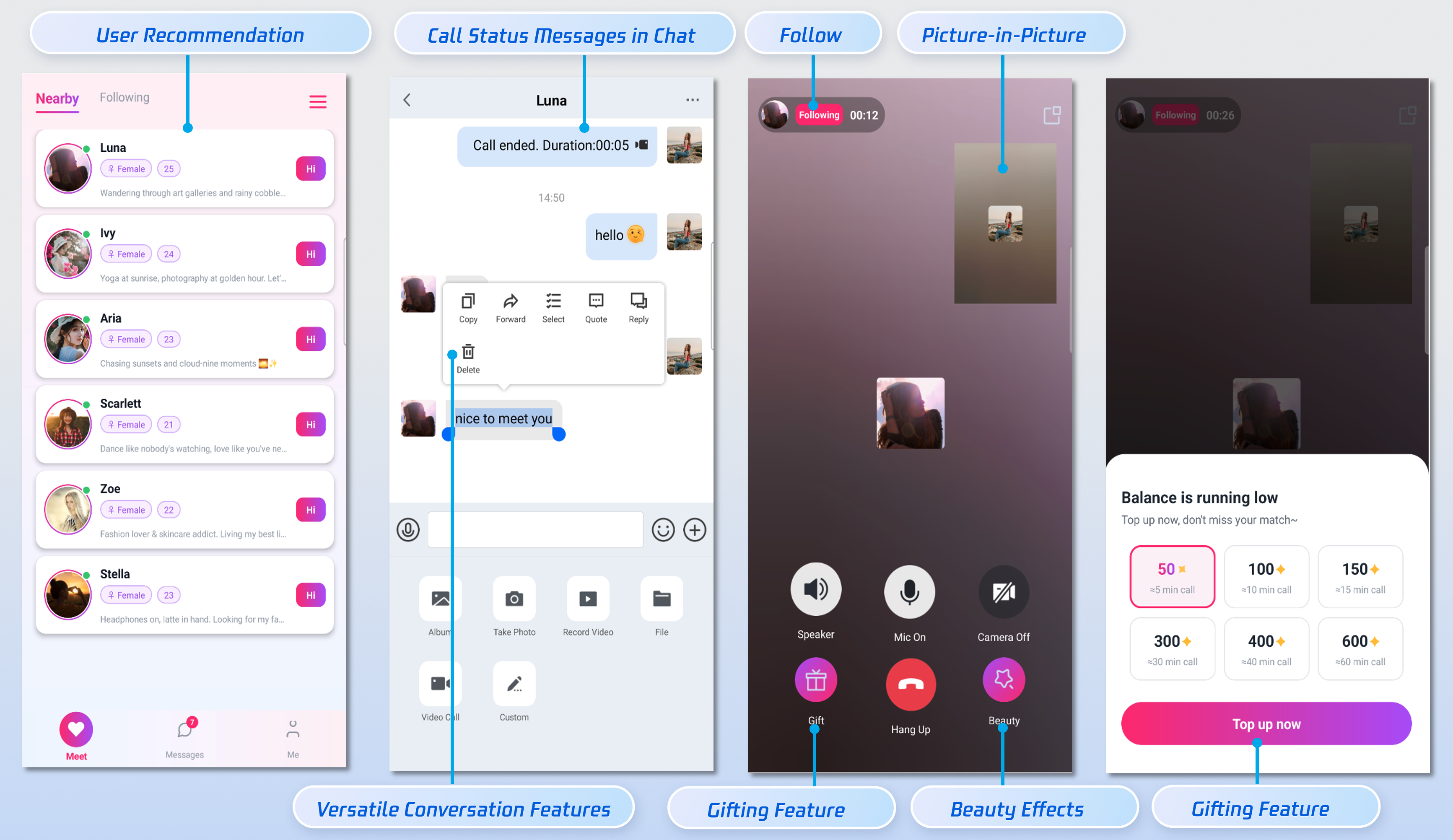
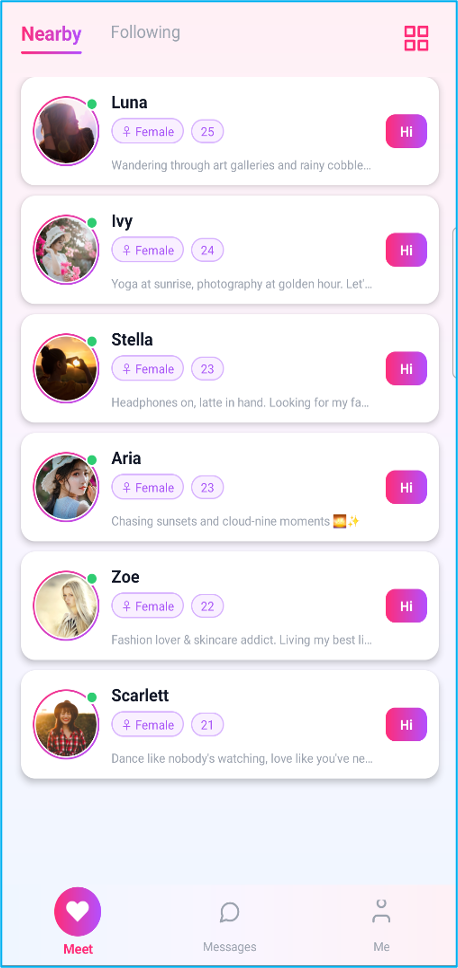
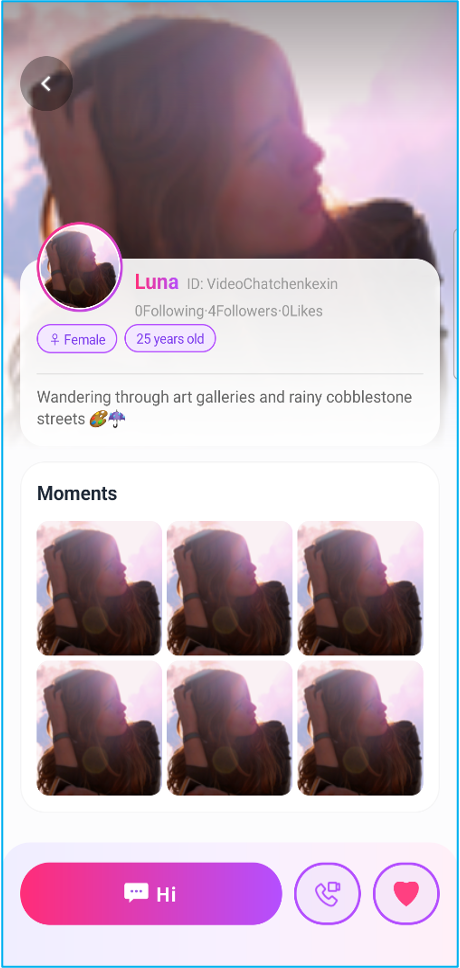
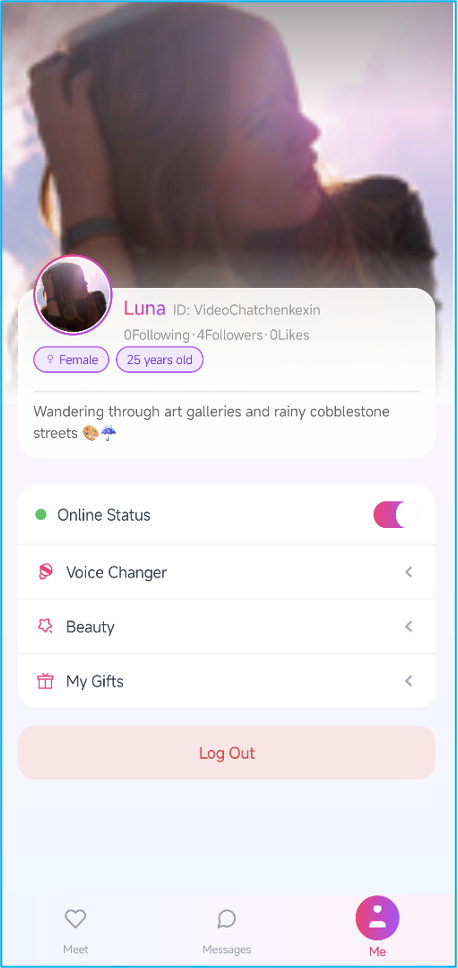
3. Successful run: After logging in, the following interface will be displayed.
Meet List
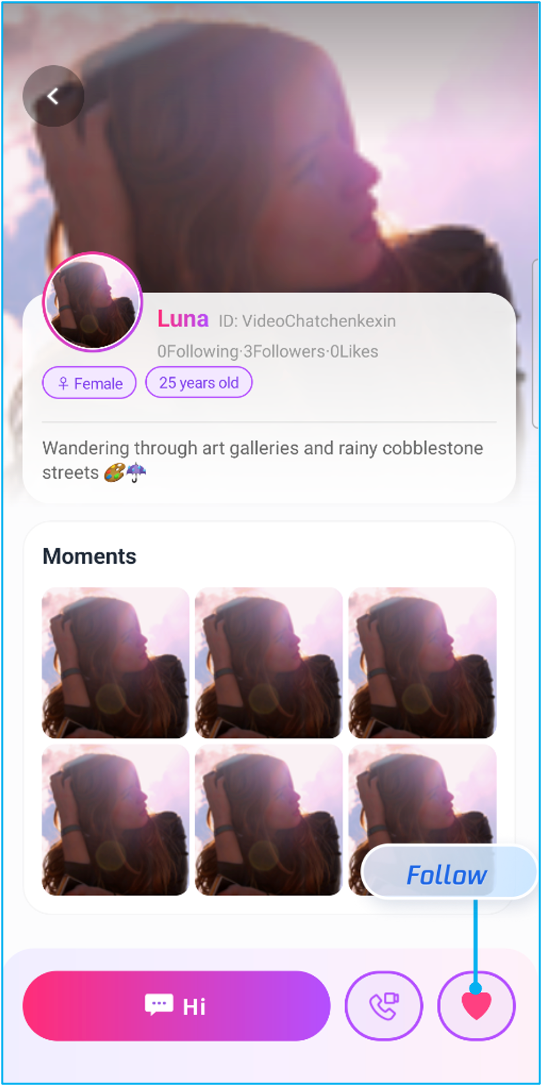
User Profile
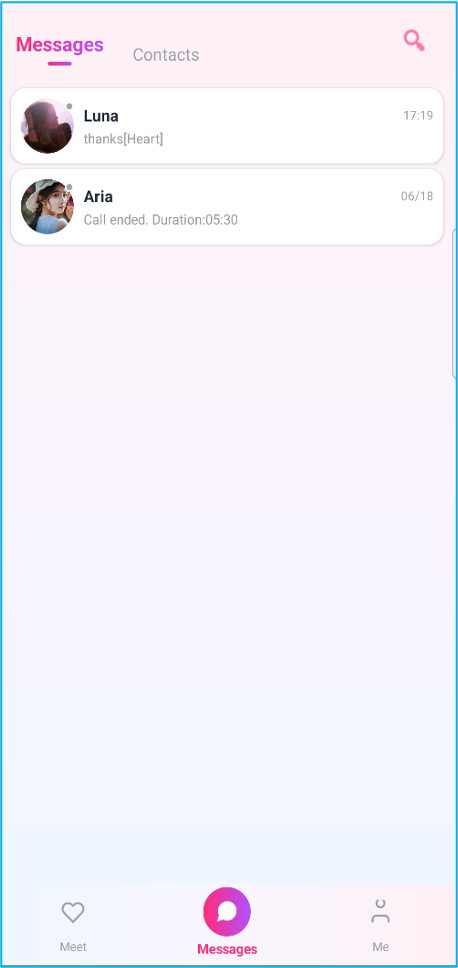
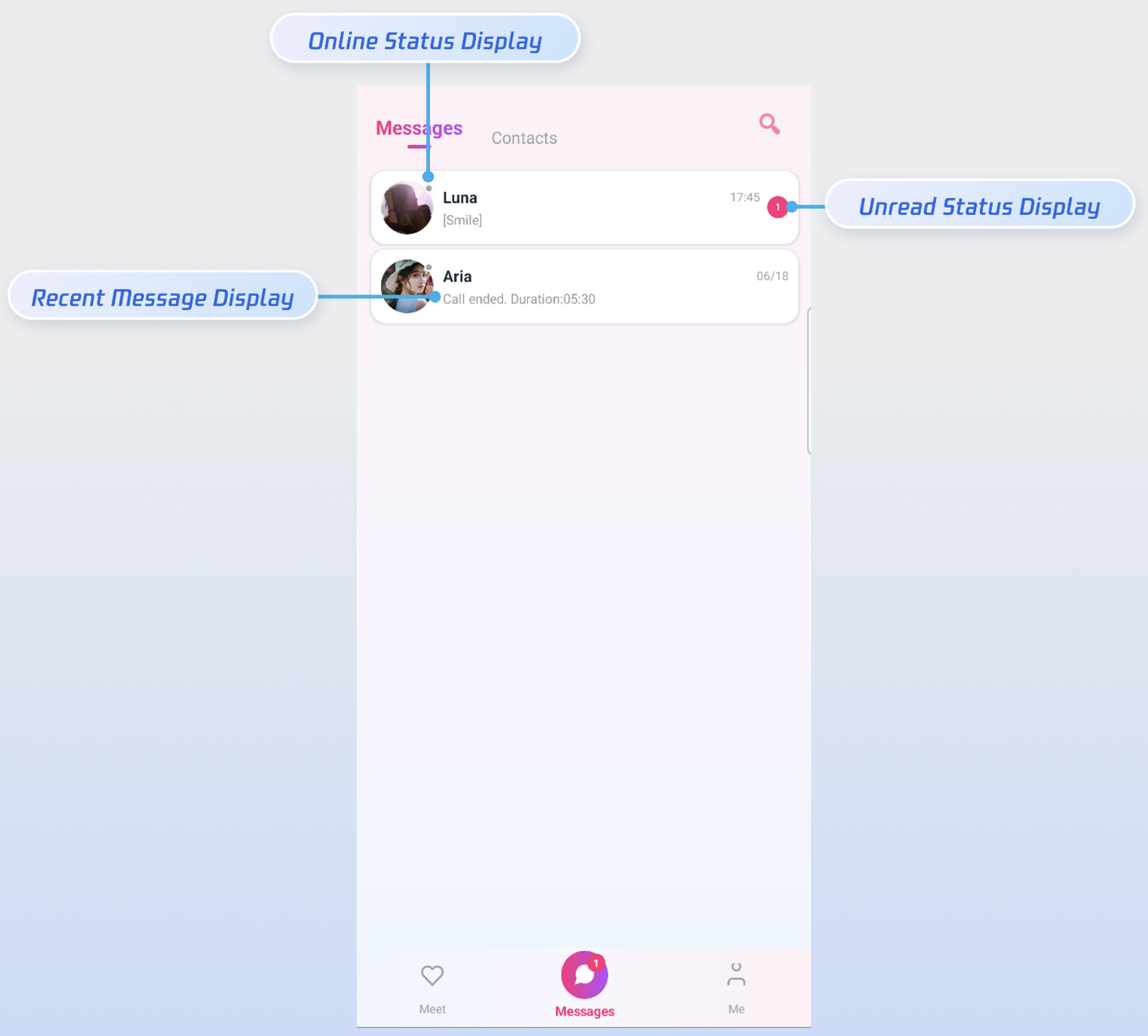
Message List
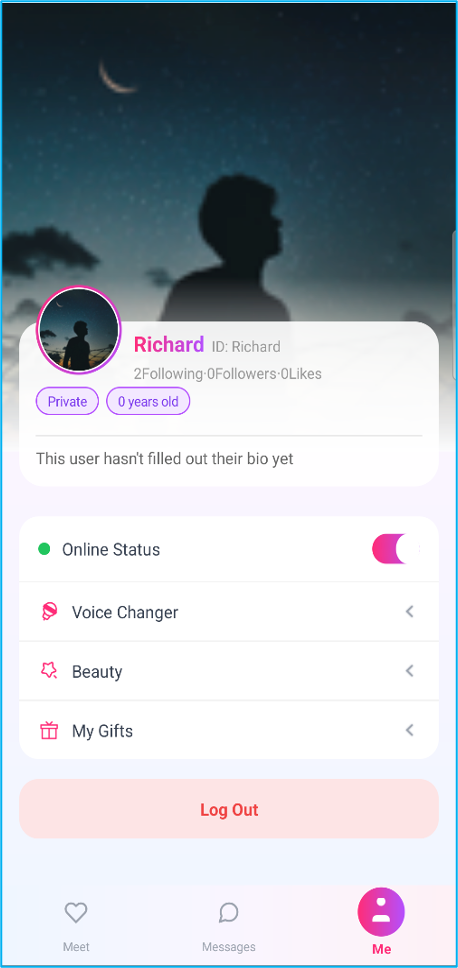
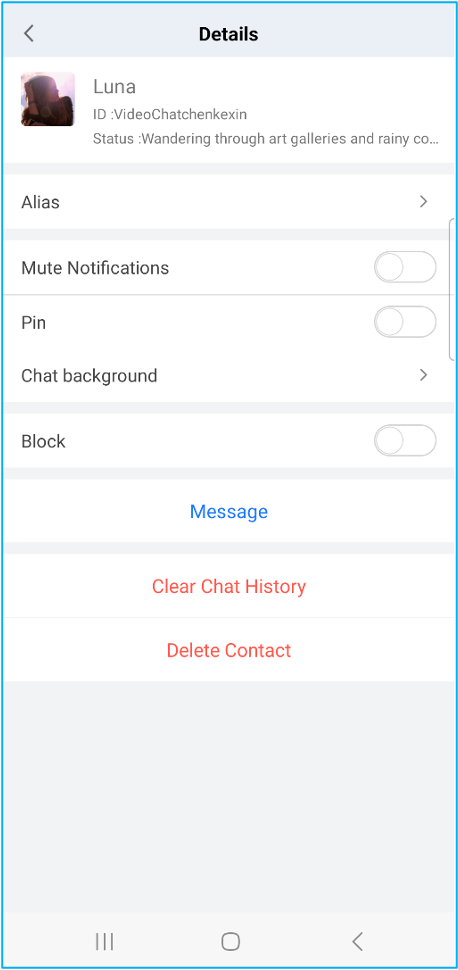
Personal Settings
Step 4: Video and Chat Interaction
1. Interact with recommended users: You can use another device (Device B) to log in as a "recommended user" (e.g., UserID: VideoChatlinxiaoyu) to engage in 1v1 text and video chats.
Device A: Log in to your account (UserID: Richard), follow the recommended user "Luna", and initiate a text or video chat.
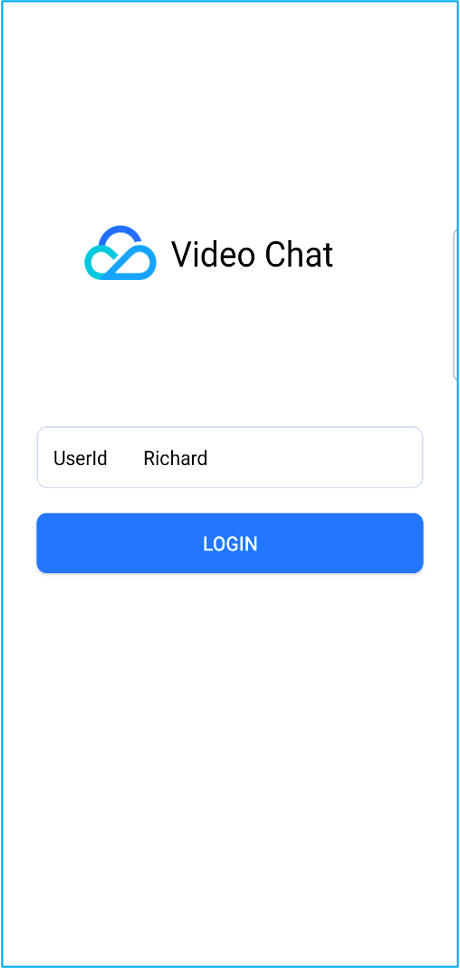
Log in to account "Richard"
Follow the recommended user "Luna"
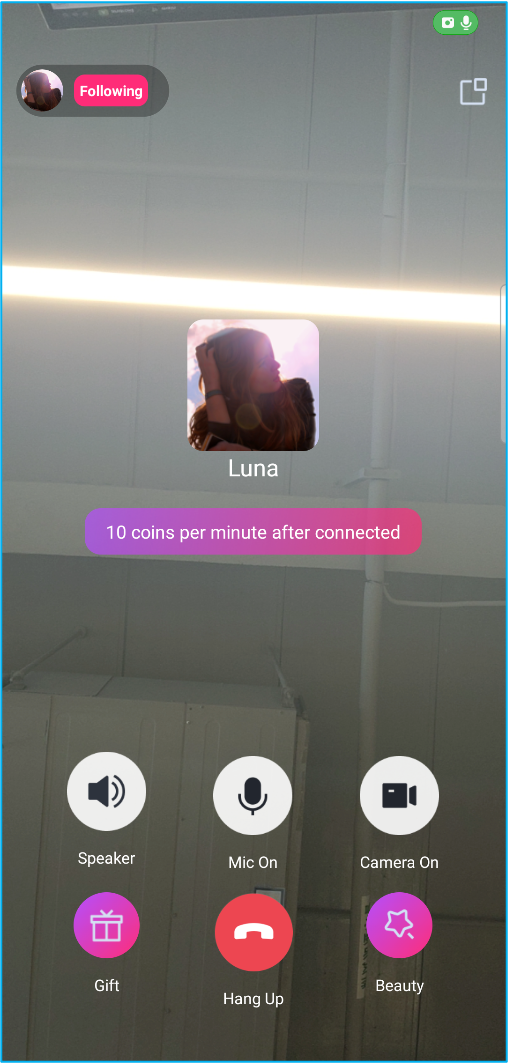
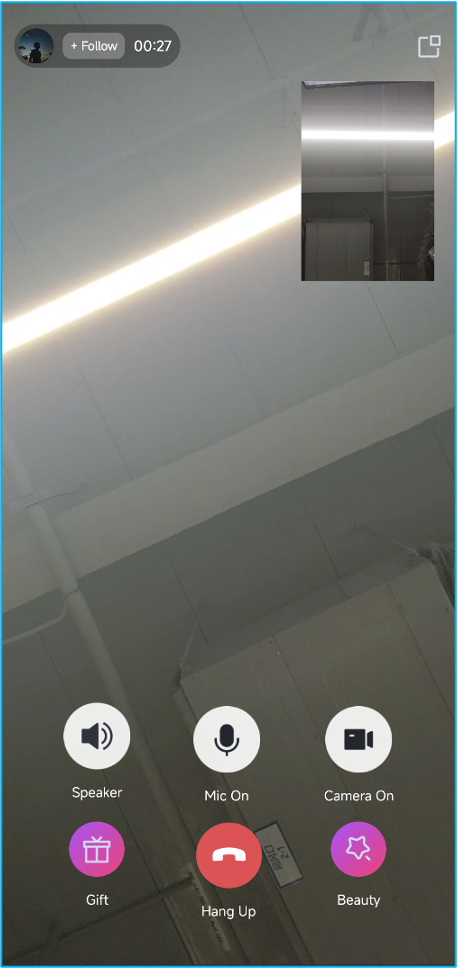
Start a video call with "Luna"
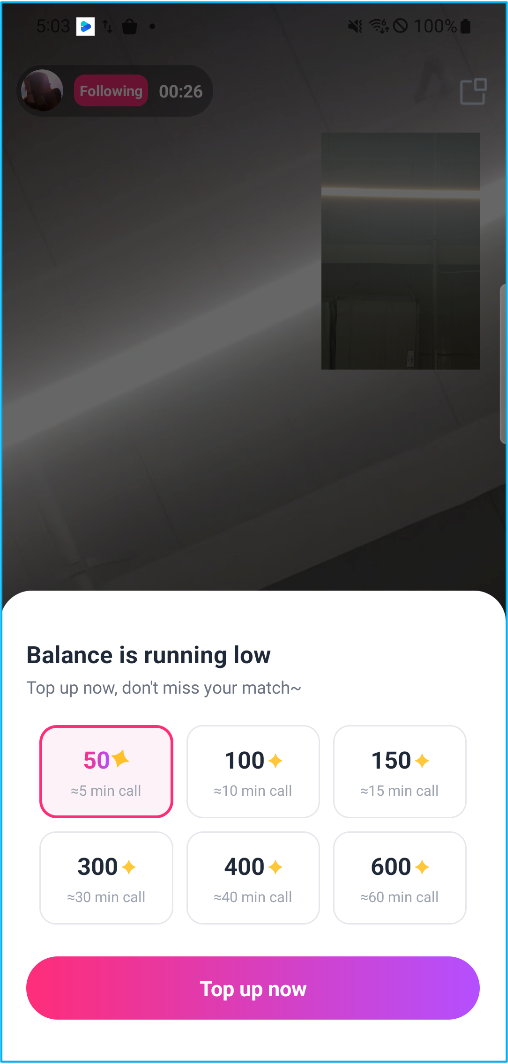
Insufficient balance for the call
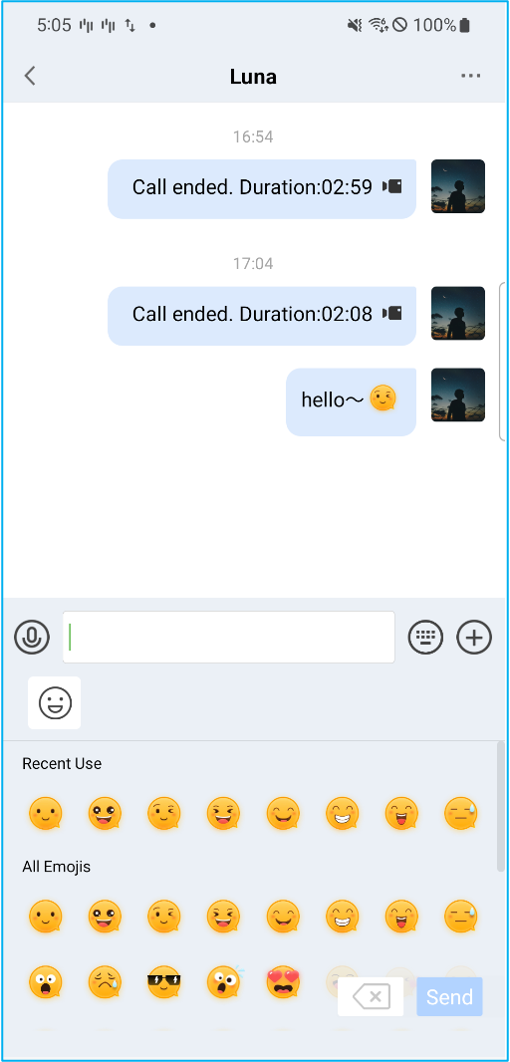
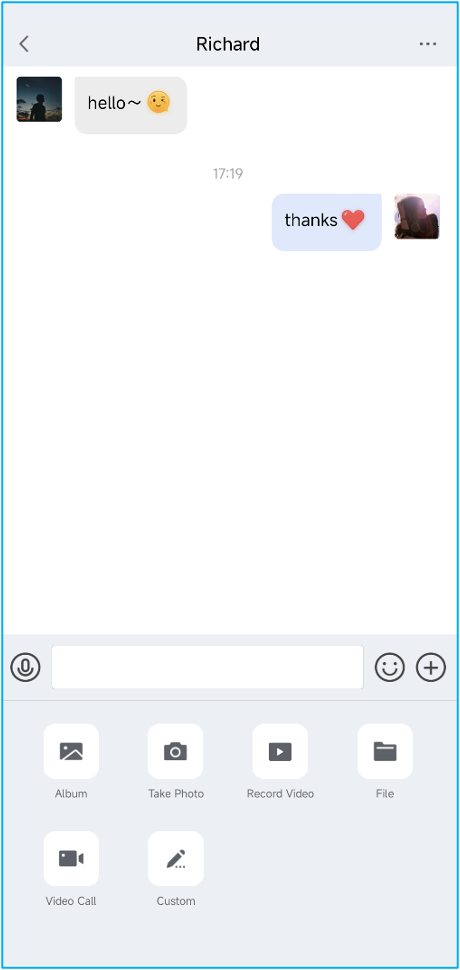
Chat with "Luna"
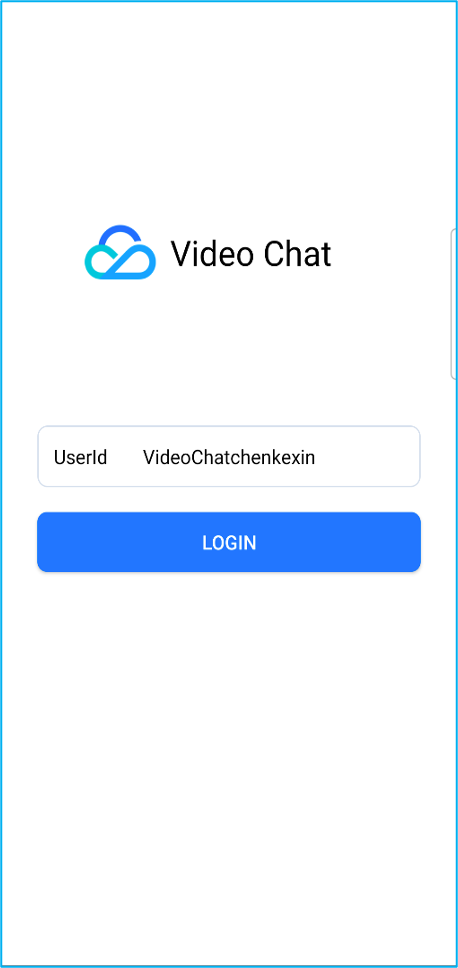
Device B: Log in to the account (UserID: VideoChatchenkexin) and engage in text and video chats with Richard.
Log in to Luna's account "VideoChatchenkexin"
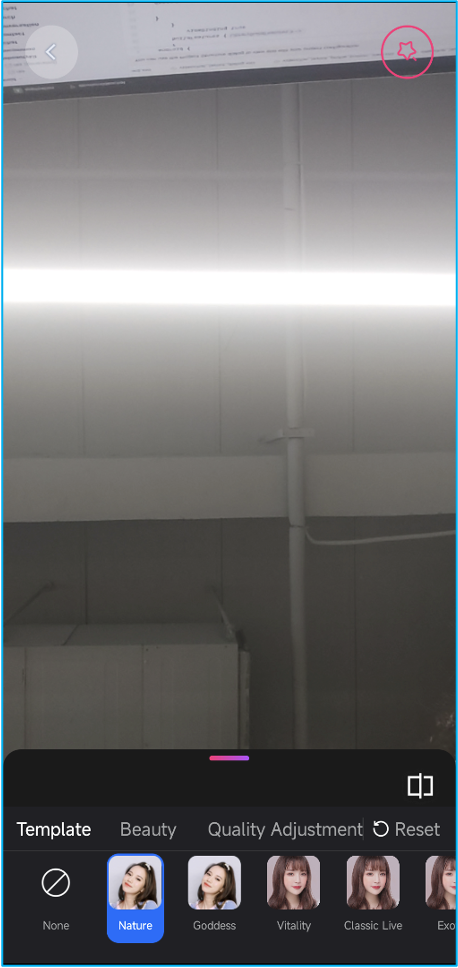
Enter the Settings page
Adjust beauty filters
Answer the call from "Richard"
Chat with "Richard"
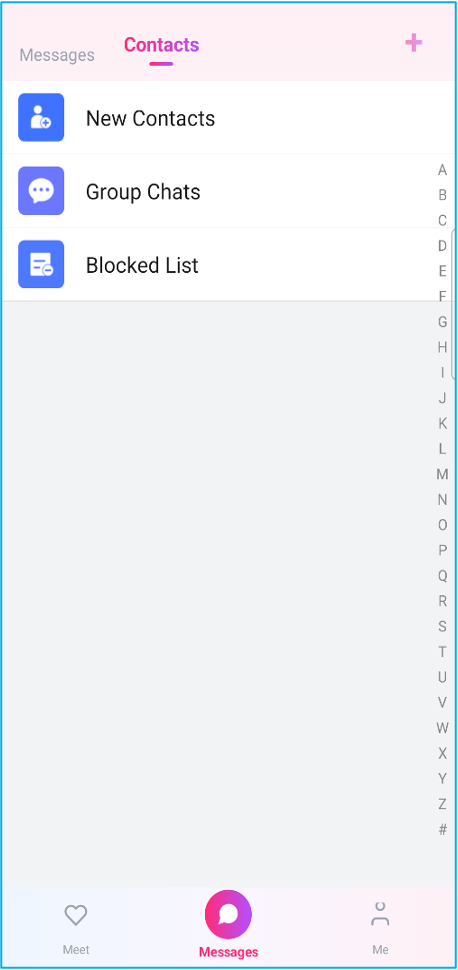
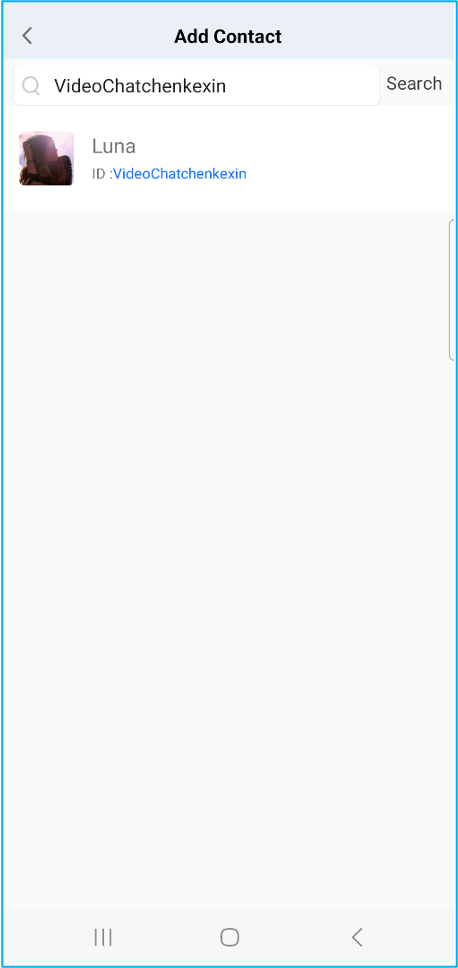
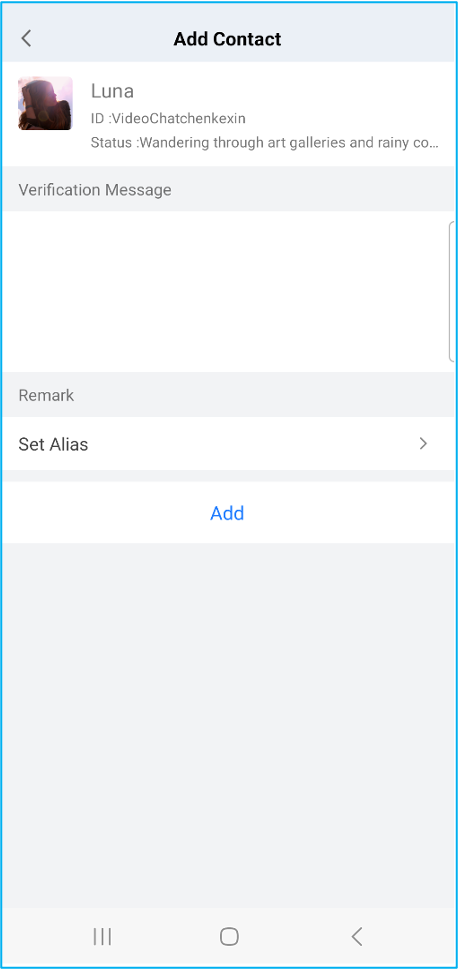
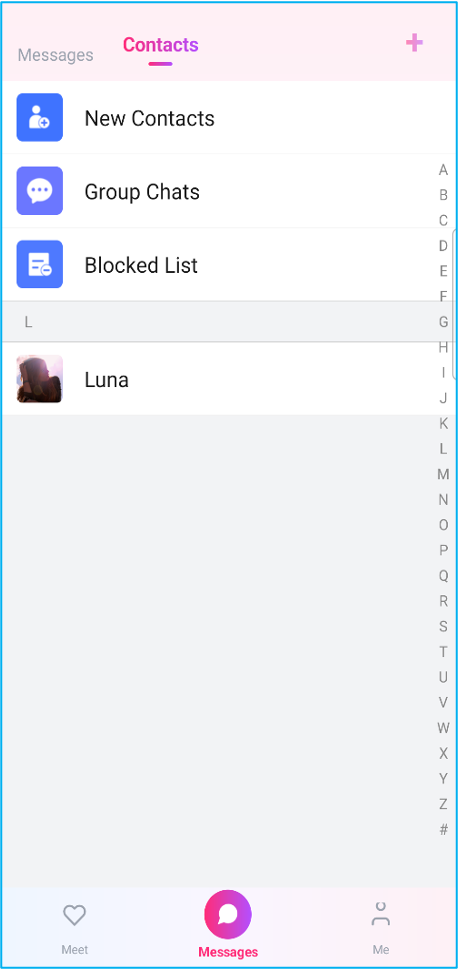
2. Interact via adding friends: Alternatively, you can log in to different accounts on two devices and interact using the "Add Friend" feature.
Select the "Contacts" tab
Search for the target user and add them as a friend
Select the user in "Contacts" to start a chat
Integration
To help you go live quickly, you can directly integrate the UI components from the Demo to implement core features like 1v1 chat and calling.
Step 1: Integrate Components
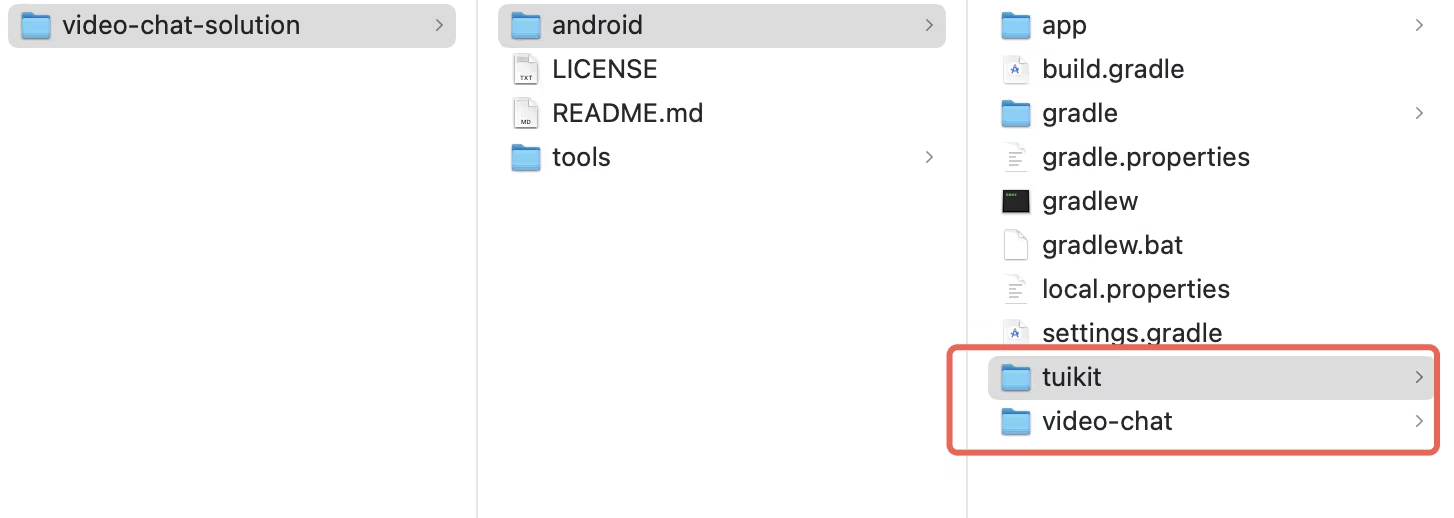
1. Download the VideoChat Demo source code from the GitHub repository, and copy the video-chat and tuikit components into your project directory:
2. Add the following code to settings.gradle to complete the integration.
Login authentication is required before you can use the component's features. Call the login API of LoginStore and pass in the sdkAppID, userID, and userSig obtained earlier for authentication:
userSig,// String, generated in the console or by your server
object :CompletionHandler{
override fun onSuccess(){
// Login successful. You can navigate to the conversation list or chat page.
}
override fun onFailure(code:Int, desc:String){
// Login failed. You can show an error prompt.
}
}
)
Note:
In a production environment, we highly recommend generating the UserSig on your server. Your App should request a dynamic UserSig from your business server for authentication when needed. For details, see Generating UserSig on the Server.
Step 3: Build the Recommended User List UI
1. Add the UI: Add the "Recommended User List (MeetPage)" to your project:
2. Populate data: You can pass the recommended user list via setPageUsers. You should also listen for the pull-up-to-load-more callback (onLoadMoreRequested) to append user data to the end of the list, and the pull-down-to-refresh callback (onRefreshRequested) to fully update the user data.
To build the conversation list, you simply need to create a ConversationPage object and add it to your layout. The conversation list automatically reads recent chat records from the database. When a user taps on a chat record, the ConversationPage navigates to the chat page by default.
Sample code is as follows:
val conversationPage =ConversationPage()
// R.id.container is the FrameLayout in your layout that hosts the conversation list Fragment
supportFragmentManager.beginTransaction()
.add(R.id.container, conversationPage)
.commit()
Step 5: Build the Chat UI
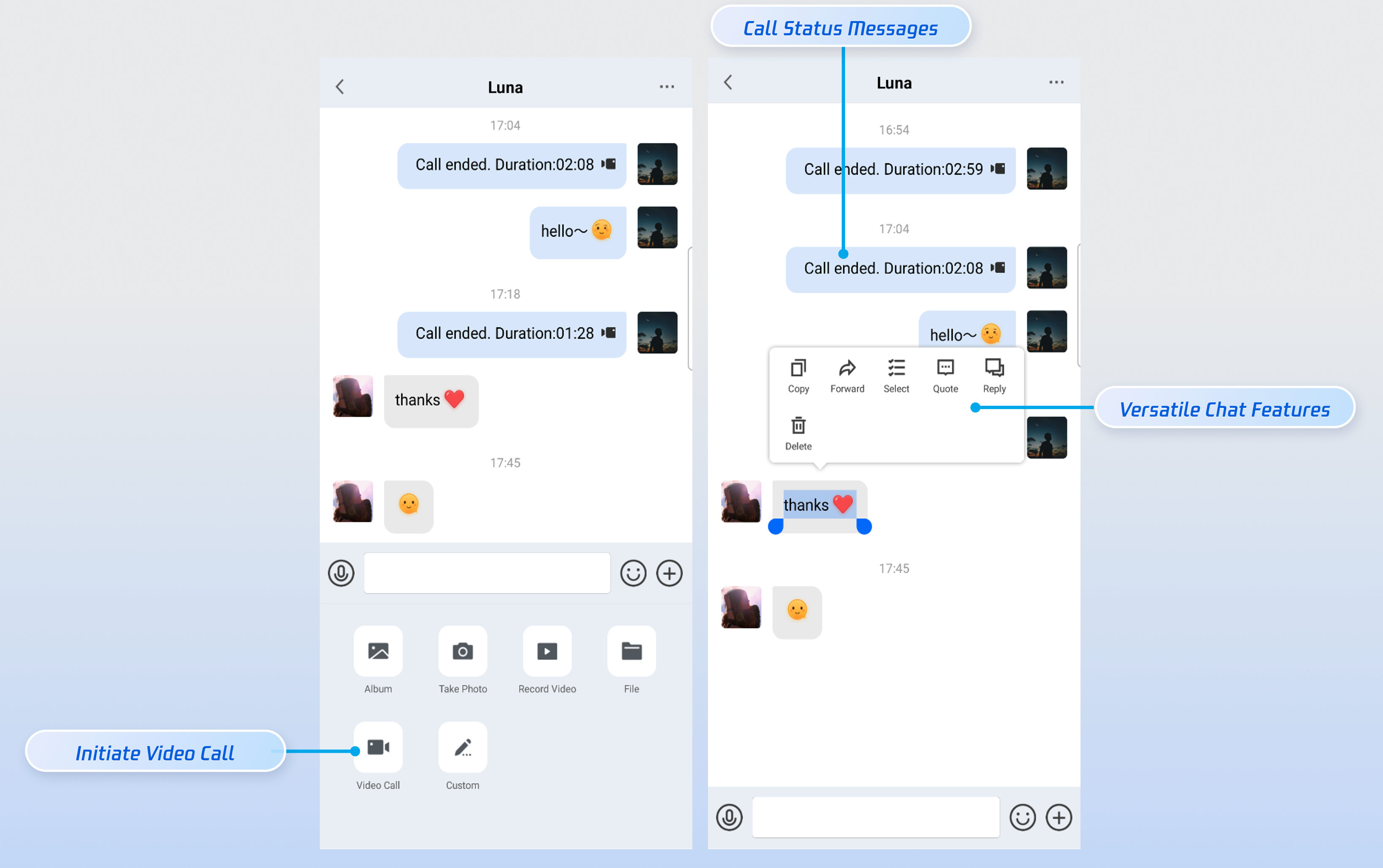
The chat UI is used to display and send messages. You can build the UI as follows.
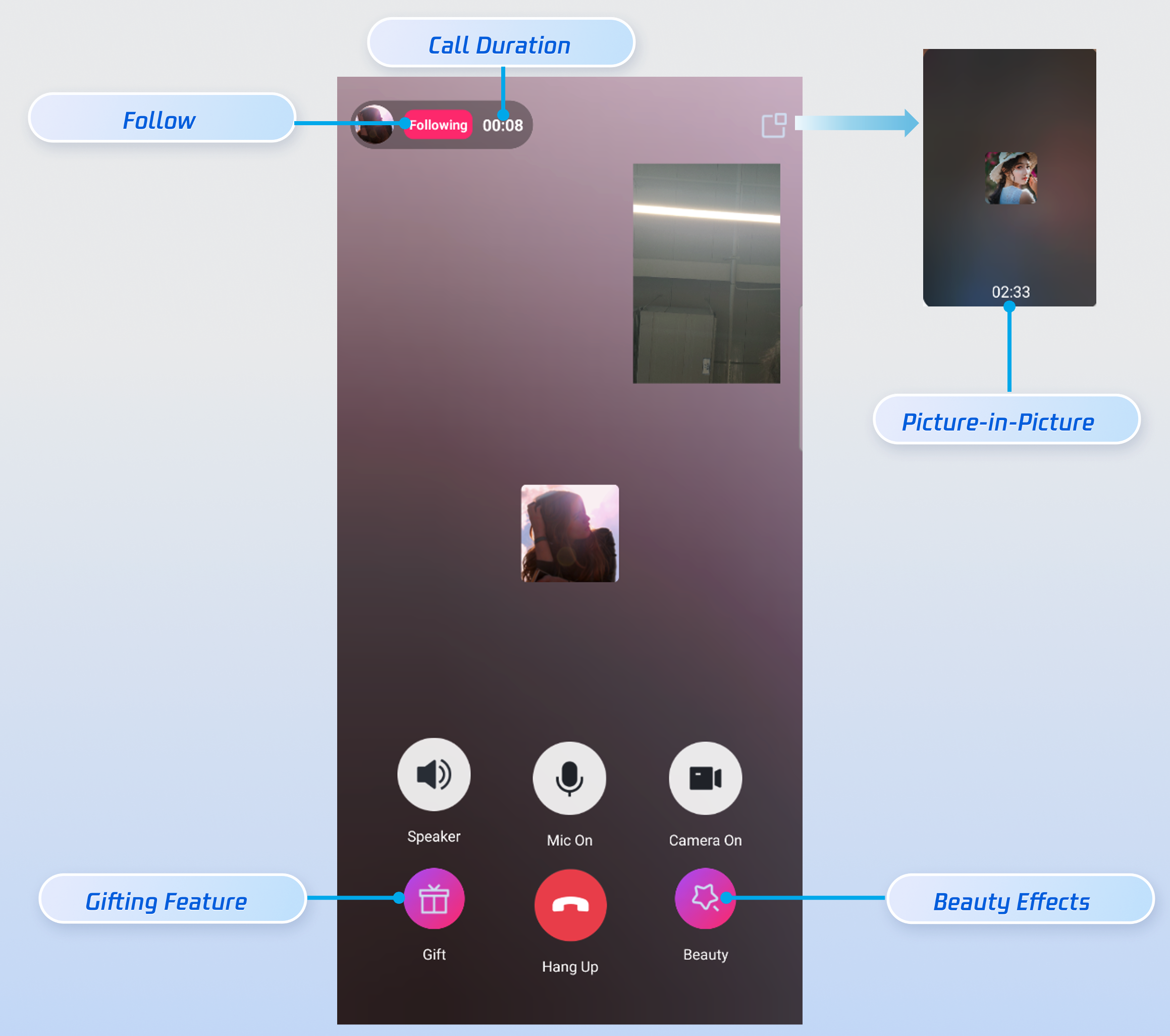
In social entertainment scenarios, calling requirements can be complex and diverse. Therefore, we recommend using the AtomicxCore SDK to flexibly customize your calling features. Take the call UI (VideoCallPage) in the video-chat module as an example: built upon the SDK's CallStore module, it deeply integrates core UI elements such as beauty filters, follow actions, and peer information display. You can use it as a source code reference or integrate it directly into your project to quickly build your own custom call UI.
Sample code for initiating a video call: You can initiate a video call via CallStore.calls and navigate to the call UI upon the success callback.
// Initiate a video call via CallStore.calls of the AtomicxCore SDK calling module.
Core component of the call view. Automatically listens to CallStore data to render the video, while providing UI customization options such as layout switching, and avatar/icon configuration.
Call lifecycle management: making, answering, rejecting, and hanging up calls. Retrieves real-time audio/video status of participants, call duration, call logs, and other data.
Audio/video device control: microphone (on/off / volume), camera (on/off / switch / quality), and screen sharing, along with real-time monitoring of device status.
More Features
You can integrate the following features to enhance your app's core competitiveness and deliver a better user experience.
Feature
Description
Integration Guide
Call Billing
We provide highly accurate server-side call status callbacks. You can listen for the server-side callbacks for call start and call end to implement call billing functionality.
We provide two beauty effect solutions: Basic Beauty (built-in) and Advanced Beauty (requires additional integration and payment). You can choose the solution that best fits your needs.
Implementation methods and application scenarios for TRTC voice effects, helping developers create a rich and diverse interactive audio experience for users.
The Demo integrates the beauty filter feature by default, but it requires License authentication. Please check whether the LicenseURL and LicenseKey in video-chat-solution/android/app/src/main/java/io/trtc/uikit/demo/debug/GenerateTestUserSig.java are correct. For how to obtain them, please refer to the License Guide.
How do I customize the UI?
If you have highly customized UI requirements, we recommend the following:
1. Calling module: You can use the AtomicxCore SDK (for sample code, refer to UI-free Integration) to customize the calling UI. Its core modules are as follows:
The login management class used to handle business logic such as user login, logout, and user information management. LoginStore provides a complete set of login management APIs, including functions for logging in, logging out, and setting personal information. You can use this class to manage user login states and profiles.
Core component for the call view. It automatically listens to CallStore data to handle video rendering, and provides UI customization capabilities such as layout switching, and avatar/icon configurations.
Call lifecycle management: making, answering, rejecting, and hanging up calls. It obtains real-time data including the audio/video status of call participants, call duration, and call logs.
Audio/video device control: microphone (on/off/volume), camera (on/off/switch/quality), and screen sharing, along with real-time monitoring of device status.
How to Customize the Display of Call Status Messages in Chat?
When the call status changes, the Chat SDK will dispatch a call status change message based on the following signaling protocol:
Scenario
Judgment Logic
Identify "Call Initiated"
actionType = 1 and cmd = 'videoCall' or 'audioCall'
Identify "Call Answered"
actionType = 3
Identify "Call Ended" & "Call Duration"
actionType = 1 and cmd = 'hangup'. The duration is obtained from the call_end field (in seconds).
Identify "Call Canceled"
actionType = 2
Identify "Call Rejected"
actionType = 4
Identify "Call Rejected due to Line Busy"
actionType = 4 and cmd = "line_busy"
Identify "Call Timeout" (unanswered)
actionType = 5
With UI Integration
You can locate the source code in tuikit/TUIChat/tuichat/src/main/java/com/tencent/qcloud/tuikit/tuichat/bean/CallModel.java and modify the getContentForSimplifyAppearance function to customize how call status messages are displayed on the UI.
/**
* Customize the display text for 1v1 call status messages
If you are using a UI-free integration, you can set up an Chat message listener to handle the display of call status messages. The sample code is as follows:
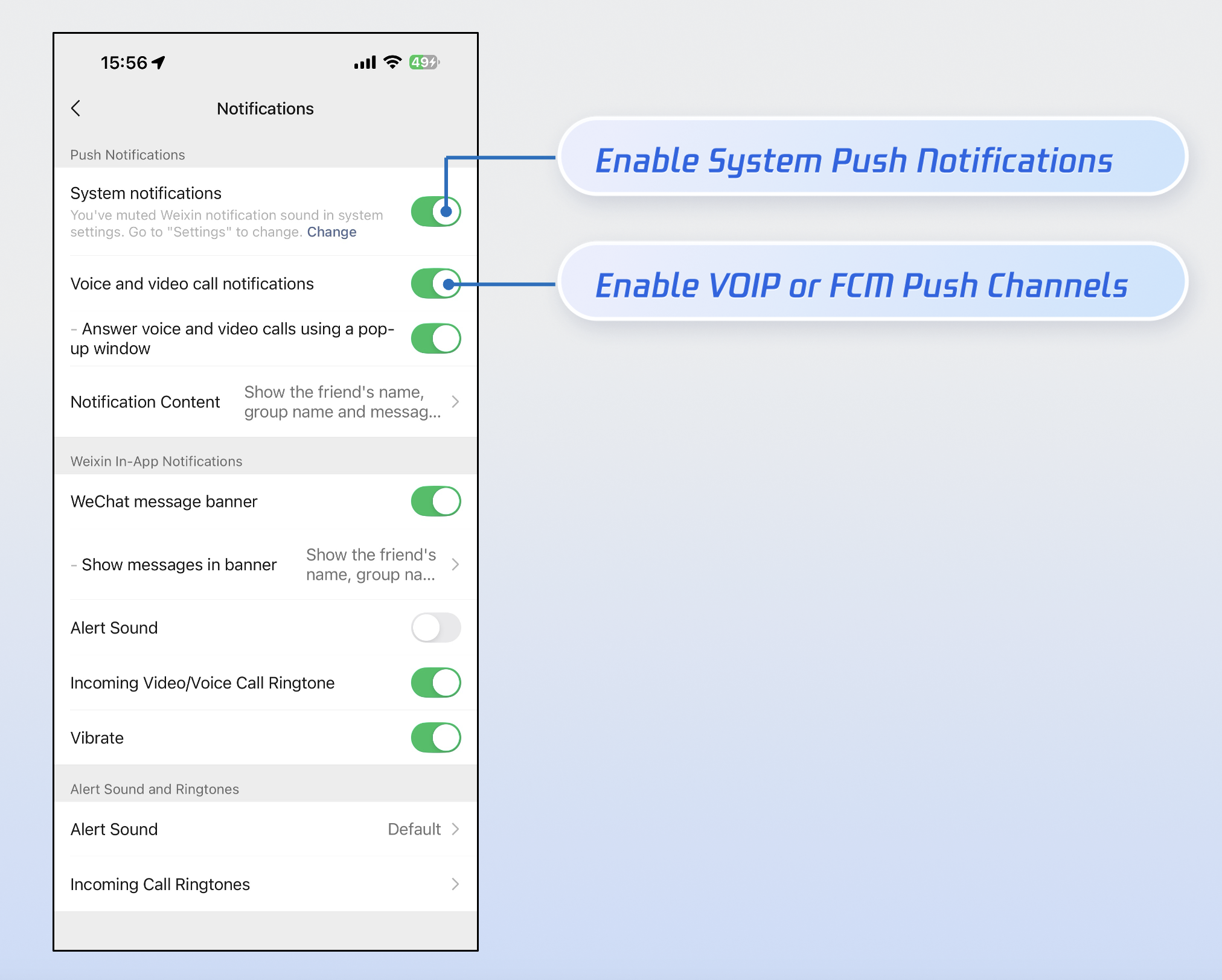
2. Provide push notification controls:Based on our experience, over 90% of cases where users fail to receive call notifications are due to them manually disabling the app's notification permissions. To ensure high call reachability, we strongly recommend the following:
Send notifications prudently: Avoid sending low-quality or irrelevant notifications. This minimizes the likelihood of users disabling notification permissions out of frustration over spam.
Provide granular controls: Following the best practices of leading apps like WeChat, provide independent toggles within your app's internal settings to control "Notification" and "FCM Data Message" separately, rather than driving users to the system settings to disable all notifications across the board.
Contact Us
If you have any questions or suggestions during integration or usage, feel free to join our Telegram group or contact us for support.