
Intelligent Voice Customer Service
Scenario Introduction
Intelligent voice customer service is a customer service system that uses artificial intelligence (AI) and Automatic Speech Recognition (ASR) technology to achieve automated interaction and problem-solving. Prior to the advent of AI large models, intelligent customer service primarily leveraged natural language processing and machine learning algorithms to understand customer intentions, and relied on predefined rules and knowledge bases to provide answers. With the development of Large Language Models (LLMs), more and more intelligent customer services have integrated the capabilities of large models. LLM technology enables intelligent voice customer service to better understand the context of conversations, thus achieving coherent conversations.
The introduction of Real-Time Communication (RTC) technology brings real-time communication capabilities to intelligent voice customer service. This means that intelligent customer service can respond more quickly to customer needs, providing instant feedback and solutions. At the same time, Tencent RTC also supports group calls, screen sharing, and other features, further enhancing the efficiency and quality of customer service.
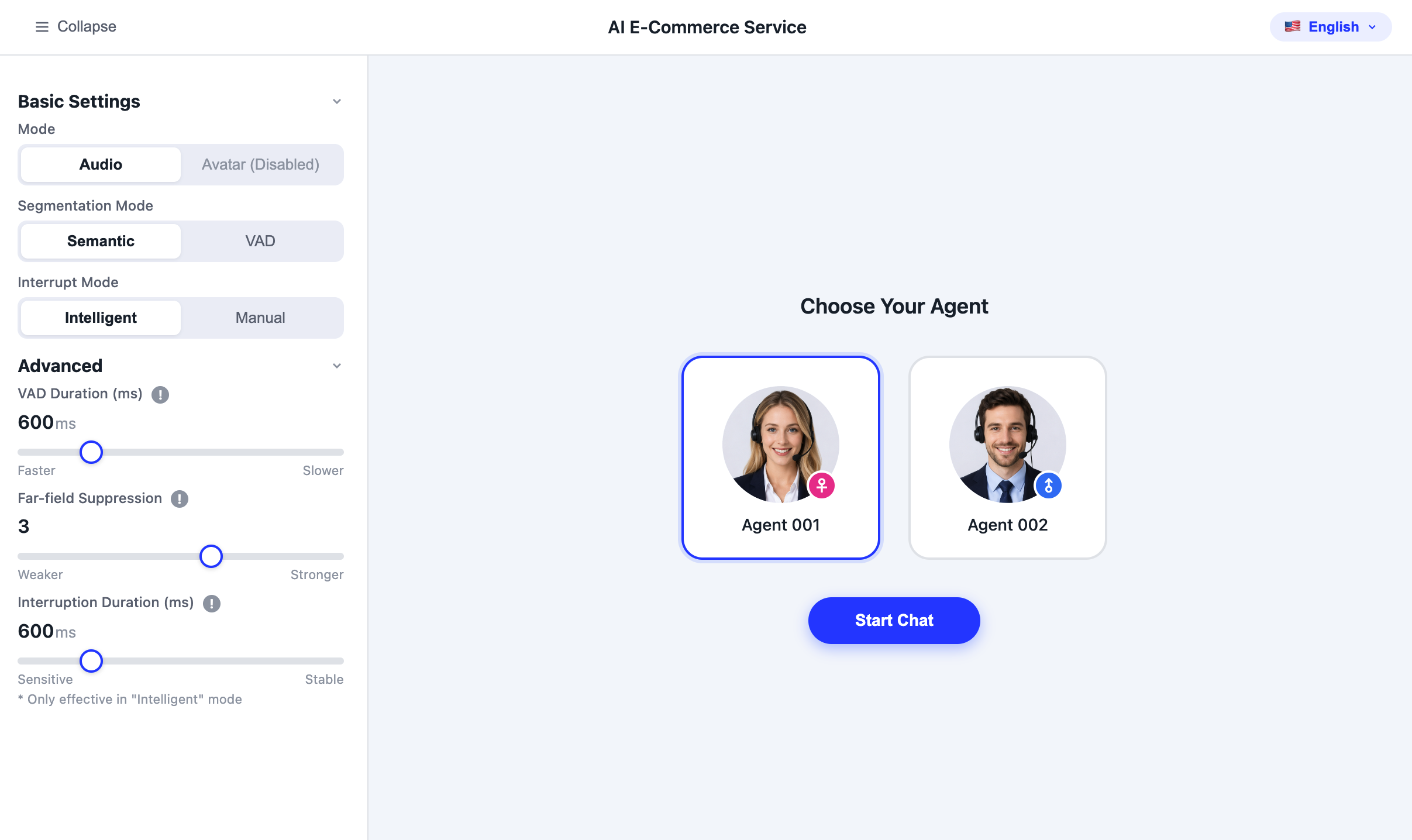
Implementation Solution
Typically, implementing a complete intelligent customer service scenario involves several modules: TRTC, Conversational AI, STT, LLM, TTS, and so on. The key actions and feature points under each module are shown in the table below:
Feature | Application in AI Intelligent Customer Service Scenarios |
RTC | Streaming transmission technology ensures the continuity and stability of voice and video data, reduces latency and jitter, and delivers a high-quality experience comparable to human customer service calls. Users can engage in more natural conversations with the intelligent customer service system, similar to talking with a real customer service agent. This interactive experience can significantly improve user satisfaction. |
Conversational AI | Tencent Conversational AI enables businesses to flexibly connect with multiple large language models and build real-time audio and video interactions between AI and users. Powered by global low-delay transmission of Tencent Real-Time Communication (Tencent RTC), Conversational AI achieves voice conversation latency as low as 1 second and delivers natural and realistic conversation effects, making integration convenient and ready to use out of the box. |
STT | The STT module captures the user's voice stream in real time, converts it into text, and then sends it to the LLM for processing. Leveraging TRTC's ultra-low-latency audio pipeline and advanced audio processing capabilities, including AI noise reduction and echo cancellation, the STT module delivers clear and accurate transcription even in noisy environments. |
LLM | LLM technology enables intelligent voice customer service to better understand the context of conversations, achieving coherent conversations. LLM can capture semantic and contextual information in conversations, identify user intentions, and associate the content of the previous conversation with the current one. |
TTS | The integration of third-party TTS is supported. By introducing personalized training data to a model or adjusting model parameters, TTS can generate voice output that meets specific requirements. Intelligent voice customer service can offer different voice styles based on user preferences or the needs of specific scenarios. |
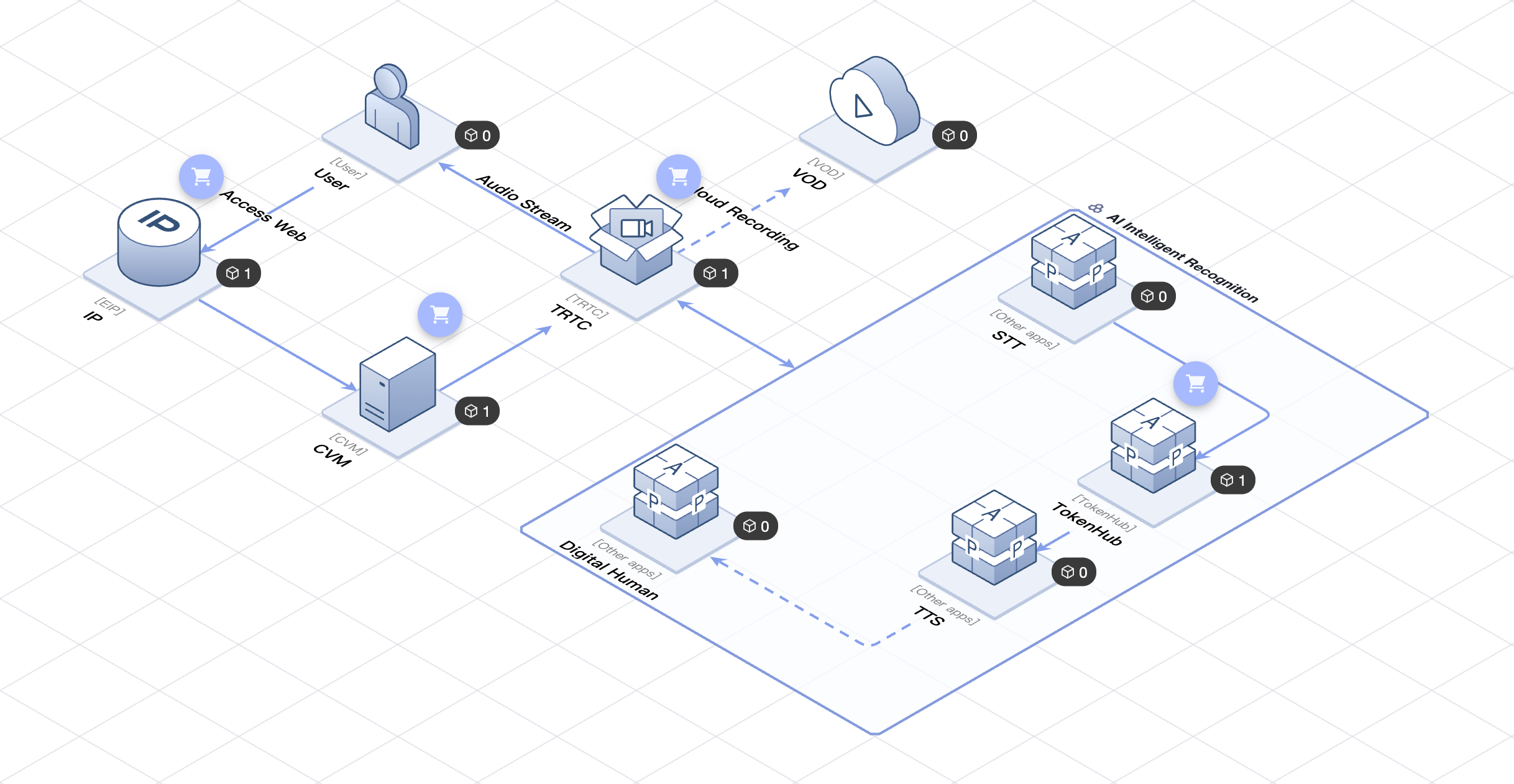
Solution Architecture
The following is the technical architecture of an AI intelligent customer service solution built based on the architecture governance of Tencent Cloud TSA. You can deploy it quickly via TSA.
Prerequisites
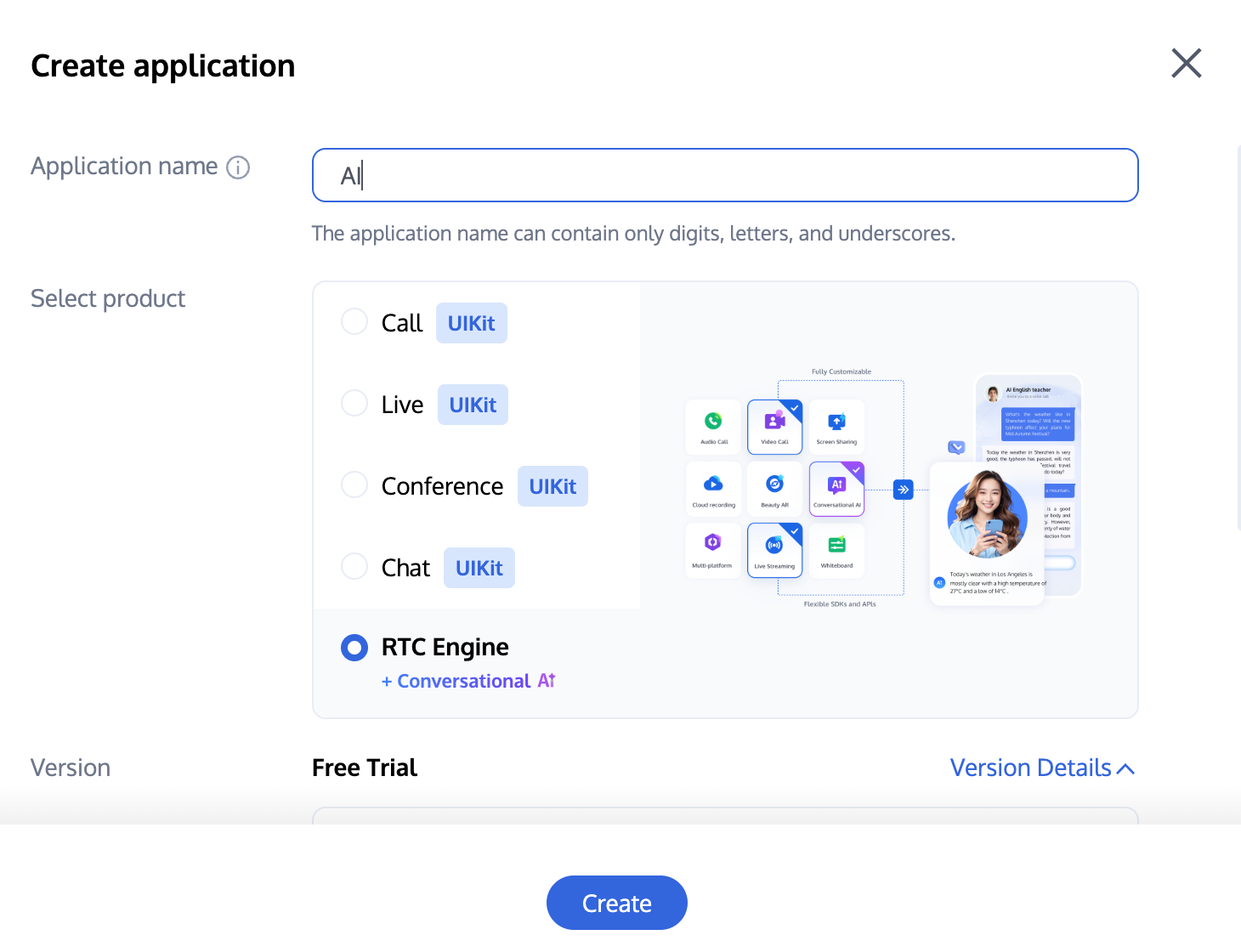
Preparing RTC Engine
Create an RTC Engine application: Tencent RTC Console > Applications > Create RTC Engine Application. For detailed steps, see Enable Conversational AI Service.
Note:
The RTC Engine trial version supports Conversational AI and Speech AI Service. The usage fees incurred are postpaid based on usage. For specific billing rules, see Billing of Conversational AI.
Preparing STT
Use the built-in Tencent ASR in TRTC:
Tencent ASR is the built-in ASR engine in TRTC. Unlike third-party providers (Azure, Deepgram, Soniox), it does not require the CustomParam field. You only need to configure the top-level STTConfig field. For a complete reference of Tencent ASR parameters, see ASR Parameter Configuration Guide.
Use a third-party STT: For currently supported STT providers, see Available Providers.
Preparing LLM
The flexible framework of TRTC supports integrating any mainstream LLM, including OpenAI-compatible models (OpenAI, Gemini, MiniMax, Hunyuan) and agent platforms such as Dify and Coze. You can select the most suitable engine based on your specific scenario. For the specific LLM providers supported, see Available Providers.
Preparing TTS
Use the built-in Native Real-time TTS in TRTC:
To use the built-in TTS service in TRTC, see Text-to-Speech Configuration and pass in a JSON string of the specified format in the TTSConfig field of the StartAIConversation API. No external account or API key is required.
Use a third-party or custom TTS: For currently supported TTS providers, see Available Providers.
Integration Steps
Business Flowchart
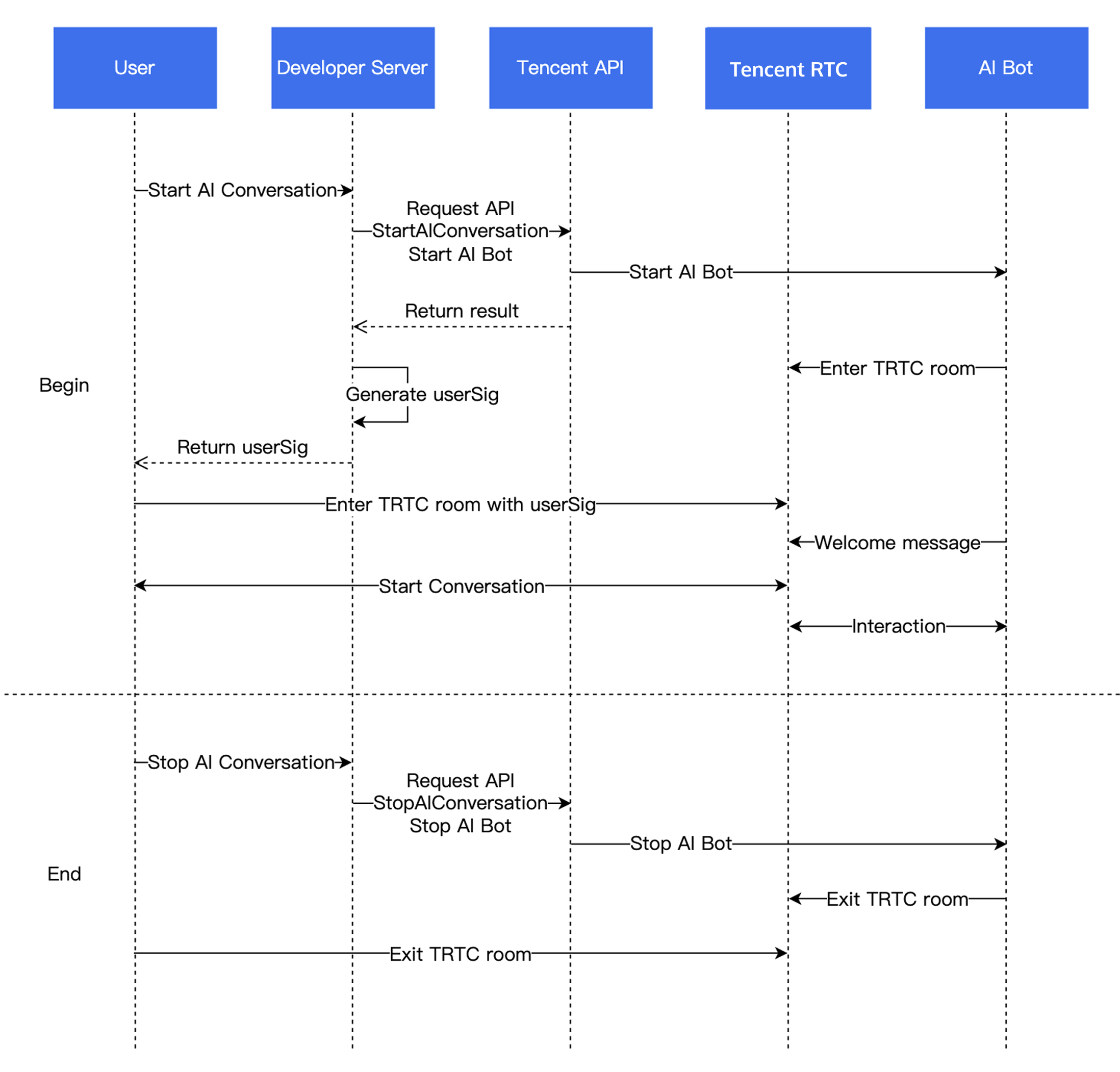
Step 1: Integrating the RTC Engine SDK.
Import the RTC Engine SDK into your project and enter a TRTC room. For the parameters of the intelligent customer service room entry scenario, the audio conversation customer service:
TRTCAppSceneAudioCall or the digital human video customer service: TRTCAppSceneVideoCall is recommended.Step 2: Releasing the Audio Stream
You can call startLocalAudio to enable capture via microphone. When calling this API, you need to set the quality parameter to determine the capture mode. Although the parameter is named quality, a higher quality value does not always ensure better audio quality. Each business scenario has an optimal parameter setting (This parameter actually indicates the scene).
SPEECH mode is recommended for AI conversation scenarios. In this mode, the audio module of the SDK focuses on refining voice signals and filtering out ambient noise as much as possible. In addition, this mode can ensure the quality of audio data in environments with poor network quality. Therefore, this mode is particularly suitable for scenarios that focus on vocal communication, such as "video calls" and "online meetings".
// Enable capture via microphone and set the mode to SPEECH mode (strong denoising capability and resistance to poor network conditions).mCloud.startLocalAudio(TRTCCloudDef.TRTC_AUDIO_QUALITY_SPEECH);
self.trtcCloud = [TRTCCloud sharedInstance];// Enable capture via microphone and set the mode to SPEECH mode (strong denoising capability and resistance to poor network conditions).[self.trtcCloud startLocalAudio:TRTCAudioQualitySpeech];
// Enable capture via microphone and set the mode to SPEECH mode (strong denoising capability and resistance to poor network conditions).trtcCloud.startLocalAudio(TRTCAudioQuality.speech);
Use the trtc.startLocalAudio() method to enable the microphone and release the audio stream to the room.
await trtc.startLocalAudio({ option: { profile: TRTC.TYPE.AUDIO_PROFILE_STANDARD }});
Call startLocalAudio to enable capture via microphone. SPEECH mode is recommended for AI conversation scenarios.
// Enable capture via microphone and set the mode to SPEECH mode.// Provide strong denoising capability and resistance to poor network conditions.ITRTCCloud* trtcCloud = CRTCWindowsApp::GetInstance()->trtc_cloud_;trtcCloud->startLocalAudio(TRTCAudioQualitySpeech);
Call startLocalAudio to enable capture via microphone. SPEECH mode is recommended for AI conversation scenarios.
// Enable capture via microphone and set the mode to SPEECH mode.// Provide strong denoising capability and resistance to poor network conditions.AppDelegate *appDelegate = (AppDelegate *)[[NSApplication sharedApplication] delegate];[appDelegate.trtcCloud startLocalAudio:TRTCAudioQualitySpeech];
Step 3: Initiating an AI Conversation
Starting an AI Conversation: StartAIConversation
Call the Start AI Conversation Task API via the business backend to initiate a real-time AI conversation. Upon a successful call, the AI bot will enter the RTC Engine room. Populate
STTConfig, LLMConfig, and TTSConfig with the STT/LLM/TTS-related information from the Prerequisites.The following describes how to configure
STTConfig by using Tencent ASR as the STT engine.Configuration Description
Configuration Example
{"Language": "zh","VadSilenceTime": 1000}
The following describes how to configure
LLMConfig by using an LLM model that follows the OpenAI standard protocol as an example.Configuration Descriptions
Field | Type | Required | Description |
LLMType | String | Yes | The LLM type. For any LLM that complies with the OpenAI API protocol, enter openai. |
Model | String | Yes | Specific LLM name. For example, gpt-4o and deepseek-chat. |
APIKey | String | Yes | The APIKey for the LLM. |
APIUrl | String | Yes | The APIUrl for the LLM. |
Streaming | Boolean | No | Whether streaming is enabled. The default value is false. It is recommended to set it to true. |
SystemPrompt | String | No | System prompt. |
Timeout | Float | No | Timeout period. Value range: [1, 50]. Default value: 3 seconds (Unit: second). |
History | Integer | No | Set the context rounds for LLM. Default value: 0 (No context management is provided). Maximum value: 50 (Context management is provided for the most recent 50 rounds). |
MaxTokens | Integer | No | Maximum token limit for output text. |
Temperature | Float | No | Sampling temperature. |
TopP | Float | No | Selection range for sampling. This parameter controls the diversity of output tokens. |
UserMessages | Object[] | No | User prompt. |
MetaInfo | Object | No | Custom parameters. These parameters will be contained in the request body and passed to the LLM. |
Configuration Example
{"LLMType": "openai","Model": "gpt-4o","APIKey": "api-key","APIUrl": "https://api.openai.com/v1/chat/completions","Streaming": true,"SystemPrompt": "You are a personal assistant","Timeout": 3.0,"History": 5,"MetaInfo": {},"MaxTokens": 4096,"Temperature": 0.8,"TopP": 0.8,"UserMessages": [{"Role": "user","Content": "content"},{"Role": "assistant","Content": "content"}]}
The following describes how to configure
TTSConfig by using the built-in TTS in TRTC as an example.Configuration Description
Field | Type | Required | Description |
TTSType | String | Yes | Fixed value: "flow". |
VoiceId | String | Yes | |
Model | String | Yes | TTS model version. Current default: flow_01_turbo. |
Speed | Float | No | Speech rate. Range: [0.5, 2.0]. Default value: 1.0. |
Volume | Float | No | Volume. Range: [0, 10]. Default value: -1.0. |
Pitch | Integer | No | Pitch adjustment. Range: [-12, 12]. Default value: 0. |
Language | String | No | Language ID: zh (Chinese), en (English), yue (Cantonese). |
Configuration Example
{"TTSType": "flow","VoiceId": "v-female-R2s4N9qJ","Model": "flow_01_turbo","Speed": 1.0,"Volume": 1.0,"Pitch": 0,"Language": "zh"}
The following describes the currently supported configurations:
STTConfig, LLMConfig, and TTSConfig.Note:
The
RoomId must match the RoomId used by the client to enter the room, and the room ID type (numeric or string) must also be the same. This means the bot and the user must be in the same room.The
TargetUserId must match the UserId used by the client user to enter the room.The values of
LLMConfig and TTSConfig are JSON strings and should be properly configured before you can successfully initiate a real-time AI conversation.Step 4: Receiving AI Conversation Subtitles and AI Status
You can use the Receive Custom Message feature of RTC Engine to listen for callbacks in the client to receive data such as real-time subtitles and AI status. The cmdID value is fixed at 1.
Receiving Real-Time Subtitles
Message Format:
{"type": 10000, // 10000 indicates the delivery of real-time subtitles."sender": "user_a", // The user ID of the speaker."receiver": [], // List of receiver user IDs. This message is actually broadcast within the room."payload": {"text":"", // The text recognized by Automatic Speech Recognition (ASR)."translation_text":"", // The translated text."start_time":"00:00:01", // The start time of this sentence."end_time":"00:00:02", // The end time of this sentence."roundid": "xxxxx", // Unique identifier of a conversation round."end": true // If true, it indicates this is a complete sentence.}}
Receiving AI Bot Status
Message Format:
{"type": 10001, // The status of the AI chatbot."sender": "user_a", // The user ID of the sender, which represents the chatbot's ID in this case."receiver": [], // List of receiver user IDs. This message is actually broadcast within the room."payload": {"roundid": "xxx", // A unique identifier for a single conversation round."timestamp": 123,"state": 1, // 1 Listening 2 Thinking 3 Speaking 4 Interrupted}}
Example code
@Overridepublic void onRecvCustomCmdMsg(String userId, int cmdID, int seq, byte[] message) {String data = new String(message, StandardCharsets.UTF_8);try {JSONObject jsonData = new JSONObject(data);Log.i(TAG, String.format("receive custom msg from %s cmdId: %d seq: %d data: %s", userId, cmdID, seq, data));} catch (JSONException e) {Log.e(TAG, "onRecvCustomCmdMsg err");throw new RuntimeException(e);}}
func onRecvCustomCmdMsgUserId(_ userId: String, cmdID: Int, seq: UInt32, message: Data) {if cmdID == 1 {do {if let jsonObject = try JSONSerialization.jsonObject(with: message, options: []) as? [String: Any] {print("Dictionary: \(jsonObject)")} else {print("The data is not a dictionary.")}} catch {print("Error parsing JSON: \(error)")}}}
trtcClient.on(TRTC.EVENT.CUSTOM_MESSAGE, (event) => {let data = new TextDecoder().decode(event.data);let jsonData = JSON.parse(data);console.log(`receive custom msg from ${event.userId} cmdId: ${event.cmdId} seq: ${event.seq} data: ${data}`);if (jsonData.type == 10000 && jsonData.payload.end == false) {// Subtitle intermediate state.} else if (jsonData.type == 10000 && jsonData.payload.end == true) {// That is all for this sentence.}});
void onRecvCustomCmdMsg(const char* userId, int cmdID, int seq,const uint8_t* message, uint32_t msgLen) {std::string data;if (message != nullptr && msgLen > 0) {data.assign(reinterpret_cast<const char*>(message), msgLen);}if (cmdID == 1) {try {auto j = nlohmann::json::parse(data);std::cout << "Dictionary: " << j.dump() << std::endl;} catch (const std::exception& e) {std::cerr << "Error parsing JSON: " << e.what() << std::endl;}return;}}
void onRecvCustomCmdMsg(String userId, int cmdID, int seq, String message) {if (cmdID == 1) {try {final decoded = json.decode(message);if (decoded is Map<String, dynamic>) {print('Dictionary: $decoded');} else {print('The data is not a dictionary. Raw: $decoded');}} catch (e) {print('Error parsing JSON: $e');}return;}}
Note:
TRTC provides more callbacks for the AI conversation client. For details, see: AI Conversation Status Callback, AI Conversation Subtitle Callback, AI Conversation Metric Callback, AI Conversation Error Callback.
Step 5: Stopping the AI Conversation and Exiting the RTC Engine Room
1. Stop the AI conversation task in the server. Call the StopAIConversation API in the business backend to terminate the conversation task.
2. Exit the RTC Engine room in the client. For details, see Exiting the Room.
Advanced Features
Sending Custom Messages on the Client Side
You can skip the ASR process and communicate directly with the AI via text by sending a custom signal from the client side, or interrupt the conversation by sending an interruption signal.
type | Description |
20000 | Send custom text, skip the ASR process, and directly communicate with the AI Service via text. |
20001 | Send an interruption signal to interrupt. |
Send an upstream signal to skip the ASR process and communicate directly with the AI via text.
{"type": 20000, // Custom text message sent by the client."sender": "user_a", // Sender userid. The server will check whether the userid is valid."receiver": ["user_bot"], // List of receiver userid. Fill in the chatbot userid. The server will check whether the userid is valid."payload": {"id": "uuid", // Message ID. You can use a UUID. The ID is used for troubleshooting."message": "xxx", // Message content."timestamp": 123 // Timestamp, used for troubleshooting.}}
Send an interruption signal to interrupt.
{"type": 20001, // Interruption signal sent by the client."sender": "user_a", // Sender userid. The server will check whether the userid is valid."receiver": ["user_bot"], // List of receiver userid. Fill in the chatbot userid. The server will check whether the userid is valid."payload": {"id": "uuid", // Message ID. You can use a UUID. The ID is used for troubleshooting."timestamp": 123 // Timestamp, used for troubleshooting.}}
Note:
Currently, the mini program platform does not support receiving or sending custom messages. If you want to implement features such as receiving subtitles or sending messages on the mini program platform, you must use the instant messaging provided by Chat. For details, see Chat Signaling Solution for Conversational AI. To enable the Chat signaling channel, contact us through business channels or by submitting a ticket Contact Us.
Implementing a Digital Human Video Customer Service
You can implement a digital human video customer service and enhance the interactive experience by using the TCADH service to generate a visual digital human avatar for the AI intelligent customer service.
Enabling the Digital Human Service
1. Activate the service. Visit the TCADH Purchase Page to obtain 2D or 3D digital human avatar assets through avatar leasing or custom avatar creation. You also need to purchase cloud rendering session interaction concurrency.
2. Create an interactive project. Log in to the Digital Human Service Platform, select Interactive Scenario, and click Create New Project.
3. Configure the avatar and voice. Click the Edit button and modify the avatar, pose, voice, and output format by switching tabs.
4. Obtain the project key. Switch to API Integration, click View Key, and obtain the key parameters
appkey, accesstoken, and virtualmanProjectId.Configuring Digital Human Parameters
In the Start AI Coversation Task, configure the key parameters for the digital human service through the
AvatarConfig parameter. A sample JSON is as follows:{"AvatarType": "tencent", // Digital human type. Currently, only tencent is supported."Appkey": "appkey", // The appkey for the digital human service."AccessToken": "accesstoken", // The accesstoken for the digital human service."VirtualmanProjectId": "virtualmanProjectId", // The virtualmanProjectId for the digital human service."AvatarUserID": "robot_xxxx", // The user ID for the TRTC digital human user."DriverType": 1, // Digital human driving method (text-driven only)."AvatarUserSig": "eJw1xxxxxxxxxxxxxxxxxxxxxxxxxxxxxxxxxxxx", // The user signature for the TRTC digital human user.}
Subscribing to RTC Video Streams on the Client Side
After the AI conversation task is successfully initiated, the digital human enters the RTC room as an independent user and pushes the stream. The client only needs to listen to, subscribe to, and play the remote digital human video stream.
1. Before entering the room, listen for the TRTC.EVENT.REMOTE_VIDEO_AVAILABLE event to receive all remote user video publishing events.
2. Upon receiving this event, play the remote video stream via trtc.startRemoteVideo().
trtc.on(TRTC.EVENT.REMOTE_VIDEO_AVAILABLE, ({ userId, streamType }) => {// To play the video image, you need to place an HTMLElement in the DOM,// which can be a div tag, assuming its id is `${userId}_${streamType}`const view = `${userId}_${streamType}`;trtc.startRemoteVideo({ userId, streamType, view });});
1. Before entering the room, listen for the onUserVideoAvailable event. When you receive the
onUserVideoAvailable(userId, true) notification, it indicates that playable video frames for that video stream have arrived.2. You can play the remote user's video view by calling the
startRemoteView API.// Play the main video view of the remote user robot_xxxx.trtcCloud.startRemoteView("robot_xxxx", TRTCVideoStreamType.big, remoteViewId);
1. Before entering the room, listen for the onUserVideoAvailable event. When you receive the
onUserVideoAvailable(userId, true) notification, it indicates that playable video frames for that video stream have arrived.2. Call
startRemoteView to play the remote video view.// Play the remote video view.TXCloudVideoView cameraVideo = findViewById(R.id.txcvv_main_local);mCloud.startRemoteView("robot_xxxx", TRTCCloudDef.TRTC_VIDEO_STREAM_TYPE_BIG, cameraVideo); // Play the remote video content in high-definition full-screen view.
1. Before entering the room, listen for the onUserVideoAvailable event. When you receive the
onUserVideoAvailable(userId, YES) notification, it indicates that playable video frames for that video stream have arrived.2. Call
startRemoteView to play the remote video view.- (void)startRemoteView {// Play the remote video view.AppDelegate *appDelegate = (AppDelegate *)[[UIApplication sharedApplication] delegate];[appDelegate.trtcCloud startRemoteView:@"robot_xxxx" streamType:TRTCVideoStreamTypeBig view:self.remoteVideoView];}
Transferring to a Human Customer Service Agent
Human service is an indispensable part of an intelligent customer service system. When the AI customer service cannot meet user requirements, providing a handover-to-human-agent feature can significantly improve the user experience.
Cloud Contact Center helps enterprises quickly build a customer contact platform that integrates phone, online chat, and audio/video calls. The Cloud Contact Center SDK supports embedding the communication workspace into an enterprise's own business system, providing a stable and flexible converged communication foundation. We recommend using Cloud Contact Center to enable the integration of human agent services.
Triggering a Judgment
1. Button Trigger. When a user clicks the "Transfer to Human Agent" button, the client directly triggers the business orchestration for transferring to a human agent.
2. Intent Recognition. The system uses LLM Function Call semantics to detect the user's intent to transfer to a human agent during a conversation with the AI customer service. When a match is found, the LLM returns tool_calls, and the business layer executes the transfer-to-human-agent action.
Define the transfer-to-human-agent tool function, as shown in the following example:
{"type": "function","function": {"name": "transfer_to_agent","description": "This function is invoked when a user explicitly requests a human agent, when a problem exceeds the AI's capabilities, or when it involves complaints, refunds, or disputes. It is not invoked for casual chat or complaints.","parameters": {"type": "object","properties": {"reason": { "type": "string", "description": "Reason for transferring to a human agent" },"department": { "type": "string", "enum": ["After-sales", "Technical", "Complaint"], "description": "Target skill group" },"urgency": { "type": "string", "enum": ["low", "high"], "description": "Urgency level" }},"required": ["reason"]}}}
The LLM performs semantic judgment during generation: it understands the user's true intent, matches it against each tool's description, and decides whether to invoke a specific tool this time.
If the LLM determines that a tool should be invoked, it does not return plain text but instead returns structured tool_calls (which include the function name and parameters extracted by the LLM from the conversation).
The business middle layer captures the condition where finish_reason === 'tool_calls' and executes the transfer-to-human-agent action.
Note:
For the specific implementation of LLM Function Call, refer to conversational-ai-cloudbase/llm-tools.
Transfer Execution
1. The business backend calls StopAIConversation to stop the AI conversation task.
2. The business backend initiates TCCC and routes the call to the target skill group based on the department.
3. TCCC assigns a human agent (IVR transfer to human node → skill group → available agent).
4. The agent takes over the conversation (SIP phone / web console / SDK integration).
Note:
For configuration guidelines and best practices required to integrate Cloud Contact Center (TCCC), refer to Inbound Configuration and Customer Service Hotline (Inbound).
Custom Knowledge Base and RAG
In intelligent customer service scenarios, enterprises typically need to upload their own knowledge bases, including various documents, Q&A materials, and so on, which requires the capability of RAG (Retrieval-Augmented Generation). In the Conversational AI solution, knowledge bases are not stored by TRTC itself, and search is not performed by TRTC. Both knowledge base and RAG operations occur at the LLM layer.
Core Mechanism
TRTC forwards the text transcribed by STT to an external LLM or agent platform via the
LLMConfig field of the StartAIConversation API. Therefore, the essence of "injecting a custom knowledge base/implementing RAG" is to connect a backend or platform with search capabilities at the LLM stage. TRTC automatically injects the following HTTP request headers into each LLM request, which can be used by the business backend for user-level knowledge base routing, authentication, or logging.Request header | Description |
X-Task-Id | The unique task identifier for the current AI session. |
X-Request-Id | The request identifier, which remains consistent when the same request is retried. |
X-Sdk-App-Id | The SdkAppId of your TRTC application. |
X-User-Id | The user ID in the current session. |
X-Room-Id | The room ID of the current TRTC session. |
X-Room-Id-Type | The room ID type. "0" = numeric, "1" = string. |
Available Paths
This document recommends three available paths for knowledge base injection and RAG implementation. The following section compares the differences among these implementation paths from multiple dimensions.
Implementation Path | LLMType | RAG/Knowledge Base Location | Transformation Cost | Scenarios |
Self-built OpenAI-compatible middleware layer | openai | business backend (self-hosted vector database/ES) | High | Private deployment, full control, complex RAG |
dify | Dify platform knowledge base | Low | Visual low-code RAG, rapid setup | |
coze | Coze platform knowledge base | Low | No-code bots, built-in plugins |
1. Build a custom OpenAI-compatible middleware layer: The business side implements a
/v1/chat/completions API that complies with OpenAI specifications, and TRTC calls it as a regular OpenAI model. The sequence of "searching the knowledge base → concatenating context → calling the real large model → streaming return" is completed within the business API, making the RAG logic fully self-managed and controllable.2. Dify platform: Dify's Knowledge is its RAG implementation, and the official documentation explicitly follows the Retrieval → Augmented → Generation process. You can configure and search the knowledge base by creating a knowledge base, building an application, and mounting the knowledge base on the Dify platform. Finally, connect to TRTC Conversational AI via
LLMConfig.3. Coze platform: Coze's Knowledge (knowledge base) is its RAG implementation, which also follows the Retrieval → Augmented → Generation process. You can configure and search the knowledge base by creating a new knowledge base, building a Bot, binding the knowledge base to the Bot, and publishing the Bot on the Coze platform. Finally, connect to TRTC Conversational AI via
LLMConfig.Note:
For the specific implementation of LLM RAG in a custom OpenAI-compatible middleware layer, refer to conversational-ai-cloudbase/llm-rag.
Context Management and Personalized Memory
In intelligent customer service scenarios, user inquiries are typically coherent. Bringing historical conversation records into a new dialogue enables the AI customer service to better understand the context of the user's inquiry, thereby providing better answers. RAG makes the AI "more knowledgeable" (understanding domain knowledge), while memory/context makes the AI "understand you better" (remembering the user). Both are injected via the
LLMConfig field in StartAIConversation and can be used in combination. The following section introduces the three context-related fields in LLMConfig, which constitute the three-layer memory system.Three-Tier Memory Architecture
Field | Memory Level | Content | Precision | Time Span | Management Party |
SystemPrompt | Long-term memory | Basic Persona + LLM Summary of User Long-Term Preferences | Medium (Summary) | Long-term | The business side maintains and concatenates summaries. |
UserMessages | Short-term memory | Original text of the last N external historical messages | High (Original Text) | Short-term | The business side injects it when starting a conversation. |
History | In-call memory | Multiple dialogue turns during the current TRTC call | High (Original Text) | Current call | TRTC automatically manages it, with a maximum of 50 rounds. |
Context Injection Example
Taking AI e-commerce customer service as an example: The agent persona and the user's long-term profile summary are written into
SystemPrompt, the user's recent inquiry original text is injected into UserMessages, and History ensures multi-turn coherence within the current voice call.{"LLMType": "openai","Model": "gpt-5.5","APIKey": "<your_openai_api_key>","APIUrl": "https://api.openai.com/v1/chat/completions","Streaming": true,"SystemPrompt": "You are an AI customer service assistant for an e-commerce platform, responsible for order inquiries, returns and exchanges, logistics tracking, and product consultations. Provide concise and friendly responses.\n\n[User Long-term Memory Summary]\n- User nickname: Xiao Ming, Black Card member, prefers concise and direct replies.\n- Frequent purchase categories: Digital 3C products, no history of return disputes.\n- In the last call, the user inquired about 'Bluetooth earbud right side has no sound', and re-pairing was suggested.","Timeout": 3.0,"History": 10,"UserMessages": [{ "Role": "user", "Content": "I want to return the earbuds I bought last week." },{ "Role": "assistant", "Content": "Okay. Your order NO.20260528001 (Bluetooth earbuds) is within the 7-day no-reason return period, so a return can be processed for you." },{ "Role": "user", "Content": "How long does it take for the refund to be processed?" },{ "Role": "assistant", "Content": "The refund will be returned to your original payment account within 1-3 business days after the returned item is received." },]}
Historical Data Acquisition
How do you obtain the short-term inquiry original text from
UserMessages and the long-term summary data from SystemPrompt?Chat text chat can be obtained by pulling one-on-one chat history messages. Its content consists of historical chat records generated between users and customer service agents through Chat one-on-one conversations.
Conversation records generated by TRTC AI real-time conversations can be received and stored in real time via the server side 903 callback event. The content includes user speech text recognized by ASR (STT) and reply text generated by LLM.
Summary Update Timing: It is recommended to asynchronously update the long-term summary after each AI real-time conversation to avoid affecting call initiation speed.
Privacy Compliance Requirement: The long-term memory summary only stores key factual information and does not retain the full original conversation text. This practice must be explicitly stated in the user agreement.
Note:
A larger number of injected
UserMessages results in greater Token consumption and longer processing time for each LLM invocation. Therefore, you should configure it appropriately based on actual requirements and cost considerations.It is recommended to keep the injected
SystemPrompt summary within 300 Tokens to prevent excessive length from occupying the conversation context window and affecting the LLM's first Token latency.Intelligent Interruption Latency Optimization
To adjust the intelligent interruption latency during AI real-time conversations, configure the
AgentConfig.InterruptSpeechDuration and STTConfig.VadSilenceTime parameters in the Start AI Conversation API to increase or decrease the interruption latency. It is also recommended to enable the far-field voice suppression capability to reduce the probability of false interruptions.Far-Field Voice Suppression
During conversations with an AI customer service agent, the AI may mistakenly identify background voices on the user's side as user speech, leading to false interruptions and responses. To minimize such occurrences, you need to enable the far-field voice suppression capability. When calling the Start AI Conversation Task API, set the
STTConfig.VadLevel parameter to 2 or 3, which provides effective far-field voice suppression.Parameter Configuration Description
Parameter | Type | Description |
AgentConfig.InterruptSpeechDuration | Integer | Used when InterruptMode is 0. Unit: millisecond. Default value: 500 ms. This means that the server will interrupt when it detects continuous human speech for the specified InterruptSpeechDuration duration. Example value: 500 |
STTConfig.VadSilenceTime | Integer | ASR VAD time. Range: [240, 2000]. Default value: 1000. Unit: ms. A smaller value makes ASR sentence segmentation faster. Example value: 1000 |
STTConfig.VadLevel | Integer | The far-field human voice suppression capability of VAD (which does not affect ASR recognition performance). Range: [0, 5]. Default value: 0, which means the far-field human voice suppression capability is not enabled. A value of 2 is recommended for good far-field human voice suppression. In a noisy office environment, a value of 3 can be used. In even noisier environments, values of 4 or 5 can be used. Note that a higher VadLevel may filter out single words as noise. Example value: 2 |
LLM Custom Message Passthrough
If you need the LLM to return content that does not participate in the TTS process, you can add a custom field
metainfo to the LLM's returned content. After the AI service detects the metainfo, it will push the data to the client SDK via Custom Message, thereby completing the transparent transmission of the metainfo.LLM sending method: When the LLM streams back
chat.completion.chunk objects, a meta.info chunk is returned at the same time.{"id":"chatcmpl-123","object":"chat.completion.chunk","created":1694268190,"model":"gpt-xxxx", "system_fingerprint": "fp_xxxx", "choices":[{"index":0,"delta":{"role":"assistant","content":""},"logprobs":null,"finish_reason":null}]}{"id":"chatcmpl-123","object":"chat.completion.chunk","created":1694268190,"model":"gpt-xxxx", "system_fingerprint": "fp_xxxx", "choices":[{"index":0,"delta":{"content":"Hello"},"logprobs":null,"finish_reason":null}]}// Add the following custom message.{"id":"chatcmpl-123","type":"meta.info","created":1694268190,"metainfo": {}}{"id":"chatcmpl-123","object":"chat.completion.chunk","created":1694268190,"model":"gpt-xxxx", "system_fingerprint": "fp_xxxx", "choices":[{"index":0,"delta":{},"logprobs":null,"finish_reason":"stop"}]}
Client-side receiving method: Once the AI service detects
metainfo, it will distribute the data via the Custom Message feature of RTC Engine. The client can receive the data through the onRecvCustomCmdMsg API in the SDK callback.{"type": 10002, // Custom message."sender": "user_a", // The user ID of the sender, which represents the chatbot's ID in this case."receiver": [], // List of receiver userid. The message is actually broadcast within the room."roundid": "xxxxxx","payload": {} // metainfo}
FAQs
AI Customer Service No Response / No Voice Broadcast
Check whether the client has enabled microphone capture and published an audio stream, or whether microphone permissions have been properly granted.
Ensure that the
RoomId in StartAIConversation matches the RoomId used by the client to enter the room, and that the room ID type (RoomIdType) also matches.Check whether the JSON string format of
LLMConfig and TTSConfig is correct.Ensure that your TencentCloud API keys (
SecretId / SecretKey) are valid and that you have completed the authorization for the QcloudTRTCFullAccess full read/write access permission.To facilitate troubleshooting, it is recommended to obtain error information for STT / LLM / TTS through client or server side callbacks. The error code list is as follows.
Service Category | Error Code | Error Description |
STT(ASR) | 30100 | Requests timed out. |
| 30102 | Internal error. |
LLM | 30200 | The LLM request timed out. |
| 30201 | The LLM request was rate-limited. |
| 30202 | The LLM service returned a failure. |
TTS | 30300 | The TTS service request timed out. |
| 30301 | The TTS request was rate-limited. |
| 30302 | The TTS service returned a failure. |
LLM Long Time No Output or Timeout Error
If you encounter an LLM Timeout error, such as
llm error Timeout on reading data from socket, it usually indicates that the LLM request has timed out. You can appropriately increase the value of the Timeout parameter in LLMConfig (the default is 3 seconds). In addition, when the first-token duration of the LLM exceeds 3 seconds, the relatively high conversation latency may impact the AI conversation experience. If there are no special requirements, we recommend optimizing the first-token duration of the LLM. See Conversation Latency Optimization.No Response When a Reply Is Made with a Single Character
When a user responds with a single word, such as "Yes" or "Ok", and the AI customer service does not respond (no LLM request is triggered), you can check whether the
AgentConfig.FilterOneWord parameter in the Start AI Conversation API is set to false (the default is true, which filters out sentences where the user only says one word).Parameter | Type | Description |
FilterOneWord | Boolean | Whether to filter out sentences where the user spoke only one word. true indicates filtering, false indicates no filtering. The default value is true. Example value: true. |
TRTC Error Troubleshooting
When the RTC Engine SDK encounters an unrecoverable error, the error is thrown in the
onError callback. Common errors are listed in the following table:Error | Error Code | Error Description |
ERR_TRTC_USER_SIG_CHECK_FAILED | -100018 | UserSig verification failed. Check whether the signature is correct or has expired. |
ERR_TRTC_CONNECT_SERVER_TIMEOUT | -3308 | Room entry request timed out. Check whether the internet connection is lost or a VPN is enabled. |
ERR_TRTC_INVALID_SDK_APPID | -3317 | Room entry parameter sdkAppId is incorrect. Check whether TRTCParams.sdkAppId is empty. |
ERR_MIC_NOT_AUTHORIZED | -1317 | Microphone device not authorized. |