Host Streaming
TUILiveKit’s host go-live page delivers a fully featured, ready-to-use interface for live streaming scenarios. It streamlines the process of building essential host live streaming functionality, allowing you to integrate the go-live workflow efficiently without the complexity of custom UI or logic development.
Feature Overview
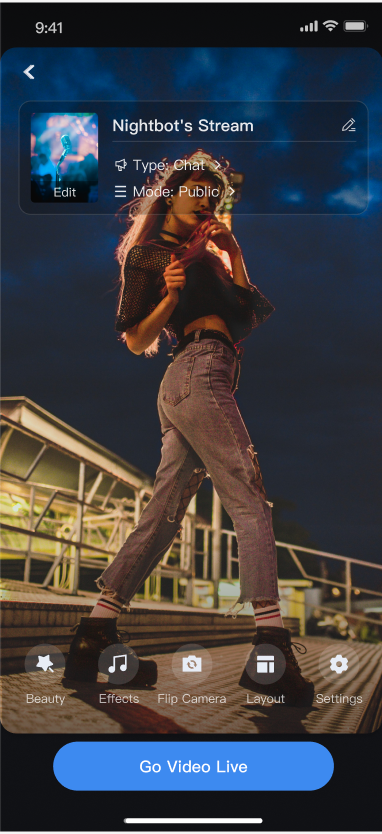
Pre-Live Preview: Enables hosts to personalize settings before going live, including room name, cover image, video preview, beauty filter adjustment, audio effects, and layout templates.
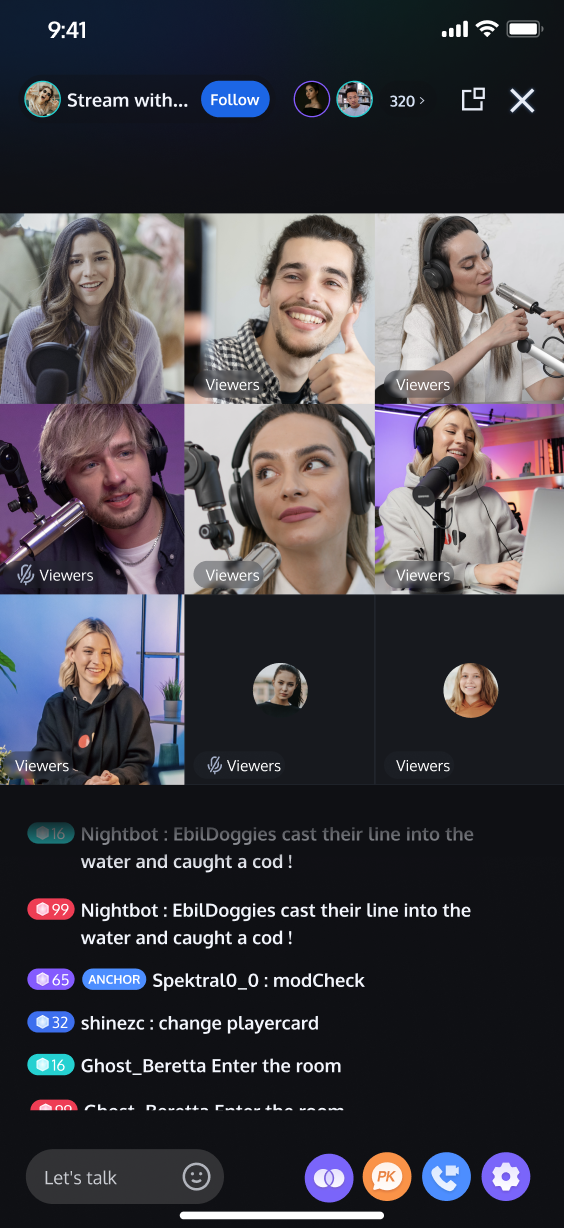
Co-hosting Interaction: Facilitates real-time collaboration between the host and audience, as well as with other hosts in separate live rooms during the stream.
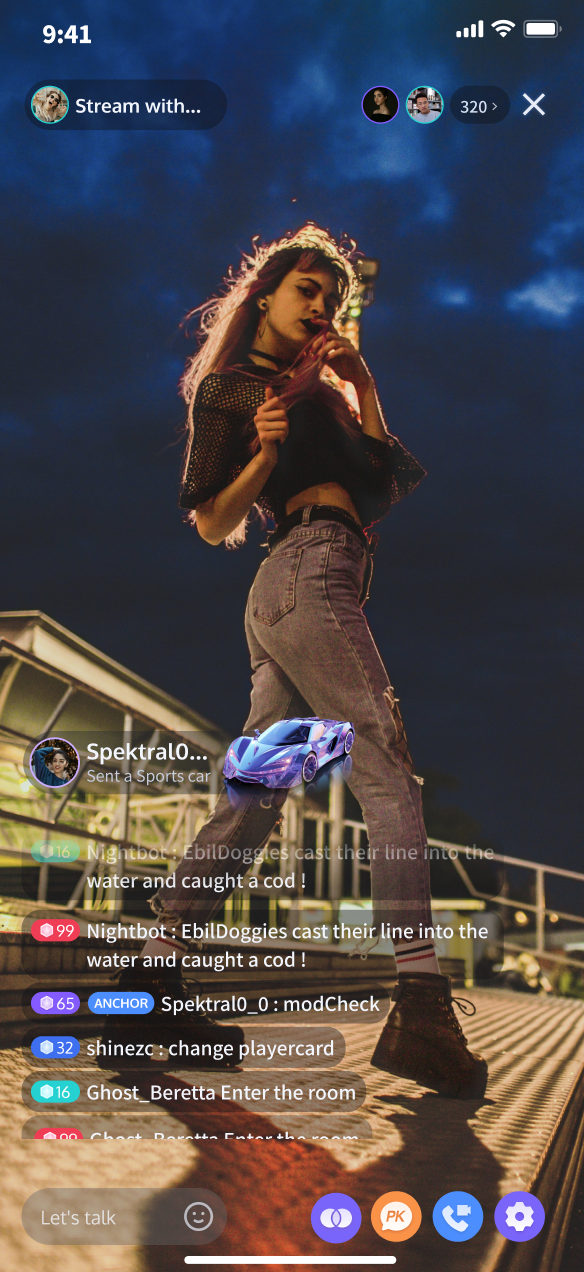
Audience Engagement: Provides interactive features such as live comments and virtual gifts to enhance audience participation.
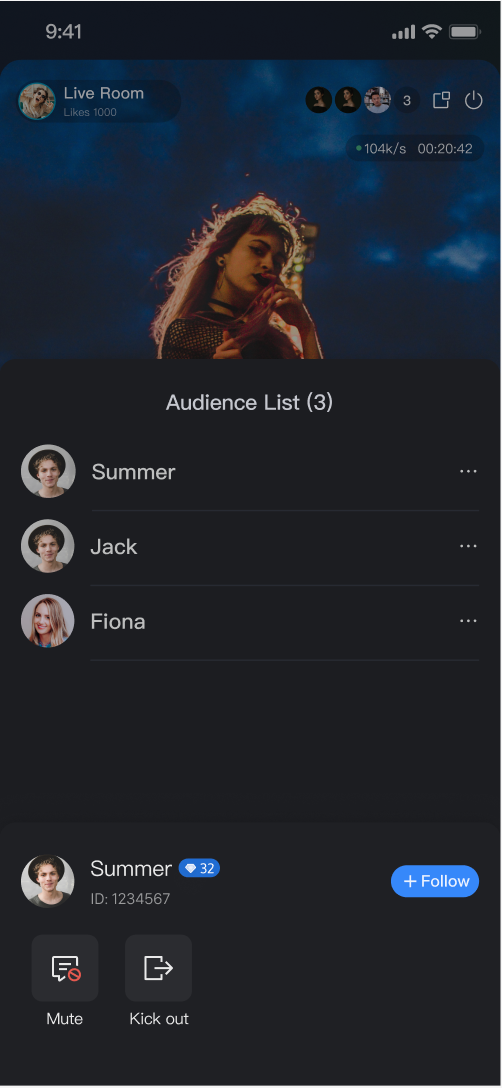
Live Room Management: Displays the list of online users and offers tools for managing the live room, including muting and removing users.
Pre-stream Setup | Co-Host Interaction | Audience Interaction | Live Room Management |
 |  |  |  |
Quick Integration
Step 1. Activate the Service
Refer to the Activate Service document to get the
TUILiveKit trial version or activate the paid version.Step 2. Integrate the SDK
Step 3. Add the Pre-Live Preparation Page
The
AnchorPrepareView component provides built-in camera preview, audio and layout settings, and other configuration options. Instantiate and display AnchorPrepareView as shown below:import android.os.Bundleimport androidx.appcompat.app.AppCompatActivityimport com.trtc.uikit.livekit.features.anchorprepare.AnchorPrepareViewimport com.trtc.uikit.livekit.features.anchorprepare.AnchorPrepareViewListenerclass AnchorActivity : AppCompatActivity() {private val TAG = "AnchorActivity"lateinit var anchorPrepareView: AnchorPrepareViewprivate val anchorPrepareViewListener = object : AnchorPrepareViewListener {override fun onClickStartButton() {// Click the "Start Live Stream" button on the preview screen to trigger}override fun onClickBackButton() {// Triggered by clicking the back button in the preview interfacefinishAndRemoveTask()}}override fun onCreate(savedInstanceState: Bundle?) {super.onCreate(savedInstanceState)// 1. Create and initialize AnchorPrepareViewanchorPrepareView = AnchorPrepareView(this)anchorPrepareView.init("live_1236666", null)anchorPrepareView.addAnchorPrepareViewListener(anchorPrepareViewListener)// 2. Add AnchorPrepareView to the UIsetContentView(anchorPrepareView)}}
Step 4. Add the Host Streaming Page
The
AnchorView component includes audio/video streaming, audience co-hosting, live interaction, and live room management. Instantiate and display AnchorView as shown below:import android.os.Bundleimport androidx.appcompat.app.AppCompatActivityimport com.trtc.uikit.livekit.features.anchorprepare.AnchorPrepareViewimport com.trtc.uikit.livekit.features.anchorprepare.AnchorPrepareViewListenerimport com.trtc.uikit.livekit.features.anchorprepare.LiveStreamPrivacyStatusimport com.trtc.uikit.livekit.features.anchorview.AnchorStateimport com.trtc.uikit.livekit.features.anchorview.AnchorViewimport com.trtc.uikit.livekit.features.anchorview.AnchorViewListenerimport com.trtc.uikit.livekit.features.anchorview.RoomBehaviorimport io.trtc.tuikit.atomicxcore.api.live.LiveInfoimport io.trtc.tuikit.atomicxcore.api.live.SeatLayoutTemplateclass AnchorActivity : AppCompatActivity() {private val TAG = "AnchorActivity"lateinit var anchorPrepareView: AnchorPrepareViewprivate val anchorPrepareViewListener = object : AnchorPrepareViewListener {override fun onClickStartButton() {// Complete the switch from the preparation page to the streamer's live broadcast page.initAnchorView()}override fun onClickBackButton() {finishAndRemoveTask()}}override fun onCreate(savedInstanceState: Bundle?) {super.onCreate(savedInstanceState)// 1. Create and initialize AnchorPrepareViewanchorPrepareView = AnchorPrepareView(this)anchorPrepareView.init("live_1236666", null)anchorPrepareView.addAnchorPrepareViewListener(anchorPrepareViewListener)// 2. Add AnchorPrepareView to the UIsetContentView(anchorPrepareView)}val anchorViewListener = object : AnchorViewListener {override fun onEndLiving(state: AnchorState) {finishAndRemoveTask()}override fun onClickFloatWindow() {}}fun initAnchorView() {// 1. Create AnchorViewval anchorView = AnchorView(this)// 2. Initialize AnchorView, where liveInfo is the live stream information and anchorPrepareView is your preparation page before starting your broadcast.val liveInfo = LiveInfo()liveInfo.liveID = "live_1236666"liveInfo.liveName = anchorPrepareView.getState()?.roomName?.value ?: ""liveInfo.isPublicVisible = anchorPrepareView.getState()?.liveMode?.value == LiveStreamPrivacyStatus.PUBLICliveInfo.coverURL = anchorPrepareView.getState()?.coverURL?.value ?: ""liveInfo.seatTemplate = SeatLayoutTemplate.VideoDynamicGrid9Seats// Entering a room:// RoomBehavior.CREATE_ROOM: The streamer creates a room// RoomBehavior.ENTER_ROOM: The streamer enters a live stream room created by the server-side REST APIanchorView.init(liveInfo, anchorPrepareView.getCoreView(), RoomBehavior.CREATE_ROOM, null)anchorView.addAnchorViewListener(anchorViewListener)// 3. Add AnchorView to the pagesetContentView(anchorView)}}
Customize Your UI Layout
TUILiveKit offers flexible customization for go-live and streaming pages. Adjust layouts and feature visibility to match your business requirements.
Select a Live Streaming Layout Template
TUILiveKit provides four live streaming layout templates. Use the "Layout" option on the host go-live page to choose your preferred style.
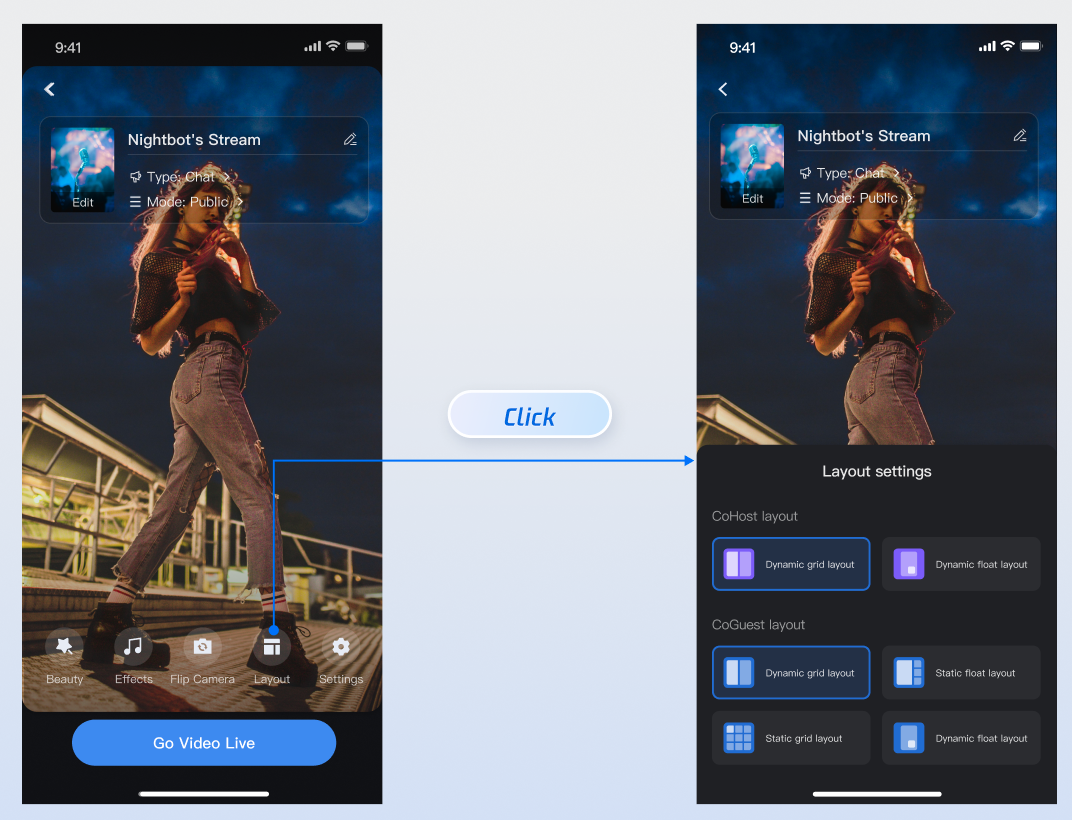
Layout Template Overview
Layout Type | Dynamic Grid Layout | Floating Window Layout | Fixed Grid Layout | Fixed Floating Window Layout |
Template ID | VideoDynamicGrid9Seats | VideoDynamicFloat7Seats | VideoFixedGrid9Seats | VideoFixedFloat7Seats |
Description | Default layout. Grid size adjusts dynamically based on the number of co-hosts. | Co-hosts are displayed as floating windows. | Fixed number of co-hosts, each guest occupies a dedicated grid slot. | Fixed number of co-hosts, guests shown in fixed floating windows. |
Preview | 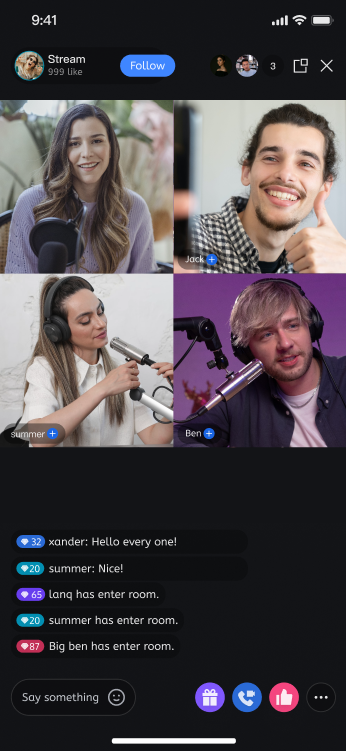 | 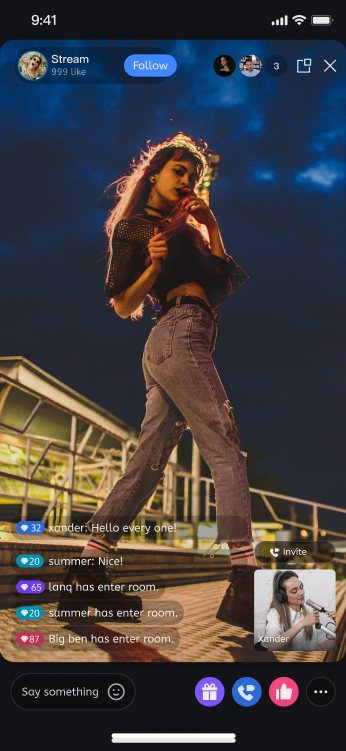 | 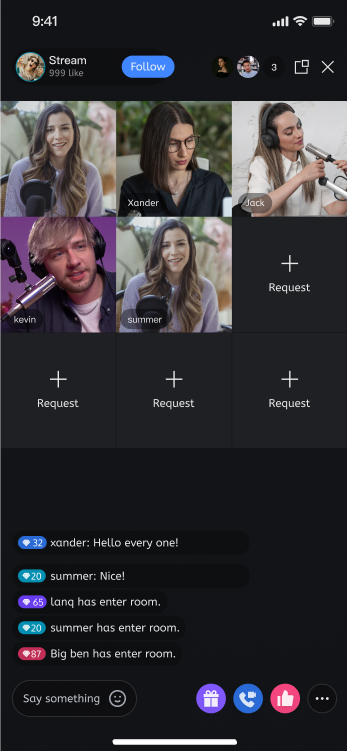 | 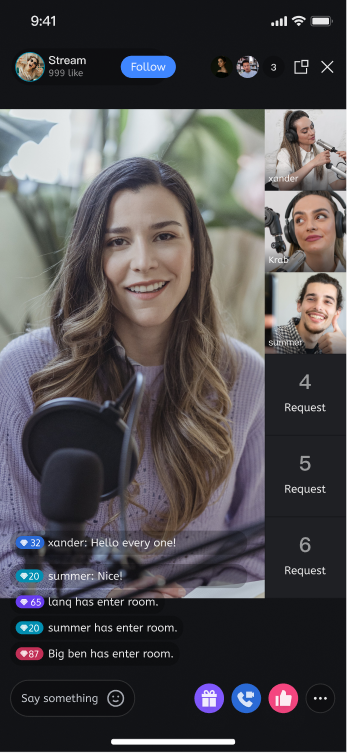 |
Customize the Preparation Page
Use the API from the
prepareView instance created in Step 3 to control the visibility of the operation area or individual features on the preparation page.import android.os.Bundleimport androidx.appcompat.app.AppCompatActivityimport com.trtc.uikit.livekit.features.anchorprepare.AnchorPrepareViewclass AnchorActivity : AppCompatActivity() {lateinit var anchorPrepareView: AnchorPrepareViewoverride fun onCreate(savedInstanceState: Bundle?) {super.onCreate(savedInstanceState)anchorPrepareView = AnchorPrepareView(this)anchorPrepareView.init("live_1235858", null)// 1. Customize the feature area - for example: hide the entire feature menuanchorPrepareView.disableFeatureMenu(true)setContentView(anchorPrepareView)}}
API | Description |
disableFeatureMenu(true) | Hide the entire feature menu |
disableMenuBeautyButton(true) | Hide the beauty filter button |
disableMenuAudioEffectButton(true) | Hide the audio effect button |
disableMenuSwitchCameraButton(true) | Hide the camera switch button |
Customize the Host Streaming Page UI
See the Host Core Page documentation to customize the host UI in
AnchorView and add custom business modules.See Adjust Video Live Widgets to modify video slot widgets (such as updating name or avatar) in
AnchorView.Customize Texts
TUILiveKit uses Android-standard
XML resource files to manage UI text. Modify any required text directly in the XML files.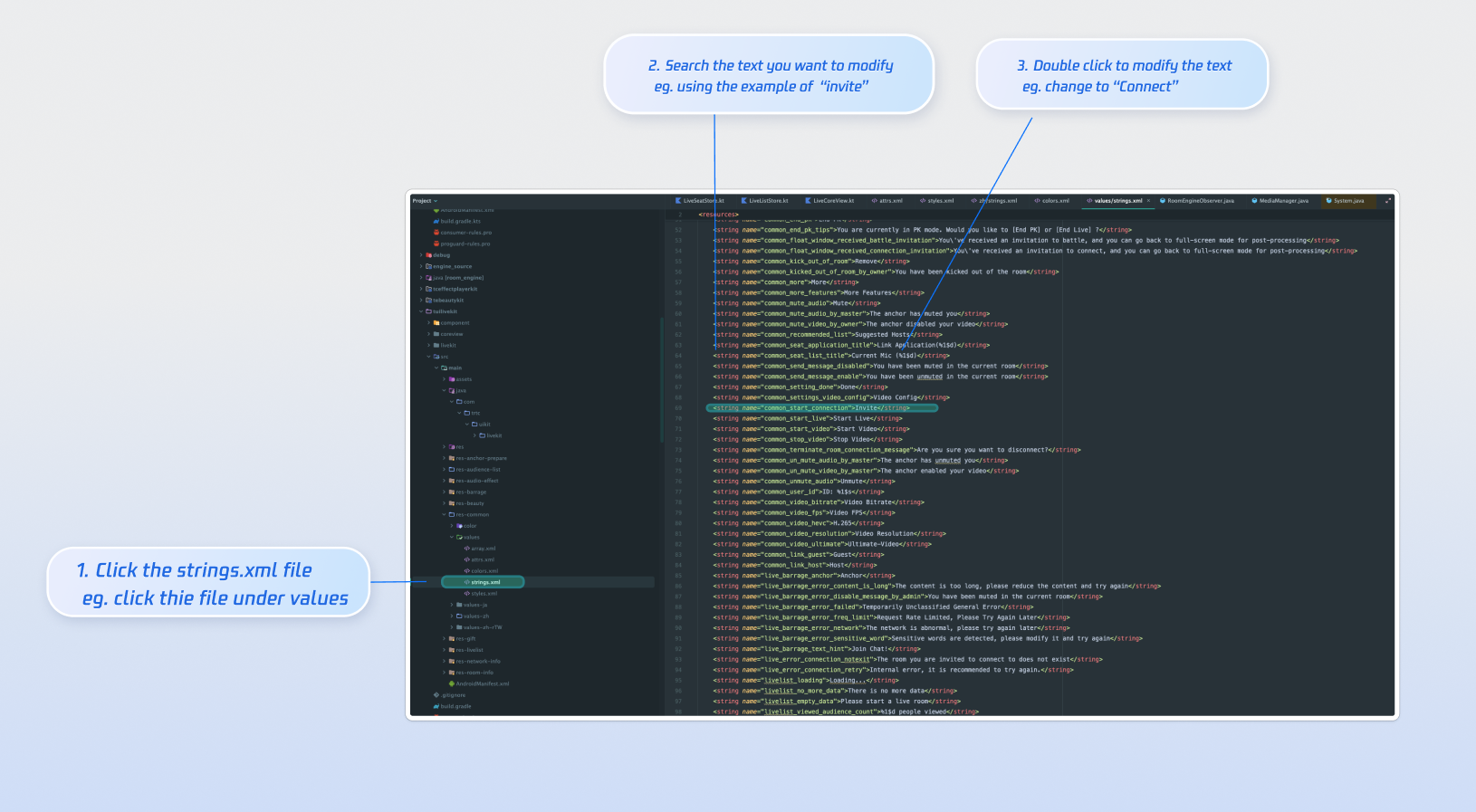
Customize Icons
TUILiveKit manages UI image assets in the Android
drawable resource folder. To update interface icons, replace the resource files with your custom icons—ensure file names remain unchanged.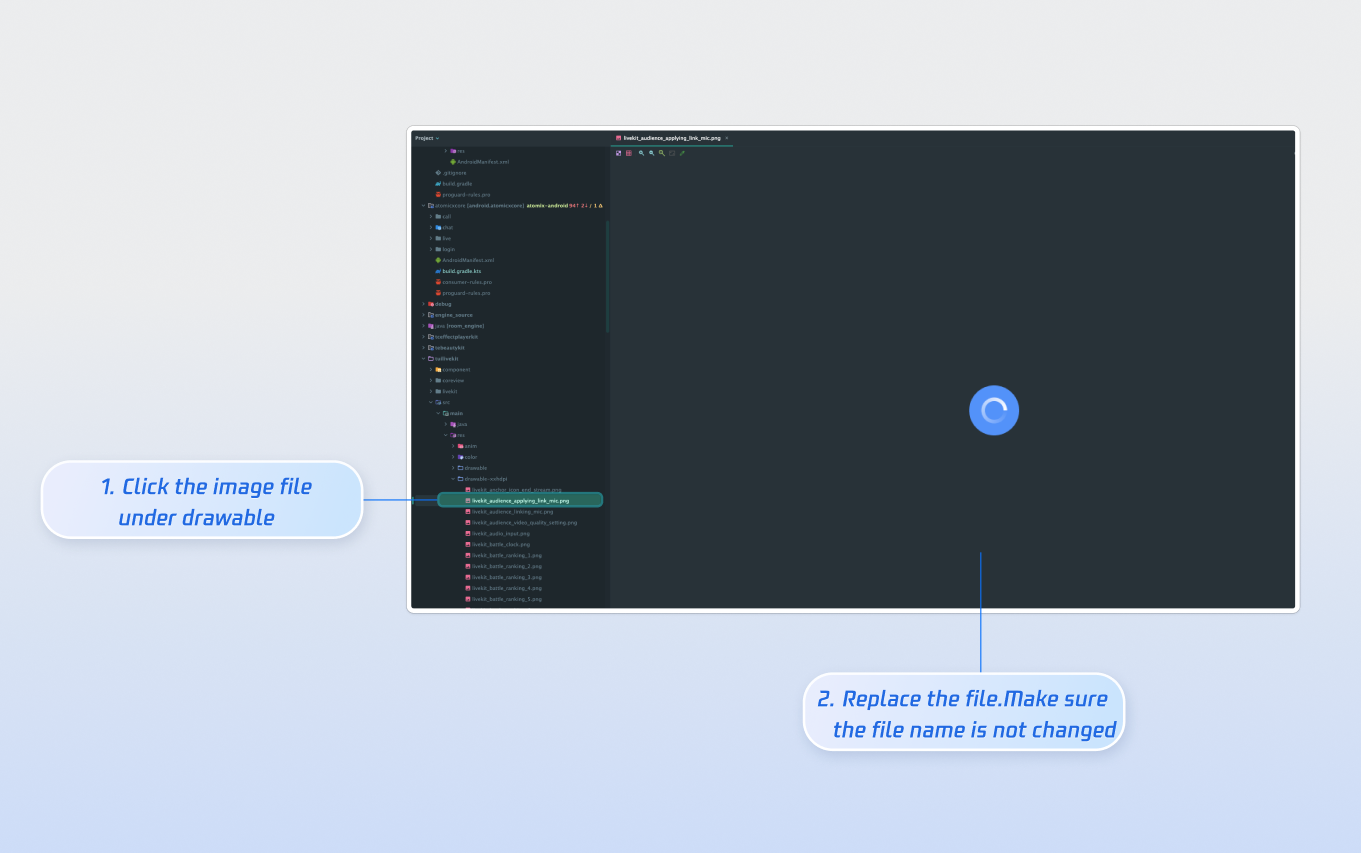
Next Steps
Once you’ve integrated the host go-live feature, you can add additional capabilities such as audience viewing, live stream list, and gift system. See below for integration guides:
Feature | Description | Integration Guide |
Audience Viewing | Allows audience members to join the host’s live room to watch the stream. Supports audience co-hosting, live room info, online audience list, live comments, and more. | |
Live Stream List | Displays the live stream list page and features, including the stream list and room details. | |
Gift System | Supports custom gift asset configuration, billing integration, PK mode interaction, and more. |
FAQs
No video after going live?
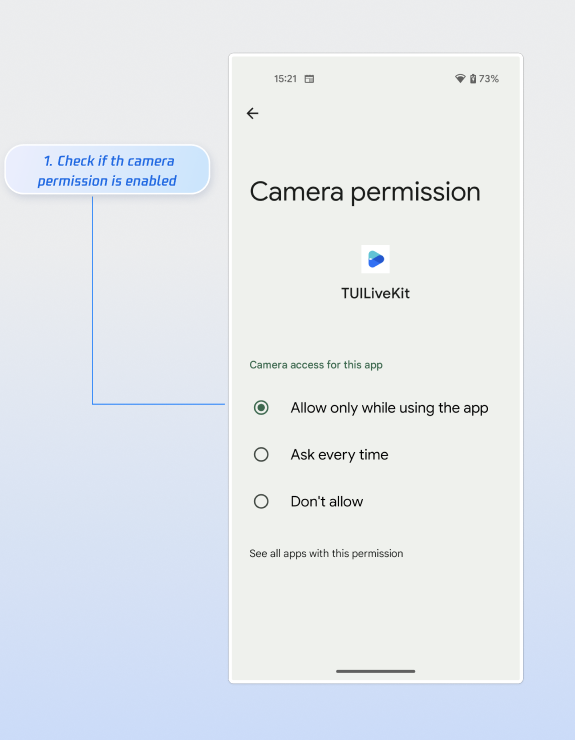
Navigate to App Info > Permissions > Camera and ensure camera access is enabled. See the screenshot below: