
Push History
Feature Overview
On the Push History page, you can view push records and task details for All Users Push, Tag Push, and Specified User Push.
Push Records
You can query all push records sent through All Users Push, Tag Push, and Specified User Push for users within this application. A time window is required for each query. Push records include Task ID, Task Name, Push Title, Push Content, Push Target, Push Status, Push Method, Push Strategy, Creation Time, and Send Time. You can search for specific records by Task ID, Task Name, Push Title, or Push Content.
Query Conditions
Time Window: Select a specific time period within a chosen date, up to 7 days. The query is accurate to minutes and seconds. This field is required.
Task ID, Task Name, Push Title, Push Content: Optional fields.
Query Results (Records from the past 7 days)
Task ID: The unique identifier for the push message. Use this ID in troubleshooting tools to trace the entire push message flow.
Task Name: The name of the push message.
Push Title: The title of the push message.
Push Content: The detailed content of the push message.
Push Target: The recipients of the push message, including All Users Push, Tag Push, and Specified User Push. This field supports filtering; use the filter button above the column to view push tasks for a specific target.
Push Method: The delivery method for the message, such as API Push or Console Push.
Send Time: The timestamp when the message task was successfully sent.
Push Status: The current status of the push message, including Pending, In Progress, Completed, and Failed. This field supports filtering; use the filter button above the column to view push tasks by status.
Push Strategy: The strategy applied to deliver the message, such as System Notification, In-App Message, or System Notification + In-App Message.
Creation Time: The timestamp when the message task was created. Message tasks are retained in the console for up to 7 days.
Actions: Click View Details in the Actions column to open the push details page and view basic information and message data.
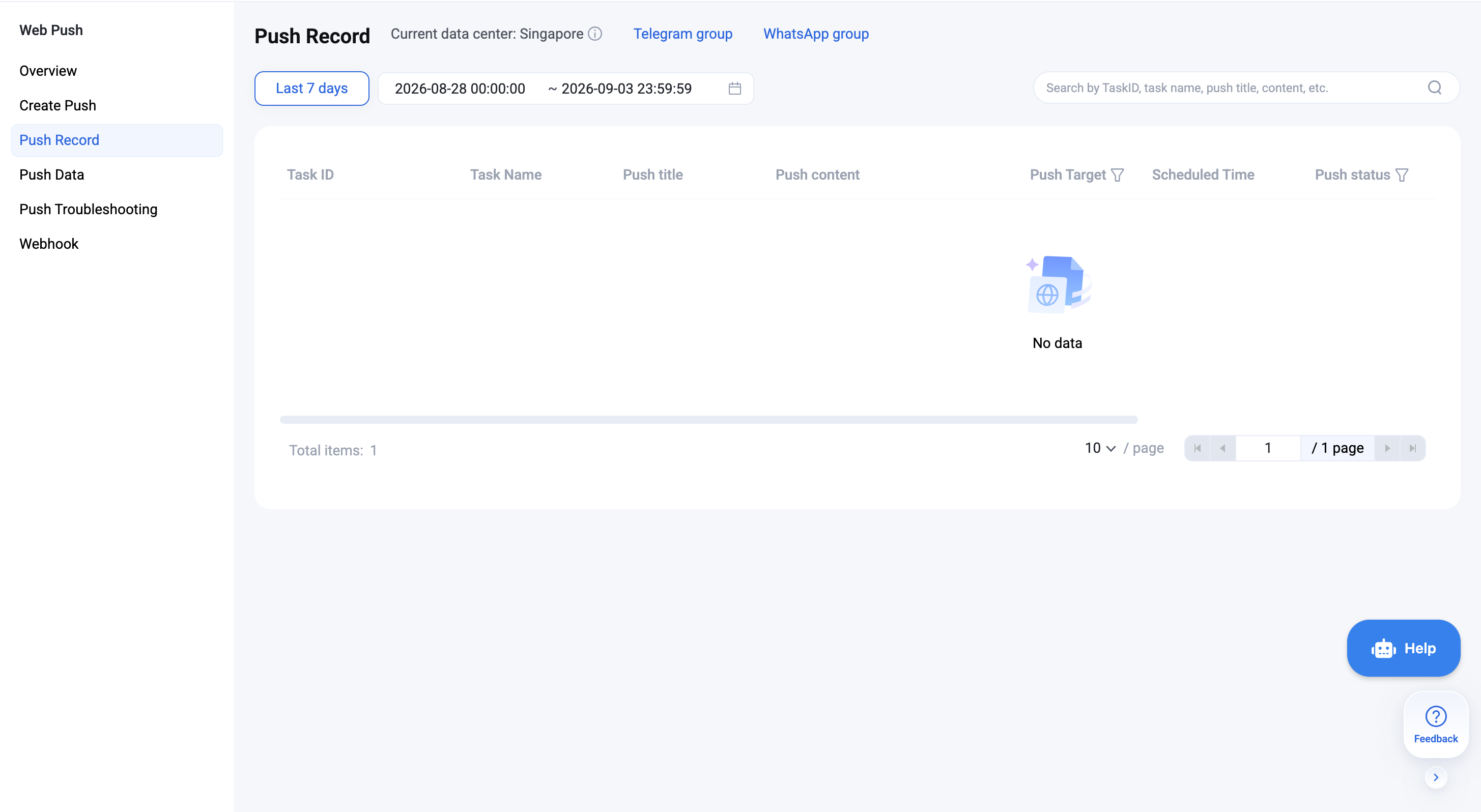
To view the specific details for a push record, click View Details in the Actions column to access the push task's basic information and message data.
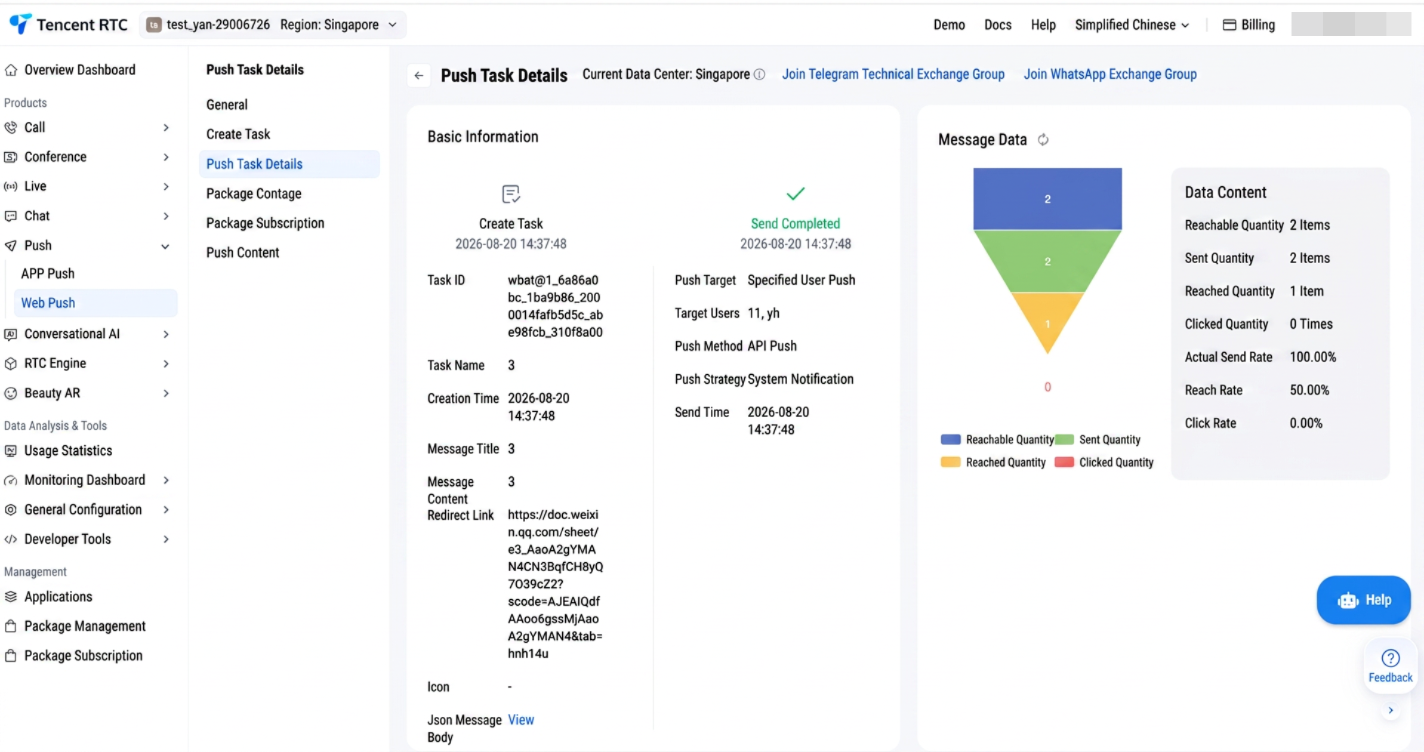
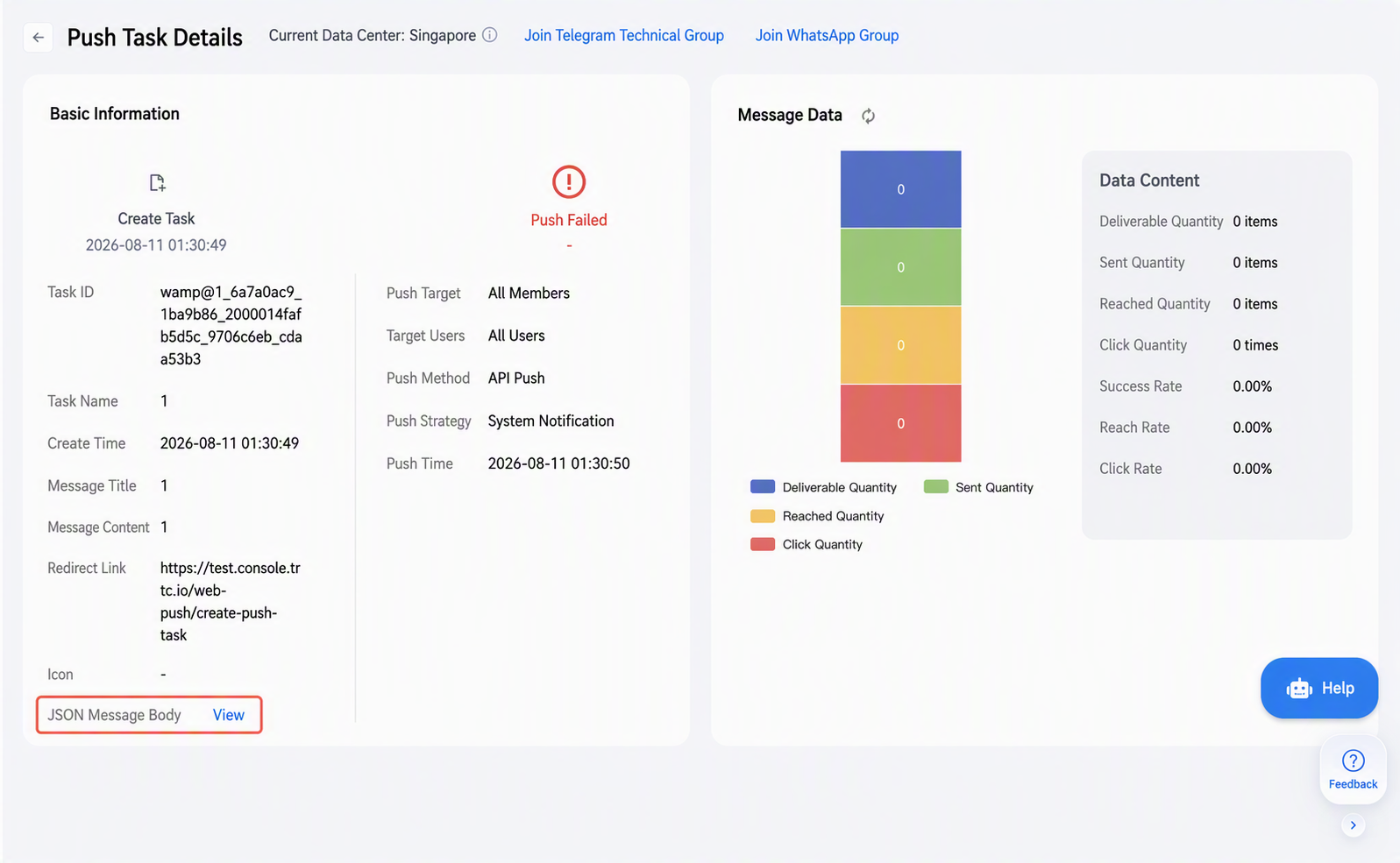
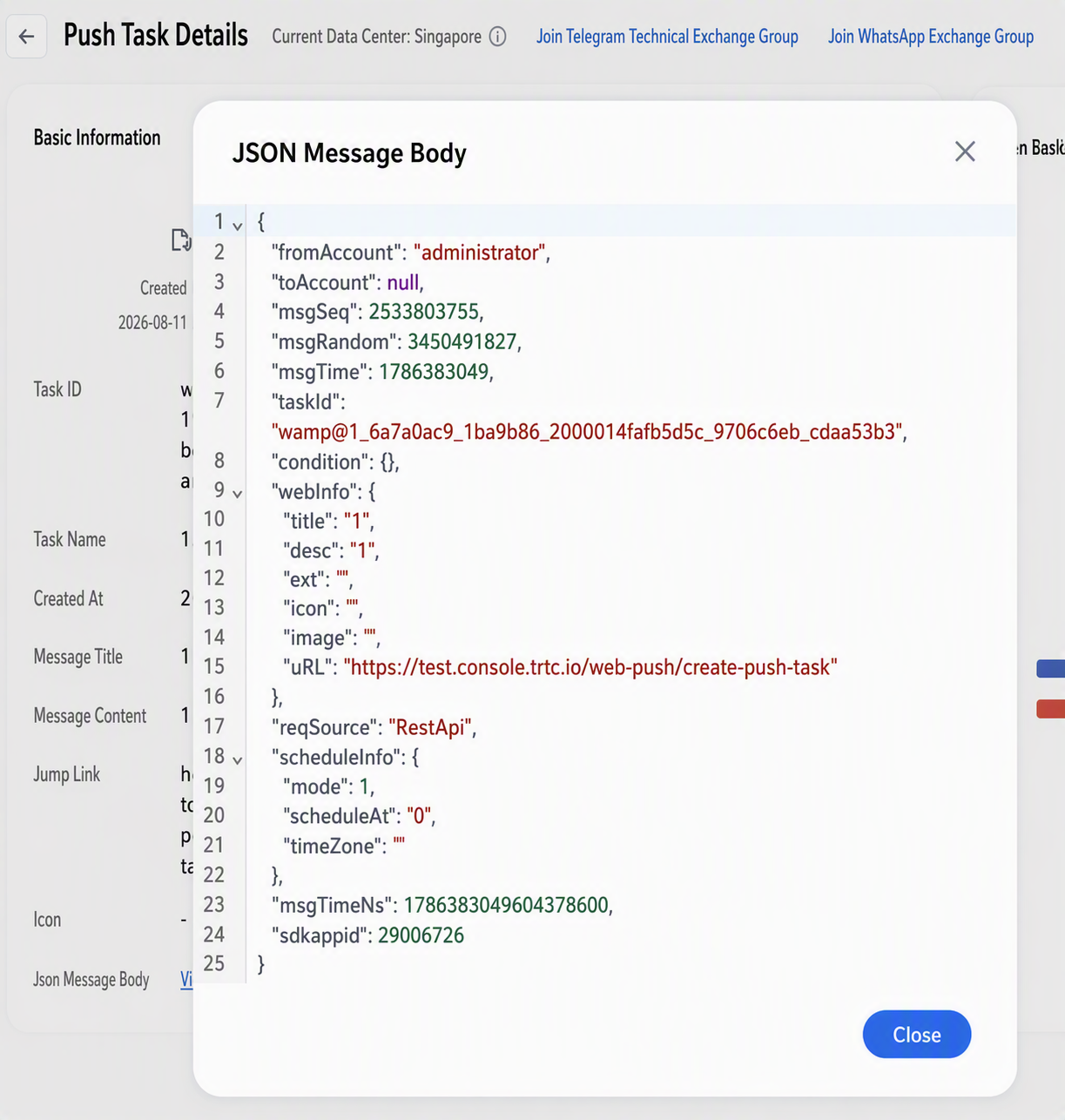
The basic information section displays the configuration details for the push message. Click the View button in the JSON Message Body field to view the push data in JSON format.
 |  |
| |