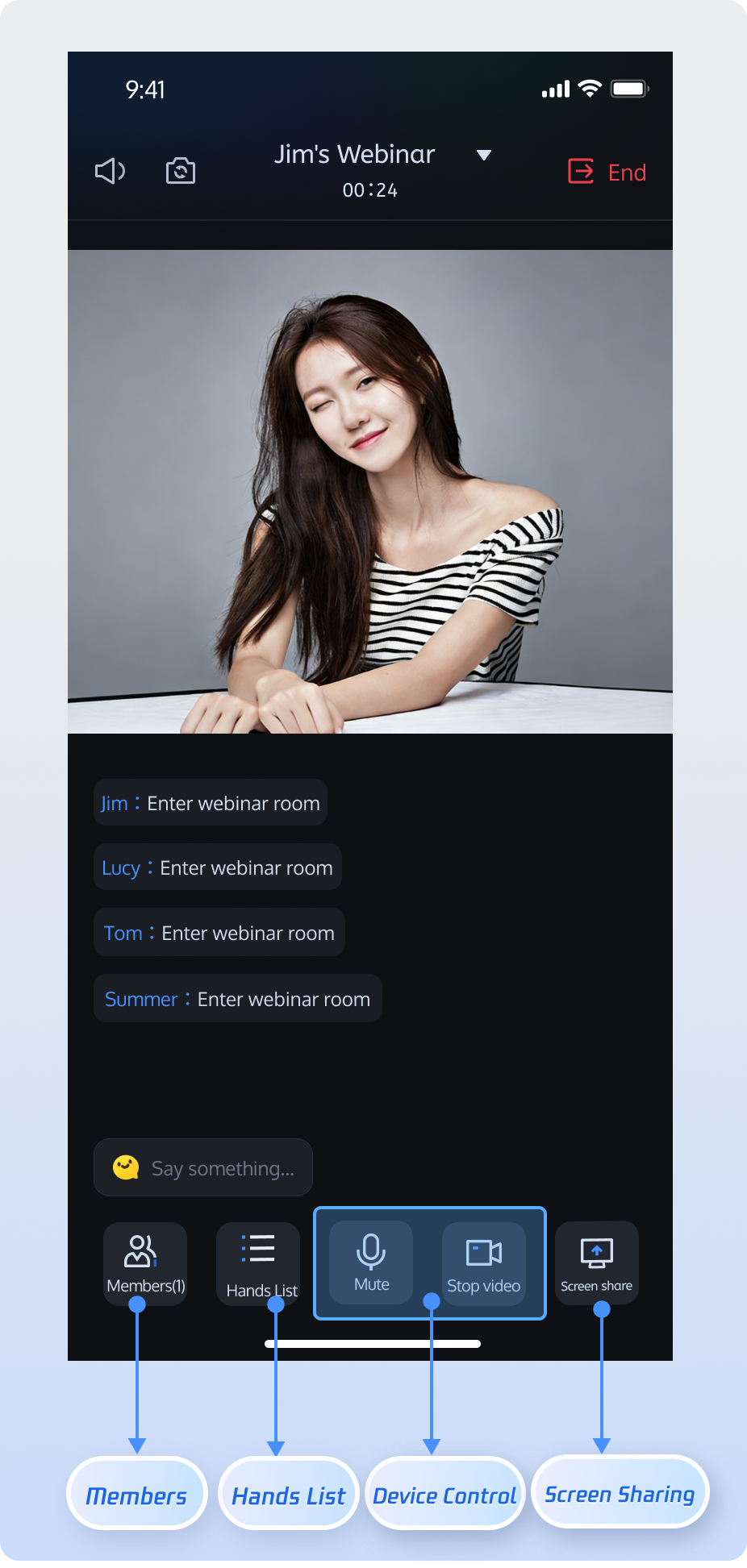
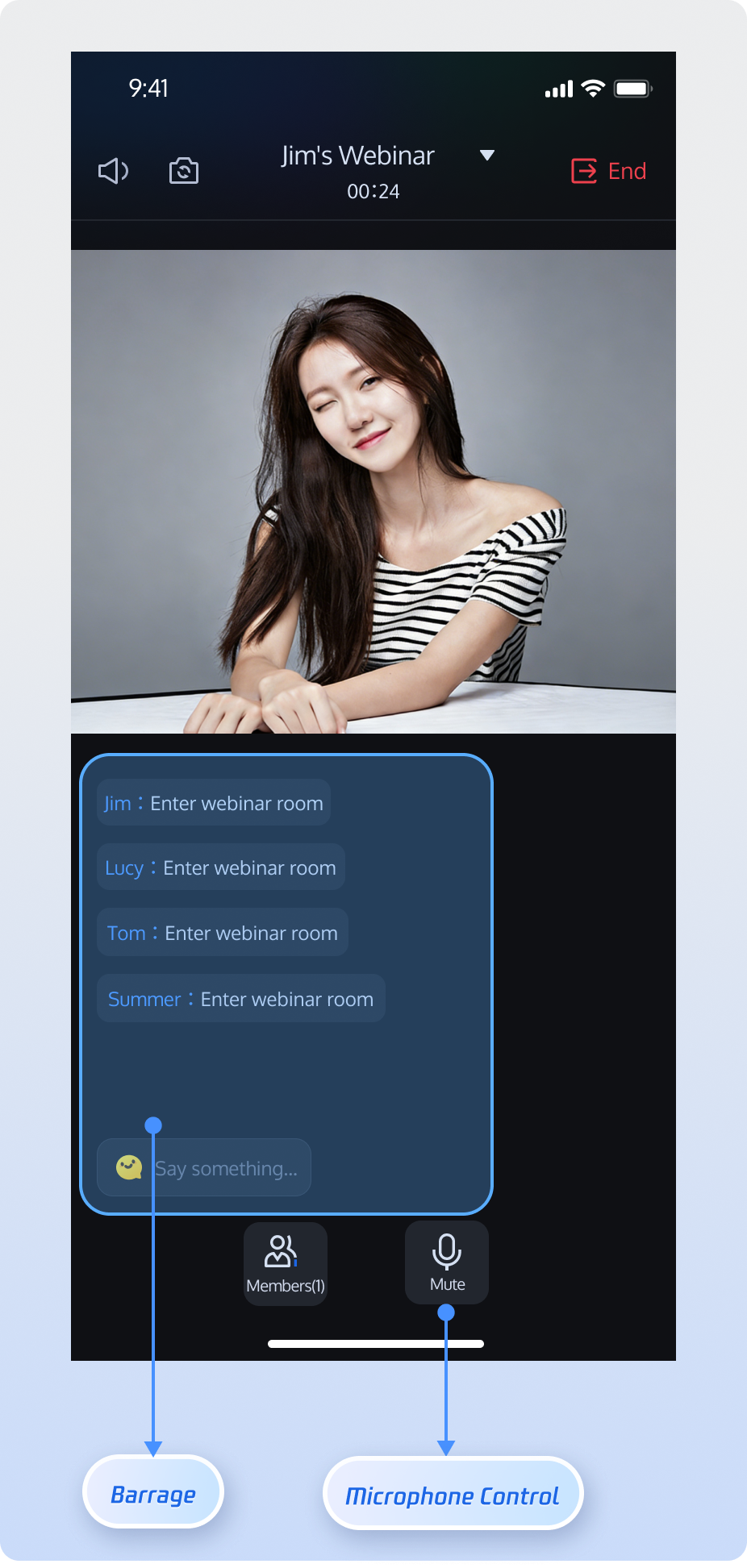
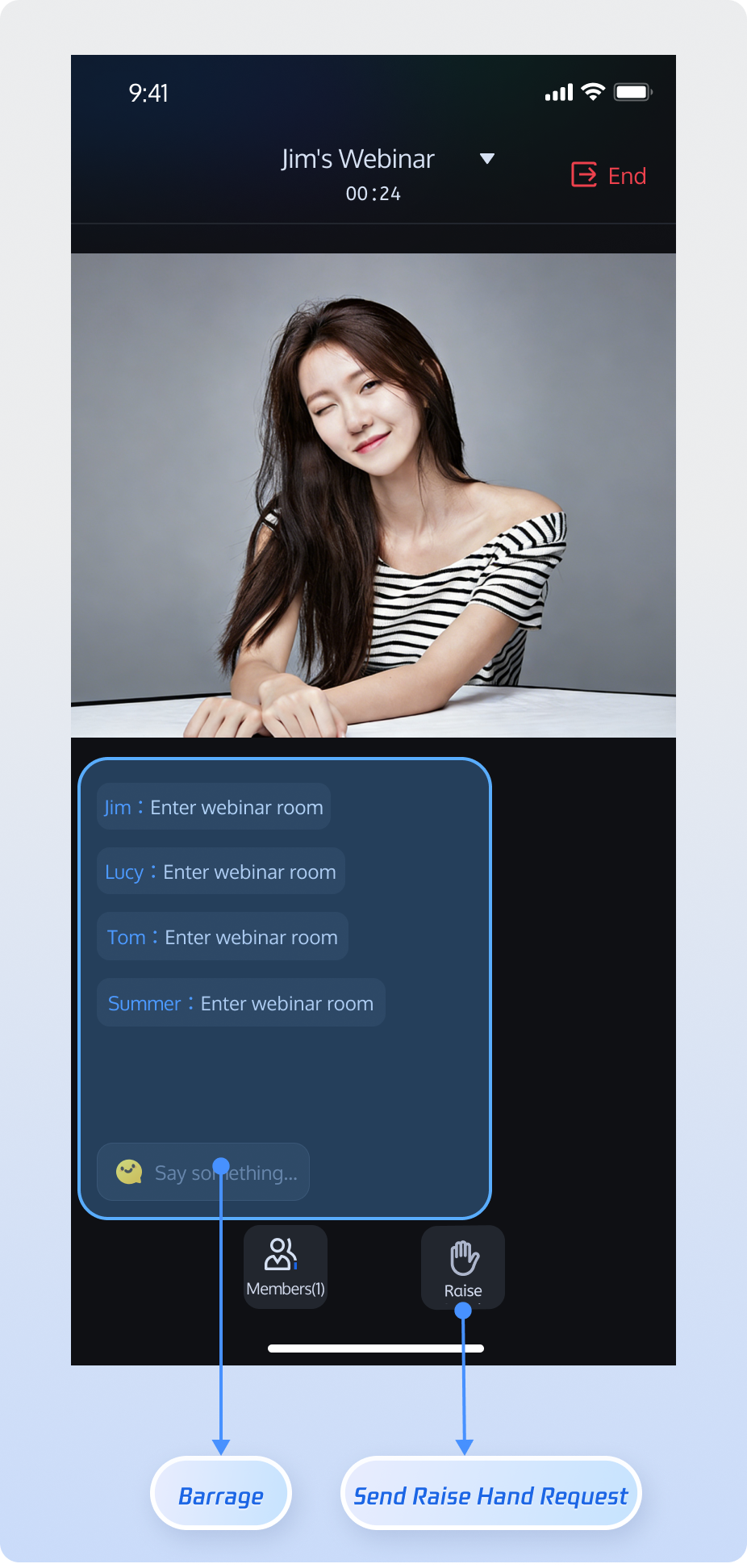
This document provides an integration guide for the core features of AtomicXCore, enabling developers to rapidly build essential capabilities for large-scale webinars, company-wide meetings, or online education sessions with Atomicx. You have complete flexibility to customize the UI, allowing you to focus on business logic and user experience optimization.
What’s the difference between a standard conference and a webinar?
Standard Conference: Ideal for small to medium collaborative environments. All participants have equal audio/video privileges, with interactive features such as screen sharing and member management.
Webinar: Designed for large-scale live presentations, supports unlimited concurrent audience entry. Audience members can use the "Raise Hand" feature to request guest access and participate in discussions. The system is optimized for high-concurrency chat, supporting tens of thousands of participants and professional presentation needs.
Feature Overview
Host
Guest
Audience
Host can start high-definition audio/video streaming, share screens, and manage participants.
Guest can enable their microphone for real-time voice discussions and sharing.
Supports unlimited concurrent audience entry, ultra-low latency viewing, and high-frequency chat. Audience can use "Raise Hand" to request guest access.
Core Features
AtomicXCore provides all the capabilities you need to build a professional webinar solution:
Dual-role system: Room members are classified as Guest (can speak via audio/video) and Audience (view-only). The host can dynamically invite audience members to participate or remove guests from the stage.
Screen sharing: Host can share their screen with all participants in real time to assist presentations and facilitate communication.
Member and permission management: Includes guest list, audience list, admin controls, mute/video-off, and other moderation tools.
Large-scale message interaction: Optimized message throttling for rooms with tens of thousands of participants, ensuring stable real-time chat and live comments.
Core modules of AtomicXCore include:
RoomStore: Handles room management tasks, including create, join, and lifecycle operations.
RoomParticipantStore: Manages room participants, including admin settings, guest/audience management, removing participants, device control, and more.
Preparation
Step 1: Activate the Service
Refer to Activate the Service to claim the TUILiveKit trial version or activate the official TUILiveKit version.
Note:
Webinar functionality is built on live streaming capabilities. Make sure you have claimed the TUILiveKit trial version or activated the official TUILiveKit version for full functionality.
Unique ID for the current user. Use only English letters, numbers, hyphens, and underscores. Avoid simple IDs like 1 or 123 to prevent multi-device login conflicts.
userSig
String
Authentication token for Tencent Cloud.
For development, generate with GenerateTestUserSig.genTestSig or the UserSig Helper Tool.
Completion callback. Returns error code and message if creation fails.
CreateRoomOptions Struct:
Parameter Name
Type
Required
Description
roomName
String
No
Room name (optional, defaults to empty).
0-60 bytes.
Supports English/Chinese, numbers, special characters.
password
String
No
Room password (empty means no password).
0-32 bytes.
Use 4-8 digit numbers for easy input. Avoid plain-text sensitive data. Passwords not supported for webinars; leave empty.
isAllMicrophoneDisabled
Bool
No
Disable microphones for all. Only host/admin can open mic. Guests are muted by default.
true: Disabled.
false: Enabled (default).
isAllCameraDisabled
Bool
No
Disable cameras for all. Only host/admin can open camera. Guests are video-off by default.
true: Disabled.
false: Enabled (default).
isAllScreenShareDisabled
Bool
No
Disable screen sharing for all. Only host/admin can share screen.
true: Disabled.
false: Enabled (default).
isAllMessageDisabled
Bool
No
Disable chat for all (mute). Members cannot send messages.
true: Disabled.
false: Enabled (default).
2. Host/Guest Media Device Capture
In webinar scenarios, permissions depend on role:
Host: Can capture and stream audio/video, start screen sharing.
Guest: Can capture and stream audio for real-time discussion.
Audience: View-only; cannot capture media.
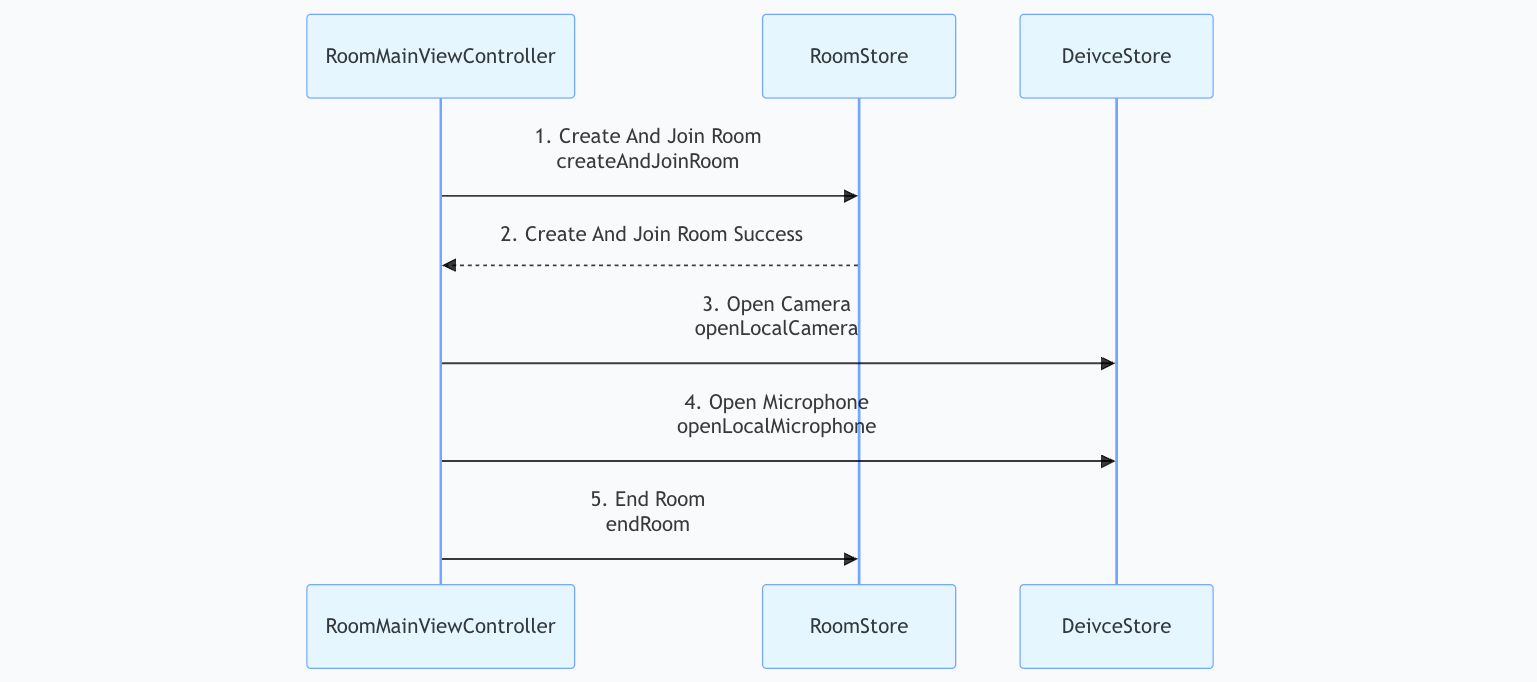
After entering the room, call DeviceStore.openLocalCamera and DeviceStore.openLocalMicrophone to enable local capture. Use startScreenShare to begin screen sharing (camera must be off when screen sharing starts).
importUIKit
importAtomicXCore
// RoomMainViewController represents the main room view controller
let roomPassword =""// Room password; pass empty string or nil if not set
// 2. Call RoomStore joinRoom API
// Checks room existence, user ban, and password correctness
RoomStore.shared.joinRoom(roomID: targetRoomID, roomType: roomType, password: roomPassword){[weakself] result in
guardletself=selfelse{return}
switch result {
case.success():
print("Joined room successfully")
case.failure(let error):
print("Failed to join room [Error Code: \(error.code)]: \(error.message)")
}
}
}
}
joinRoom API Parameter Details:
Parameter Name
Type
Required
Description
roomID
String
Yes
Unique room identifier.
0-48 bytes.
Use numbers, English letters, underscores (_), hyphens (-). Avoid spaces and Chinese characters.
roomType
RoomType
Yes
Room type:
standard: Standard room.
webinar: Large webinar room.
Use webinar for webinar scenarios.
password
String
No
Room password (empty means no password).
0-32 bytes.
Use 4-8 digits for mobile input. Avoid plain-text sensitive data. Passwords not supported for webinars; leave empty.
completion
CompletionClosure
No
Completion callback. Returns error code and message if join fails.
2. Leave Room
To leave a room, call RoomStore.leaveRoom.
importUIKit
importAtomicXCore
// RoomMainViewController represents the main room view controller
classRoomMainViewController:UIViewController{
privatelet roomID:String
publicinit(roomID:String){
self.roomID = roomID
super.init(nibName:nil, bundle:nil)
leaveRoom()
}
requiredinit?(coder:NSCoder){
fatalError("init(coder:) has not been implemented")
}
privatefuncleaveRoom(){
// leaveRoom is for regular members or hosts to exit the room.
// If the host leaves, only they exit; the room remains active.
// Stops audio/video streaming and notifies the server to remove the user
RoomStore.shared.leaveRoom {[weakself] result in
guardletself=selfelse{return}
switch result {
case.success():
print("Left room successfully")
case.failure(let error):
print("Failed to leave room [Error Code: \(error.code)]: \(error.message)")
}
}
}
}
Step 3: Bind Video View
The RoomView component encapsulates webinar streaming logic. Simply render RoomView in your page to enable audio/video capabilities for the webinar room. Video rendering uses TUIRoomKit components.
RoomView built-in capabilities:
Host: Supports video and screen sharing.
Guest: Automatically plays host's real-time audio/video stream.
Audience: Automatically pulls and plays ultra-low latency live streams, delivering a seamless viewing experience at scale.
Tip:
RoomView is the component for rendering room video streams. For full implementation, refer to RoomView.swift in the TUIRoomKit open-source project.
importUIKit
importCombine
importAtomicXCore
importTUIRoomKit
// RoomMainViewController represents the main room view controller
classRoomMainViewController:UIViewController{
privatevar roomID:String
privatevar roomType:RoomType
privatelazyvar roomView:RoomView={
let roomView =RoomView(roomID: roomID, roomType: roomType)
return roomView
}()
init(roomID:String, roomType:RoomType){
self.roomID = roomID
self.roomType = roomType
super.init()
view.addSubview(roomView)
roomView.snp.makeConstraints { make in
make.edges.equalToSuperview()
}
}
requiredinit?(coder:NSCoder){fatalError()}
}
Step 4: Manage Guest/Audience Roles
As host or admin, call RoomParticipantStore.promoteAudienceToParticipant to promote an audience member to guest.
Call RoomParticipantStore.demoteParticipantToAudience to demote a guest back to audience.
importCombine
importAtomicXCore
funcpromoteAudienceToParticipant(userID:String){
// Prerequisite: Must have entered the room.
// Create RoomParticipantStore instance using roomID
var participantStore:RoomParticipantStore=RoomParticipantStore.create(roomID:"webinar_123456")
// Promote audience to guest (host/admin only)
participantStore.promoteAudienceToParticipant(userID: userID){ result in
switch result {
case.success():
print("Promoted to guest successfully")
case.failure(let err):
print("Failed to promote to guest Error Code: \(err.code), Error Message: \(err.message)")
}
}
}
funcdemoteParticipantToAudience(userID:String){
// Prerequisite: Must have entered the room.
// Create RoomParticipantStore instance using roomID
var participantStore:RoomParticipantStore=RoomParticipantStore.create(roomID:"webinar_123456")
// Demote guest to audience (host/admin only)
participantStore.demoteParticipantToAudience(userID: userID){ result in
switch result {
case.success():
print("Demoted guest to audience successfully")
case.failure(let err):
print("Failed to demote guest to audience Error Code: \(err.code), Error Message: \(err.message)")
}
}
}
Step 5: Listen to Room Events
After entering the room, call RoomStore.addRoomListener to subscribe to room events via roomEventPublisher.
importUIKit
importCombine
importAtomicXCore
// RoomMainViewController represents the main room view controller
classRoomMainViewController:UIViewController{
privatelet roomID:String
// Store Combine subscriptions to prevent listener loss
privatevar cancellableSet =Set<AnyCancellable>()
publicinit(roomID:String){
self.roomID = roomID
super.init(nibName:nil, bundle:nil)
// Start event listening on initialization
subscribeRoomEvents()
}
requiredinit?(coder:NSCoder){
fatalError("init(coder:) has not been implemented")
}
privatefuncsubscribeRoomEvents(){
// Access RoomStore's roomEventPublisher
// Publishes events throughout the room lifecycle (call, dissolve, reminders, etc.)
RoomStore.shared.roomEventPublisher
.receive(on:RunLoop.main)// Ensure UI updates on main thread
.sink {[weakself] event in
guardletself=selfelse{return}
// Business logic based on event type
switch event {
case.onRoomEnded(let roomInfo):
print("The current room has ended")
// ... handle other RoomEvent events ...
default:break
}
}
.store(in:&cancellableSet)// Store subscription
}
}
API Documentation
Store/Component
Description
API Documentation
RoomStore
Room lifecycle management: create/join, join, leave, end room, update/get room info, subscribe to room events (dissolution, updates)
rsync fails to copy third-party library resources due to insufficient permissions?
When integrating SnapKit in Xcode, you may see an error like:
rsync(xxxx):1:1: SnapKit.framework/SnapKit_Privacy.bundle/: mkpathat: Operation not permitted
Cause
Xcode's script sandboxing restricts write permissions for the rsync script during the build process, preventing copying of SnapKit_Privacy.bundle inside the framework.
Solution Steps
1. Disable user script sandboxing. In your Xcode project, go to Build Settings, search for User Script Sandboxing (or ENABLE_USER_SCRIPT_SANDBOXING), and set it from YES to NO.
2. Clean and rebuild the project: use Product → Clean Build Folder to clear cache, then recompile and run.
Contact Us
For integration or usage questions and feedback, contact info_rtc@tencent.com.