
概要
This document provides an integration guide for the core features of
AtomicXCore, enabling developers to quickly build multi-party audio/video conference rooms. The SDK follows a pure API architecture, giving you full control over UI customization while letting you focus on business logic and user experience.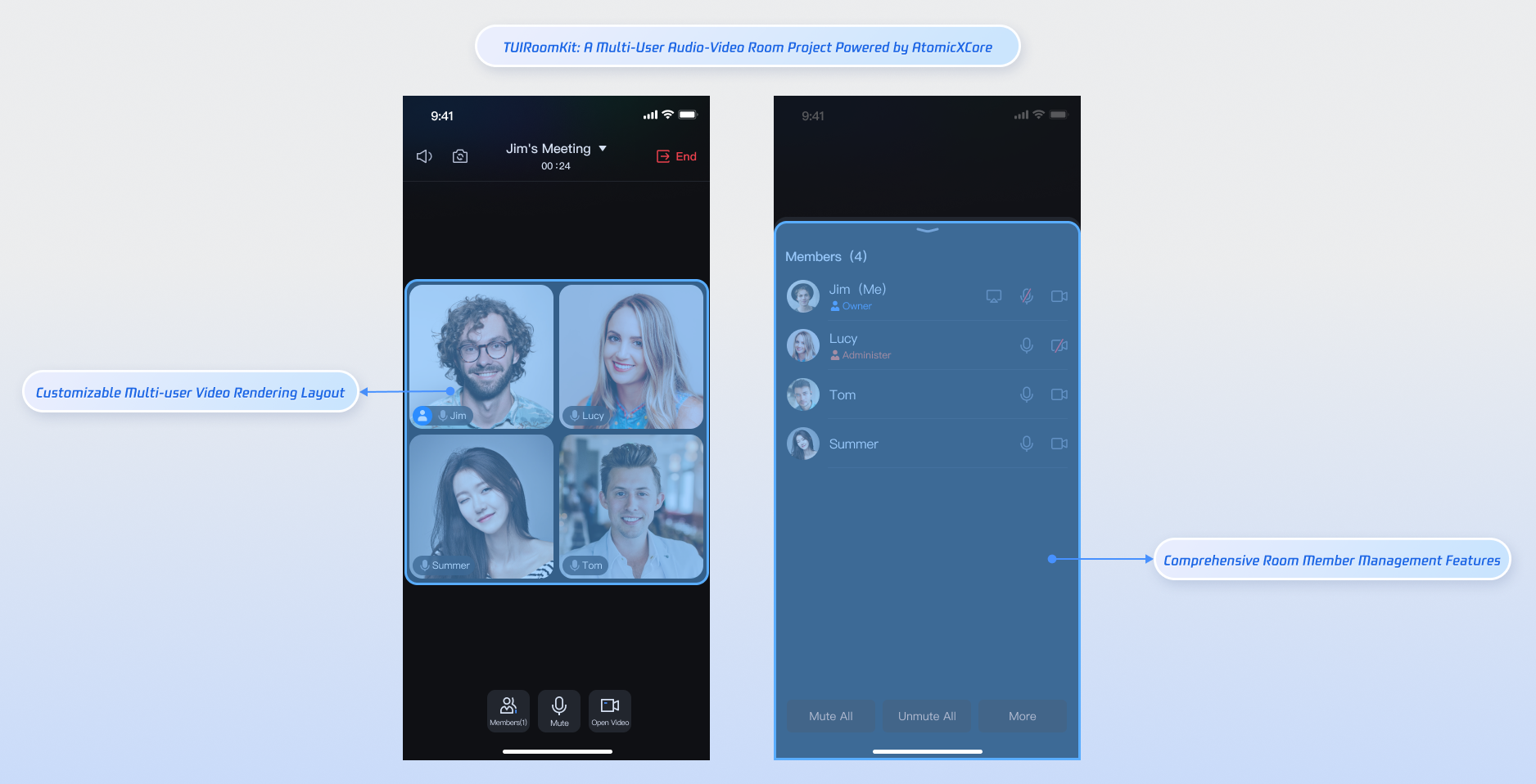
Key Features
AtomicXCore offers three essential modules for developing multi-party audio/video conference rooms:
RoomStore: Centralized room management, including scheduling, creating, joining rooms, and in-room calling.RoomParticipantStore: Participant management within a room, covering admin settings, host transfer, removing participants, device control, and more.RoomParticipantView: Video view for displaying participant streams within the room.Prerequisites
Step 1: Activate the Service
Step 2: Environment Requirements
Android 5.0 (SDK API level 21) or higher
Gradle 8.0 or higher
Devices running Android 5.0 or above
JDK version 17, 18, or 19
Step 3: Integrate AtomicXCore SDK
Add the following dependencies to your build.gradle file, then sync your Gradle project.
dependencies {implementation 'io.trtc.uikit:atomicx-core:3.6.1.66'api "com.tencent.imsdk:imsdk-plus:8.7.7201"}
Step 4: Implement Login Logic
Call
LoginStore.shared.login in your project to authenticate. This step is required before using any feature of AtomicXCore.Important:
We recommend calling
LoginStore.shared.login only after your own user account login succeeds, to ensure clear and consistent login flow.import android.os.Bundleimport androidx.appcompat.app.AppCompatActivityimport io.trtc.tuikit.atomicxcore.api.login.LoginStoreimport io.trtc.tuikit.atomicxcore.api.CompletionHandlerimport android.util.Logclass MainActivity : AppCompatActivity() {override fun onCreate(savedInstanceState: Bundle?) {super.onCreate(savedInstanceState)LoginStore.shared.login(this, // context1400000001, // Replace with your project's sdkAppID"test_001", // Replace with your project's userID"xxxxxxxxxxx", // Replace with your project's userSigobject : CompletionHandler {override fun onSuccess() {// Login succeededLog.d("Login", "login success");}override fun onFailure(code: Int, desc: String) {// Login failedLog.e("Login", "login failed, code: $code, error: $desc");}})}}
Login API Parameter Description:
Parameter | Type | Description |
sdkAppID | Int32 | |
userID | String | Unique user identifier. Use only English letters, numbers, hyphens, and underscores. Avoid using simple IDs like 1 or 123 to prevent multi-device login conflicts. |
userSig | String | Authentication ticket for Tencent Cloud. For development: Use GenerateTestUserSig.genTestSig or the UserSig Assistant Tool for a temporary UserSig.For production: Always generate UserSig server-side to prevent secret key leaks. See Calculating UserSig on the Server. |
Building a Basic Multi-User Room
Step 1: Host Creates and Joins a Room
Follow these steps to quickly set up a multi-party room.
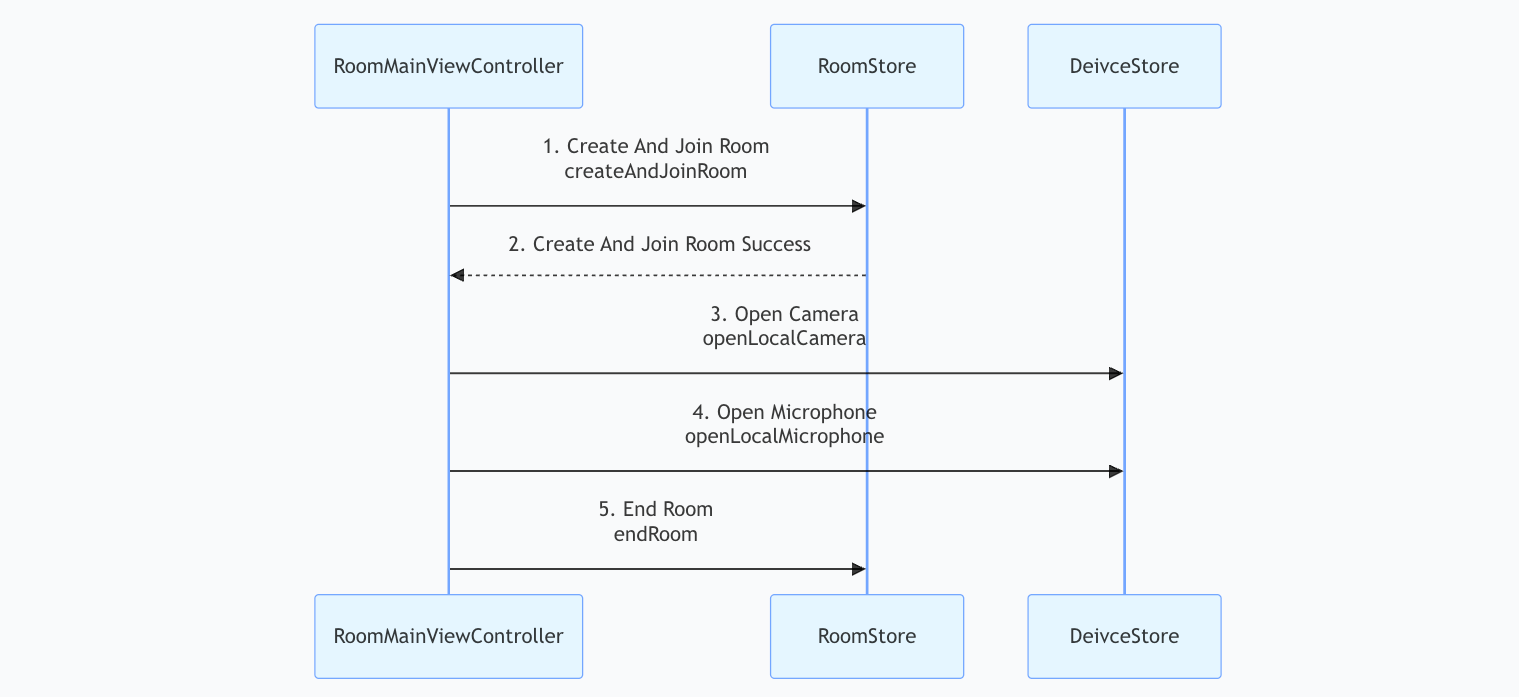
Tip:
For a full implementation of host room creation and joining logic, see TUIRoomKit, specifically RoomMainActivity.kt and RoomMainView.kt.
1. Creating and Joining a Room
Implementation Steps:
1.1 Configure Room Initialization Parameters: Use
CreateRoomOptions to set the room name and password.1.2 Preset Room Permissions: Define permissions for all members, such as muting, disabling cameras, etc.
1.3 Create and Join Room: Call
RoomStore.createAndJoinRoom to perform the combined operation.Sample Code:
import android.os.Bundleimport android.util.Logimport androidx.appcompat.app.AppCompatActivityimport io.trtc.tuikit.atomicxcore.api.CompletionHandlerimport io.trtc.tuikit.atomicxcore.api.room.CreateRoomOptionsimport io.trtc.tuikit.atomicxcore.api.room.RoomStoreimport io.trtc.tuikit.atomicxcore.api.room.RoomTypeclass RoomMainActivity : AppCompatActivity() {private val roomID = "test_room_001"private val roomType = RoomType.STANDARDoverride fun onCreate(savedInstanceState: Bundle?) {super.onCreate(savedInstanceState)createAndJoinRoom()}private fun createAndJoinRoom() {// 1. Configure room initialization parametersval options = CreateRoomOptions()options.roomName = "My Discussion" // Room display nameoptions.password = "" // Room entry password (leave blank if not needed)// 2. Preset room permissions for all members (commonly used for formal meetings)options.isAllCameraDisabled = falseoptions.isAllMessageDisabled = falseoptions.isAllMicrophoneDisabled = falseoptions.isAllScreenShareDisabled = false// 3. Create and join room// If the room does not exist, it is created and joined automaticallyRoomStore.shared().createAndJoinRoom(roomID, roomType, options, object : CompletionHandler {override fun onSuccess() {// Room created and joined successfully. You can now subscribe to room status or open local camera/microphone.Log.d("Room", "Room created and joined successfully")}override fun onFailure(code: Int, desc: String) {// Room creation/join failed (possible permission, network, or parameter errors)Log.e("Room", "Failed to create and join room [Error code: $code]: $desc")}})}}
createAndJoinRoom API Parameter Details:
Parameter Name | Type | Required | Description |
roomID | String | Yes | Unique room identifier. Length: 0-48 bytes. Use only numbers, English letters (case-sensitive), underscores (_), hyphens (-). Avoid spaces and Chinese characters. |
roomType | RoomType | Yes | Room type: STANDARD: Standard room (default).WEBINAR: Large seminar room.Use STANDARD for most multi-party conferences. |
options | CreateRoomOptions | Yes | Room creation configuration object. For usage details, see CreateRoomOptions struct documentation. |
completion | CompletionHandler | No | Callback for room creation/join result. Returns error code and message on failure. |
CreateRoomOptions Struct Details:
Parameter Name | Type | Required | Description |
roomName | String | No | Room name (optional, defaults to empty). Length: 0-60 bytes. Supports English, Chinese, numbers, special characters. |
password | String | No | Room password (empty string means no password). Length: 0-32 bytes. Recommended: 4-8 digit numbers for easy mobile input. If set, users must enter password to join. Avoid storing sensitive info in plaintext. |
isAllMicrophoneDisabled | Boolean | No | Disable microphones for all members: True: disabled. False: allowed (default). |
isAllCameraDisabled | Boolean | No | Disable cameras for all: True: disabled. False: allowed (default). |
isAllScreenShareDisabled | Boolean | No | Disable screen sharing for all: True: disabled. False: allowed (default). |
isAllMessageDisabled | Boolean | No | Mute all chat messages: True: disabled. False: allowed (default). |
2. Opening Camera and Microphone
After entering the room, activate the local camera and microphone by calling
openLocalCamera and openLocalMicrophone from DeviceStore.import android.os.Bundleimport androidx.appcompat.app.AppCompatActivityimport io.trtc.tuikit.atomicxcore.api.device.DeviceStoreclass RoomMainActivity : AppCompatActivity() {override fun onCreate(savedInstanceState: Bundle?) {super.onCreate(savedInstanceState)openDevices()}private fun openDevices() {// Open front cameraDeviceStore.shared().openLocalCamera(true, completion = null)// Open microphoneDeviceStore.shared().openLocalMicrophone(completion = null)}}
Note:
On Android 6.0 or later, you must dynamically request permissions before opening devices. See the FAQ for details on dynamic permission requests.
openLocalCamera API Parameter Details:
Parameter Name | Type | Required | Description |
isFront | Boolean | Yes | Enable the front camera. true: Front camera. false: Rear camera. |
completion | CompletionHandler | No | Callback for camera open result. Returns error code and message if failed. |
3. End a Room
To end the room, call
endRoom from RoomStore. All participants are notified when the room ends.import android.os.Bundleimport android.util.Logimport androidx.appcompat.app.AppCompatActivityimport io.trtc.tuikit.atomicxcore.api.CompletionHandlerimport io.trtc.tuikit.atomicxcore.api.room.RoomStoreclass RoomMainActivity : AppCompatActivity() {override fun onCreate(savedInstanceState: Bundle?) {super.onCreate(savedInstanceState)endRoom()}private fun endRoom() {// Permanently end the current room. Usually only the host can perform this action.// All members are removed and audio/video capture is stopped.RoomStore.shared().endRoom(object : CompletionHandler {override fun onSuccess() {Log.d("Room", "Room ended successfully")}override fun onFailure(code: Int, desc: String) {Log.e("Room", "Failed to end room [Error code: $code]: $desc")}})}}
Step 2: Participant Joins Room
Participants can join a room in just a few steps to interact with others in real-time audio/video.
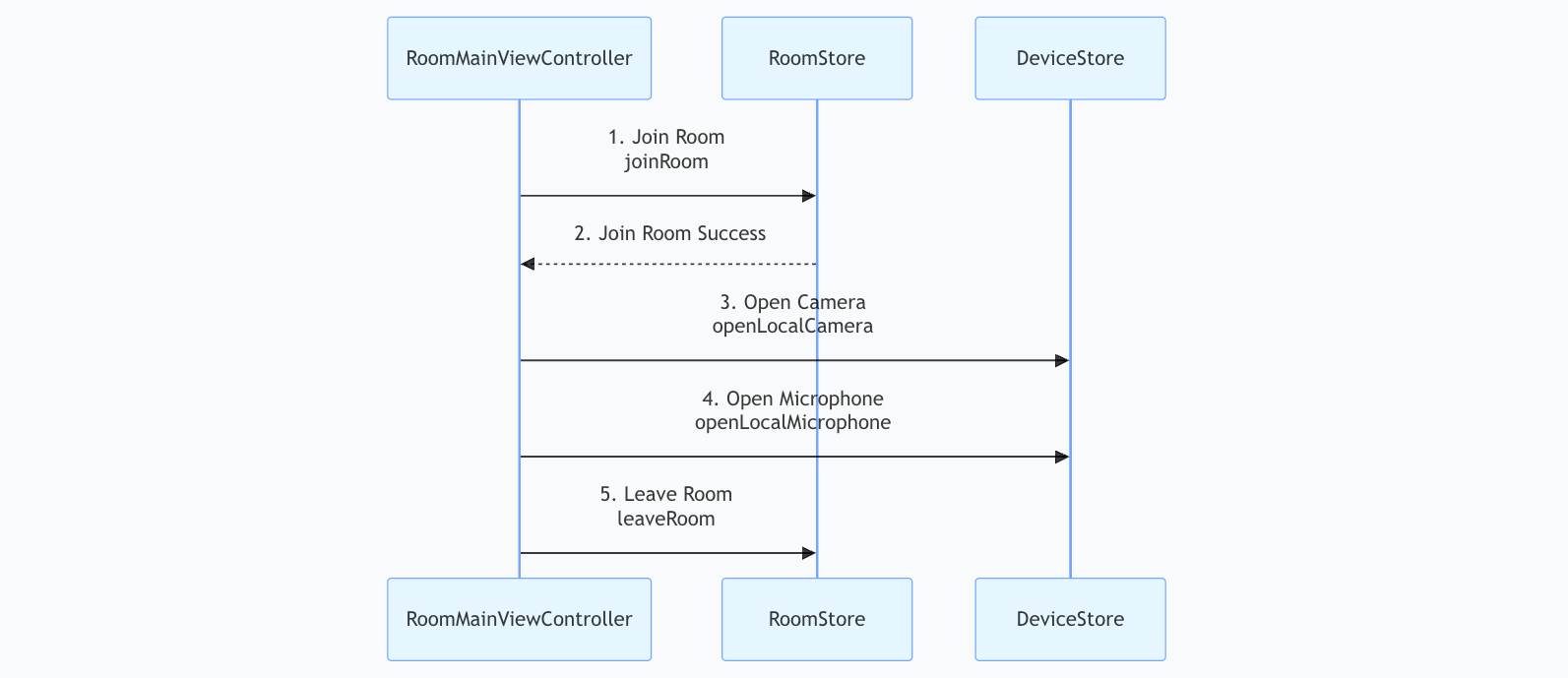
1. Join a Room
Call
joinRoom from RoomStore to enter a room. Other users will receive a participant join notification.import android.os.Bundleimport android.util.Logimport androidx.appcompat.app.AppCompatActivityimport io.trtc.tuikit.atomicxcore.api.CompletionHandlerimport io.trtc.tuikit.atomicxcore.api.room.RoomStoreimport io.trtc.tuikit.atomicxcore.api.room.RoomTypeclass RoomMainActivity : AppCompatActivity() {private val roomID = "test_room_001"private val roomType = RoomType.STANDARDoverride fun onCreate(savedInstanceState: Bundle?) {super.onCreate(savedInstanceState)joinRoom()}private fun joinRoom() {// Prepare join parametersval targetRoomID = this.roomIDval roomPassword = "" // If not set, use empty string or null// Join an existing room. This checks room existence, ban status, and password.RoomStore.shared().joinRoom(targetRoomID, roomType, roomPassword, object : CompletionHandler {override fun onSuccess() {Log.d("Room", "Joined room successfully")}override fun onFailure(code: Int, desc: String) {Log.e("Room", "Failed to join room [Error code: $code]: $desc")}})}}
joinRoom API Parameter Details:
Parameter Name | Type | Required | Description |
roomID | String | Yes | Unique room identifier. Length: 0-48 bytes. Use only numbers, English letters (case-sensitive), underscores (_), hyphens (-). Avoid spaces and Chinese characters. |
roomType | RoomType | Yes | Room type: STANDARD: Standard room (default).WEBINAR: Large seminar room.Use STANDARD for multi-party conferences. |
password | String | No | Room password (empty string means no password). Length: 0-32 bytes. Recommended: 4-8 digit numbers for easy input. If set, users must enter the password. Avoid storing sensitive info in plaintext. |
completion | CompletionHandler | No | Callback for join result. Returns error code and message if failed. |
2. Open Camera and Microphone
3. Leave the Room
To leave the room, call
leaveRoom from RoomStore. Other participants will be notified when someone leaves.import android.os.Bundleimport android.util.Logimport androidx.appcompat.app.AppCompatActivityimport io.trtc.tuikit.atomicxcore.api.CompletionHandlerimport io.trtc.tuikit.atomicxcore.api.room.RoomStoreclass RoomMainActivity : AppCompatActivity() {override fun onCreate(savedInstanceState: Bundle?) {super.onCreate(savedInstanceState)leaveRoom()}private fun leaveRoom() {// leaveRoom is for regular members or the host to leave the room.// Unlike endRoom, calling leaveRoom as host only removes you; the room remains.RoomStore.shared().leaveRoom(object : CompletionHandler {override fun onSuccess() {Log.d("Room", "Left room successfully")}override fun onFailure(code: Int, desc: String) {Log.e("Room", "Failed to leave room [Error code: $code]: $desc")}})}}
Step 3: Bind Video Views
The
RoomParticipantView component in AtomicXCore SDK provides a complete solution for video rendering. It supports real-time display of both local camera feeds and remote participant streams, and is easy to integrate.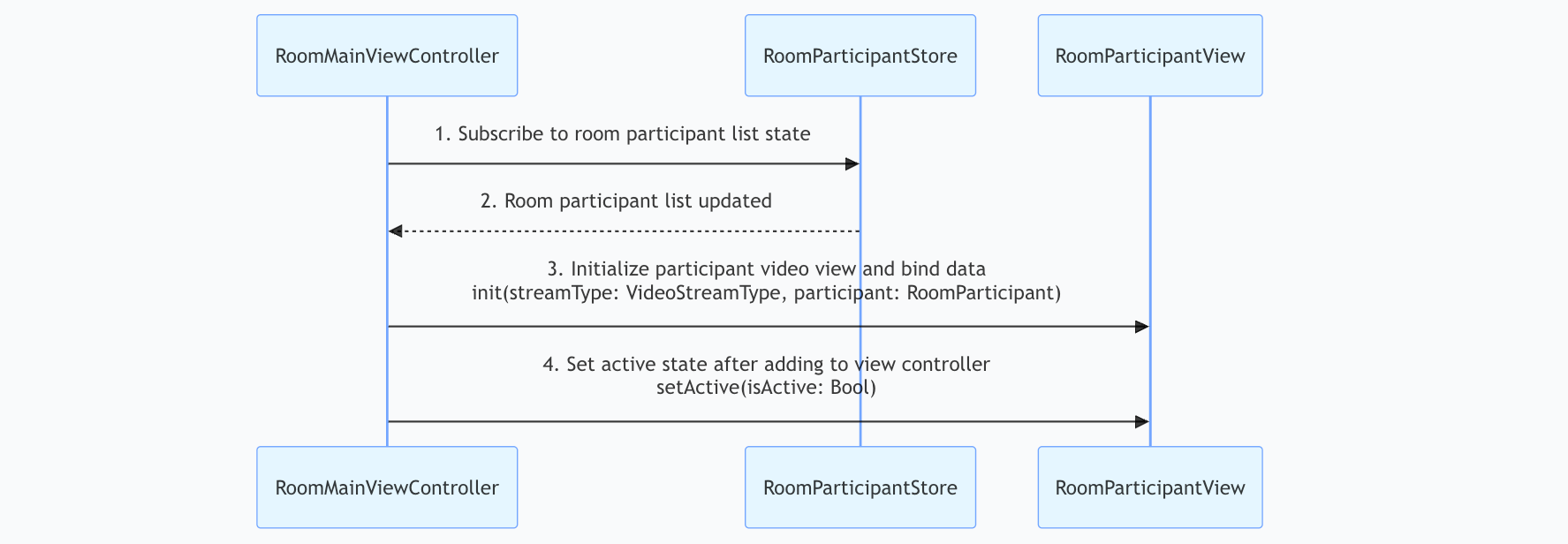
Tip:
RoomParticipantView is the primary view for rendering participant video streams. For more flexible layouts, see TUIRoomKit, especially RoomMainView.kt.Implementation Steps:
1. Subscribe to Participant Data: Listen to
RoomParticipantStore.state.participantList for participant state changes.2. Automatic State Sync: The participant list updates reactively as room state changes.
3. Initialize Views: Create
RoomParticipantView instances based on participant data and bind video logic.4. Integrate with UI: Add views to your layout and activate rendering.
Sample Code:
import android.os.Bundleimport android.widget.FrameLayoutimport androidx.appcompat.app.AppCompatActivityimport androidx.lifecycle.lifecycleScopeimport io.trtc.tuikit.atomicxcore.api.room.RoomParticipantimport io.trtc.tuikit.atomicxcore.api.room.RoomParticipantStoreimport io.trtc.tuikit.atomicxcore.api.view.RoomParticipantViewimport io.trtc.tuikit.atomicxcore.api.view.VideoStreamTypeimport kotlinx.coroutines.launchclass RoomMainActivity : AppCompatActivity() {private val roomID = "test_room_001"private lateinit var container: FrameLayoutprivate val cellSize by lazy { resources.displayMetrics.widthPixels / 3 }// RoomParticipantStore must be created for each room: RoomParticipantStore.create(roomID: String)private val participantStore = RoomParticipantStore.create(roomID)override fun onCreate(savedInstanceState: Bundle?) {super.onCreate(savedInstanceState)container = FrameLayout(this)setContentView(container)subscribeParticipantState()participantStore.getParticipantList("", null)}private fun subscribeParticipantState() {lifecycleScope.launch {participantStore.state.participantList.collect { participants ->updateParticipantView(participants)}}}private fun updateParticipantView(list: List<RoomParticipant>) {container.removeAllViews()list.take(9).forEachIndexed { index, participant ->val view = RoomParticipantView(this@RoomMainActivity).apply {init(VideoStreamType.CAMERA, participant)}val params = FrameLayout.LayoutParams(cellSize, cellSize).apply {leftMargin = (index % 3) * cellSizetopMargin = (index / 3) * cellSize}view.setActive(true)container.addView(view, params)}}}
RoomParticipantView init() API Parameter Details:
Parameter Name | Type | Required | Description |
streamType | VideoStreamType | Yes | Video stream type: CAMERA: Camera stream.SCREEN: Screen sharing stream. |
participant | RoomParticipant | Yes | Real-time participant object, includes identity, status, device permissions. |
RoomParticipant Struct Details:
Parameter Name | Type | Required | Description |
userID | String | Yes | Unique user identifier. |
userName | String | No | User nickname. |
avatarURL | String | No | URL of user's avatar. |
nameCard | String | No | User's name card/remark. Length: 0-32 bytes. Supports English, Chinese, numbers, special characters. |
role | ParticipantRole | No | Role in room: OWNER: Host.ADMIN: Admin.GENERAL_USER: Regular user (default) |
roomStatus | RoomParticipantStatus | No | Business status: SCHEDULED: Scheduled (default).IN_CALLING: Calling.CALL_TIMEOUT: Timeout.CALL_REJECTED: Rejected.IN_ROOM: In room . |
microphoneStatus | DeviceStatus | No | Microphone status: OFF: Off (default). ON: On. |
cameraStatus | DeviceStatus | No | Camera status: OFF: Off (default). ON: On. |
screenShareStatus | DeviceStatus | No | Screen sharing status: OFF: Off (default). ON: On. |
isMessageDisabled | Boolean | No | Muted status: True: disabled. False: enabled (default). |
metaData | MutableMap | No | Business custom extension data, synchronized with participant state. Limit: 0-60 bytes. Supports only JSON string. |
Step 4: Listen to Room Events
Subscribe to room events by calling
RoomStore.addRoomListener. Implement the RoomListener interface to handle events.import android.os.Bundleimport android.util.Logimport androidx.appcompat.app.AppCompatActivityimport io.trtc.tuikit.atomicxcore.api.room.RoomInfoimport io.trtc.tuikit.atomicxcore.api.room.RoomListenerimport io.trtc.tuikit.atomicxcore.api.room.RoomStoreclass RoomMainActivity : AppCompatActivity() {// RoomListener receives room lifecycle events: calling, dissolution, scheduling reminders, etc.private val roomListener = object : RoomListener() {override fun onRoomEnded(roomInfo: RoomInfo) {Log.d("Room", "Current room has ended")}// ... handle other RoomListener events ...}override fun onCreate(savedInstanceState: Bundle?) {super.onCreate(savedInstanceState)subscribeRoomEvents()}private fun subscribeRoomEvents() {RoomStore.shared().addRoomListener(roomListener)}override fun onDestroy() {super.onDestroy()// Remove listener to prevent memory leaksRoomStore.shared().removeRoomListener(roomListener)}}
Demo effects
After completing the above setup, you will have a multi-party video rendering room without UI interaction.
Demo effect | 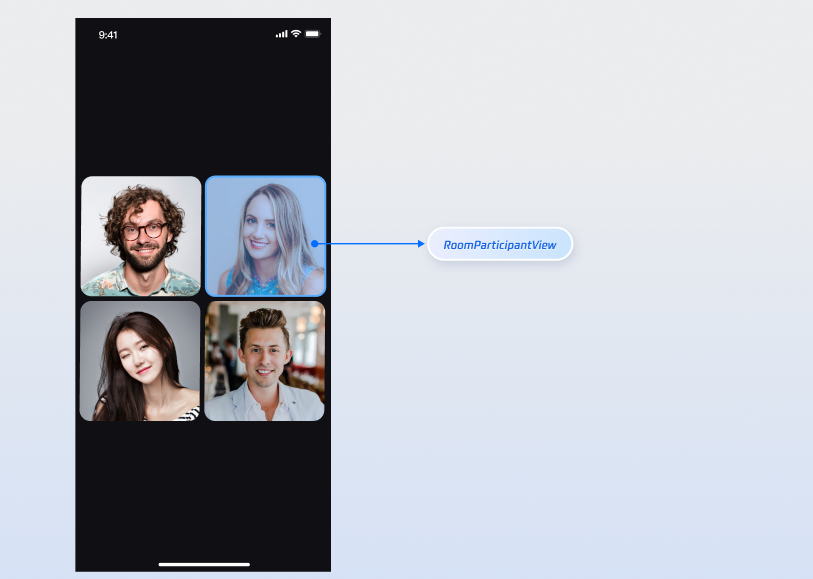 |
Enhance Multi-Party Room Features
To support additional requirements, AtomicXCore SDK provides the following features to enrich conference room scenarios.
Multi-User Room Feature | Feature Description | Implementation Guide |
Update Room Information | Host can update room details, such as name and password. | |
In-Meeting Calling | Host or admin can invite users who are not in the room to join. | |
Room Scheduling | Schedule rooms in advance, set start/end times, and add participants. | |
In-Room Member Management | Host can manage participants: assign admins, remove users, control individual audio/video. |
API Documentation
Store/Component | Feature Description | API Documentation |
RoomStore | Complete room lifecycle management: create & join, join, leave, end room, update/get room info, scheduling, invite members, listen for room events | |
RoomParticipantStore | Participant management: assign admin, transfer host, get participant list, remove from room, control devices, apply for device access | |
RoomParticipantView | Single participant video view: bind/update participant info, update stream type, set active state, etc. |
FAQ
How do I resolve the allowBackup compilation error after integrating the code?

Cause: Conflicts occur when multiple modules define the
allowBackup attribute in their AndroidManifest.xml.Solution: Remove the
allowBackup attribute from your project's AndroidManifest.xml or set it to false to disable backup/restore. Add tools:replace="android:allowBackup" to the application node to enforce your own setting. See the example below: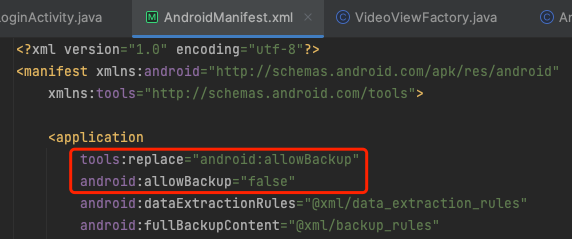
Why does RoomParticipantView show no video even though it's bound to participant info and stream type?
Check
setActive: Make sure RoomParticipantView is visible and you called RoomParticipantView.setActive(true).Check RoomParticipant: Verify that the
cameraStatus of the bound RoomParticipant is ON.Check Network: Ensure the device has a stable network connection.
Why can't the remote side see video after calling DeviceStore APIs to open camera/microphone?
Check if you requested system camera and microphone permissions
On Android 6.0 and above, dynamically request permissions as follows:
1. Declare permissions in AndroidManifest.xml.
<uses-permission android:name="android.permission.CAMERA" /><uses-permission android:name="android.permission.RECORD_AUDIO" />
2. Request permissions at runtime.
import android.Manifestimport android.content.pm.PackageManagerimport android.os.Bundleimport android.util.Logimport androidx.appcompat.app.AppCompatActivityimport androidx.core.app.ActivityCompatimport androidx.core.content.ContextCompatimport io.trtc.tuikit.atomicxcore.api.device.DeviceStoreclass RoomMainActivity : AppCompatActivity() {private val PERMISSION_REQUEST_CODE = 1001override fun onCreate(savedInstanceState: Bundle?) {super.onCreate(savedInstanceState)checkAndRequestPermissions()}private fun checkAndRequestPermissions() {val permissions = arrayOf(Manifest.permission.CAMERA,Manifest.permission.RECORD_AUDIO)val permissionsToRequest = permissions.filter {ContextCompat.checkSelfPermission(this, it) != PackageManager.PERMISSION_GRANTED}if (permissionsToRequest.isNotEmpty()) {ActivityCompat.requestPermissions(this,permissionsToRequest.toTypedArray(),PERMISSION_REQUEST_CODE)} else {// Permissions granted, can open devicesopenDevices()}}override fun onRequestPermissionsResult(requestCode: Int,permissions: Array<out String>,grantResults: IntArray) {super.onRequestPermissionsResult(requestCode, permissions, grantResults)if (requestCode == PERMISSION_REQUEST_CODE) {if (grantResults.all { it == PackageManager.PERMISSION_GRANTED }) {// All permissions granted, call openDevices()openDevices()} else {// Some permissions deniedLog.e("Permission", "Some permissions denied")}}}private fun openDevices() {// Open front cameraDeviceStore.shared().openLocalCamera(isFront = true, completion = null)// Open microphoneDeviceStore.shared().openLocalMicrophone(completion = null)}
Why does audio/video capture stop after switching to background on Android 14+?
Android 14 and above require a foreground service with the proper service type to capture camera/microphone data in the background. Without this, capture will not work.
1. Declare
FOREGROUND_SERVICE, FOREGROUND_SERVICE_CAMERA, and FOREGROUND_SERVICE_MICROPHONE permissions and service in AndroidManifest.xml.<uses-permission android:name="android.permission.FOREGROUND_SERVICE" /><uses-permission android:name="android.permission.FOREGROUND_SERVICE_CAMERA" /><uses-permission android:name="android.permission.FOREGROUND_SERVICE_MICROPHONE" /><serviceandroid:name=".MediaCaptureService"android:foregroundServiceType="camera|microphone" />
2. Start the foreground service after launching your interface.
import android.app.NotificationChannelimport android.app.NotificationManagerimport android.app.Serviceimport android.content.Intentimport android.content.pm.ServiceInfoimport android.os.Bundleimport android.os.IBinderimport androidx.appcompat.app.AppCompatActivityimport androidx.core.app.NotificationCompatclass MainActivity : AppCompatActivity() {override fun onCreate(savedInstanceState: Bundle?) {super.onCreate(savedInstanceState)startForegroundService(Intent(this, MediaCaptureService::class.java))}}class MediaCaptureService : Service() {override fun onCreate() {super.onCreate()// Create notification channelval channel = NotificationChannel("media", "Media Capture", NotificationManager.IMPORTANCE_LOW)getSystemService(NotificationManager::class.java).createNotificationChannel(channel)// Build notificationval notification = NotificationCompat.Builder(this, "media").setContentTitle("In Audio/Video Call").setSmallIcon(android.R.drawable.ic_menu_call).build()// Start foreground service and specify camera/microphone type (required for Android 14+)startForeground(1, notification,ServiceInfo.FOREGROUND_SERVICE_TYPE_CAMERA or ServiceInfo.FOREGROUND_SERVICE_TYPE_MICROPHONE)}override fun onBind(intent: Intent?): IBinder? = null}
Contact Us
If you have any questions or suggestions during integration or usage, please contact info_rtc@tencent.com to submit feedback.