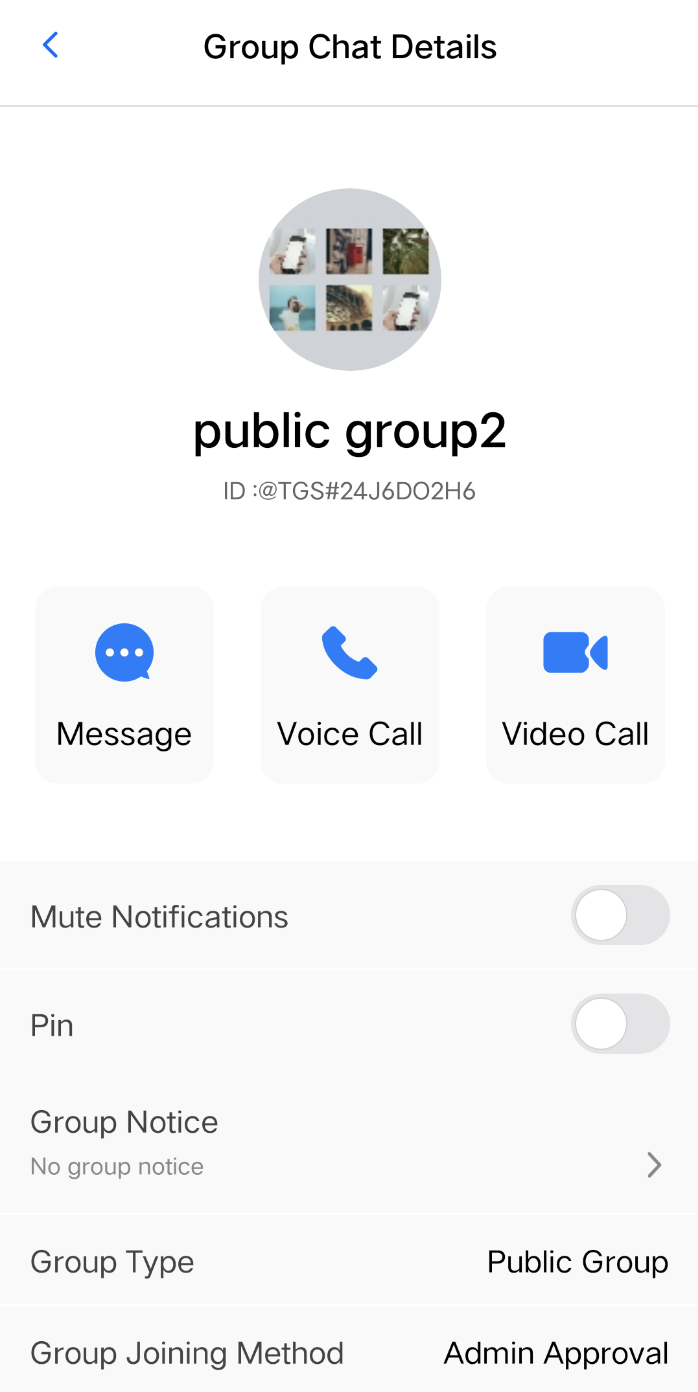
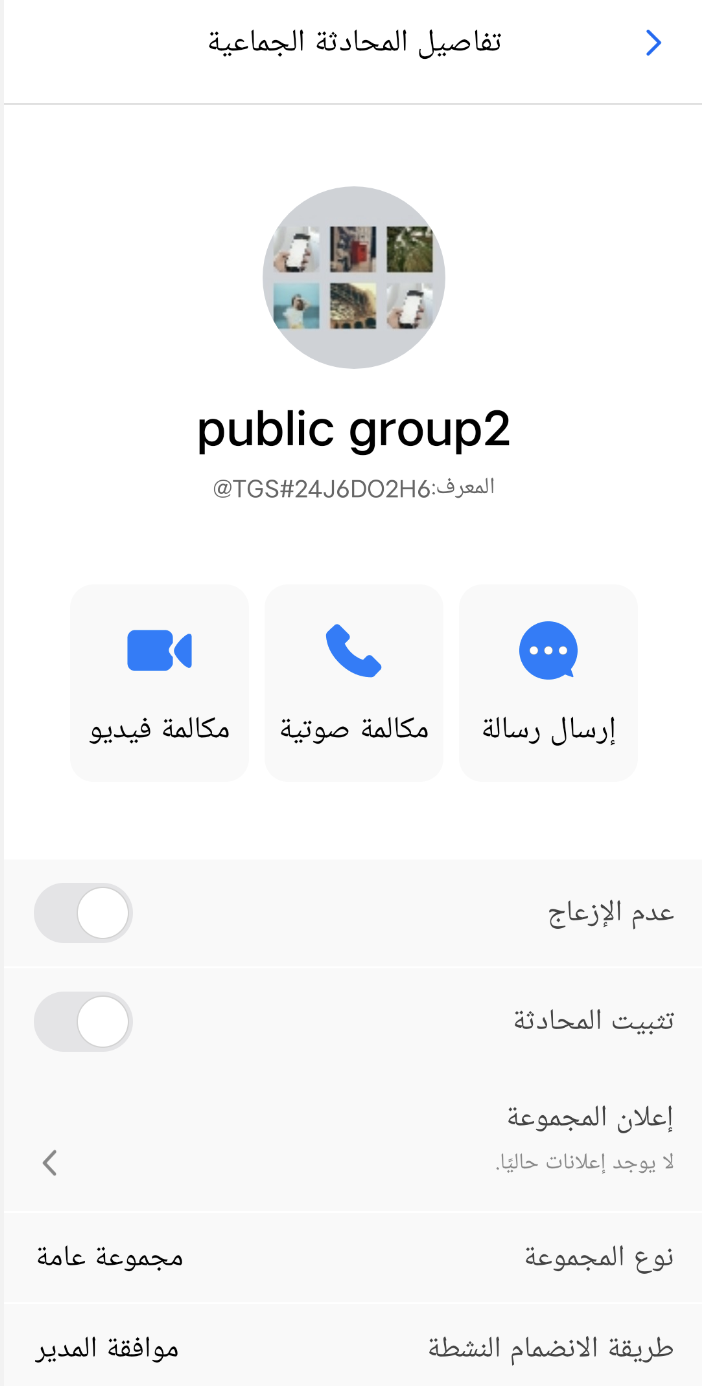
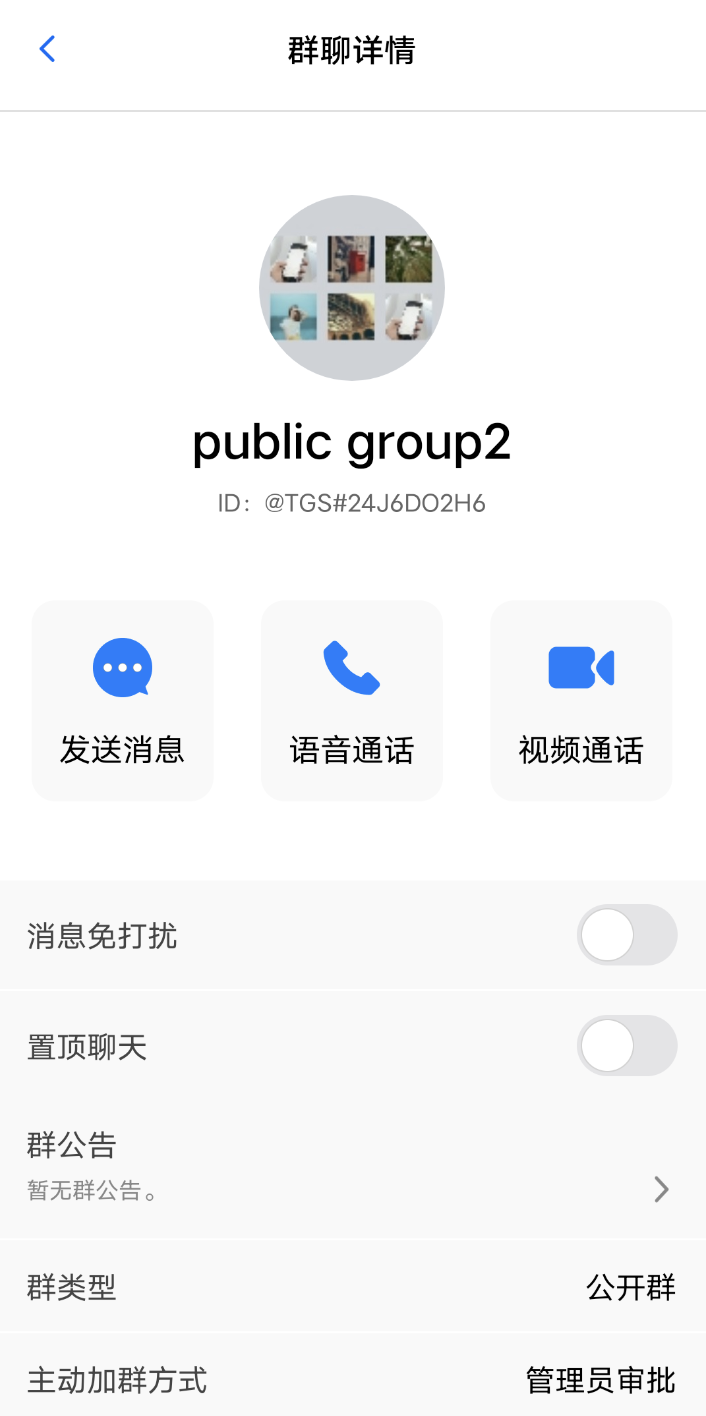
TUIKit SwiftUI includes built-in language packs for English, Simplified Chinese, Traditional Chinese, and Arabic as default interface languages.
This documentation covers how to use these default language packs, customize translation entries, or add new language packs.
English
Arabic
Simplified Chinese
Using Built-in Languages
If your app only needs to support English, Simplified Chinese, Traditional Chinese, and Arabic, follow this section.
Following System Language
To use the built-in languages, simply integrate TUIKit SwiftUI. No additional configuration is required. The component automatically matches the system language. If the system language is not one of the four supported languages, English is used by default.
Setting a Specific Language
To manually set the interface language for TUIKit SwiftUI, call setLanguage with the desired language code. Once set, the component will not follow the system language. Example:
let languageState =LanguageState()
// Supported languages:
// "zh-Hans" - Simplified Chinese
// "zh-Hant" - Traditional Chinese
// "en" - English
// "ar" - Arabic
languageState.setLanguage("zh-Hans")
Using Additional Languages or Custom Translation Entries
If you need to support additional languages or modify translation entries, follow this section.
This example demonstrates how to add a Korean language pack and customize translations.
Adding Language Resource Files
Create a ko.lproj directory and a Localizable.strings file under ChatLocalizable.bundle/Localizable/. After adding Korean, the directory structure will look like this:
└── ko.lproj/Localizable.strings // Korean translation file; "ko" is the ISO 639-1 language code for Korean
Refer to the keys in en.lproj/Localizable.strings and provide Korean translations for each entry.
Note:
1. For other bundles (such as AlbumPickerLocalizable, VideoRecorderLocalizable, RTCLocalizable, etc.), it's recommended to add ko.lproj as well.
2. For the full list of language codes, see ISO 639-1 language codes.
Customizing Translation Content
After creating ko.lproj/Localizable.strings, the keys are consistent across all language resource files. You can customize the translation content as needed.
Following System Language
Add support for the new language in the getSystemLanguage function within LanguageState.swift.
Language pack naming must follow the ISO 639-1 language code standard. The component will automatically adapt to the system language.
privatestaticfuncgetSystemLanguage()->String{
let preferredLanguage =Locale.preferredLanguages.first ??"en"
if preferredLanguage.hasPrefix("en"){
return"en"
}elseif preferredLanguage.hasPrefix("zh"){
if preferredLanguage.contains("Hans"){
return"zh-Hans"
}else{
return"zh-Hant"
}
}elseif preferredLanguage.hasPrefix("ar"){
return"ar"
}elseif preferredLanguage.hasPrefix("ko"){
return"ko"// Add this branch to support Korean system language
}else{
return"en"
}
}
Setting a Specific Language
To set the TUIKit SwiftUI interface to Korean, call setLanguage with the appropriate language code. Once set, the component will not follow the system language. Example:
let languageState =LanguageState()
// Supported languages:
// "zh-Hans" - Simplified Chinese
// "zh-Hant" - Traditional Chinese
// "en" - English
// "ar" - Arabic
languageState.setLanguage("zh-Hans")
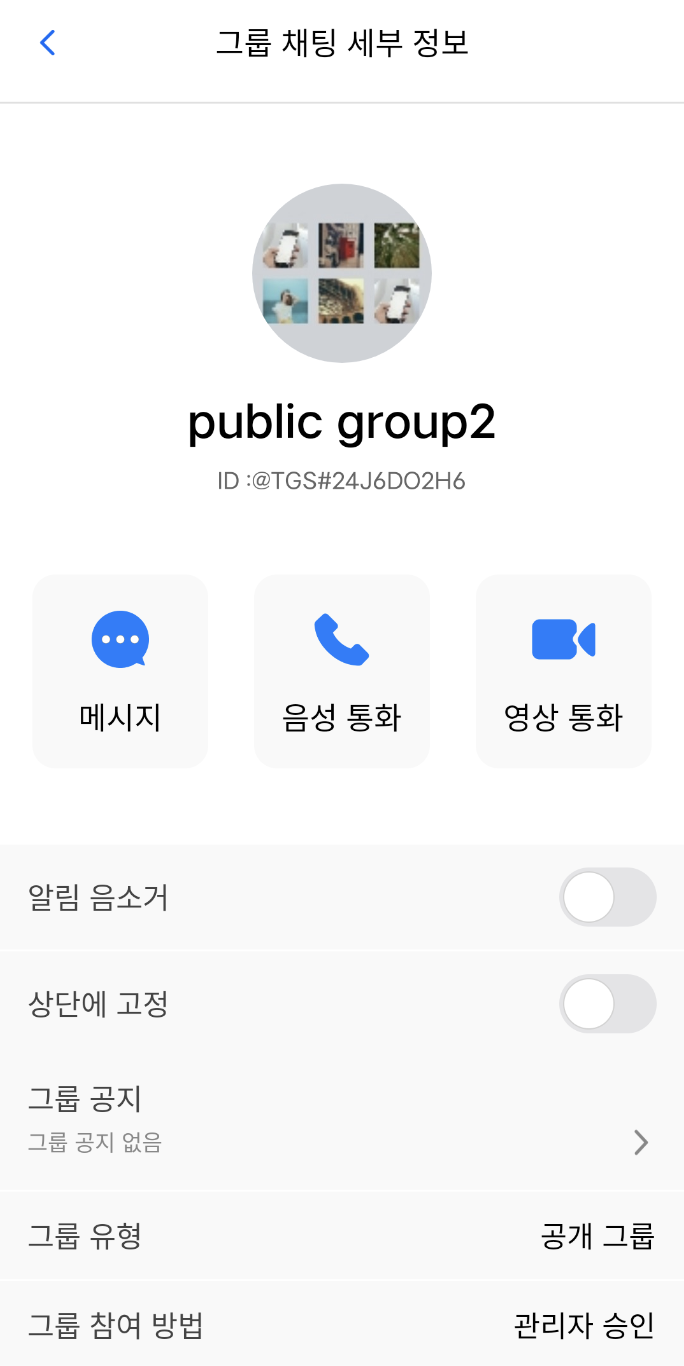
Once completed, the interface will display in Korean, as shown below: