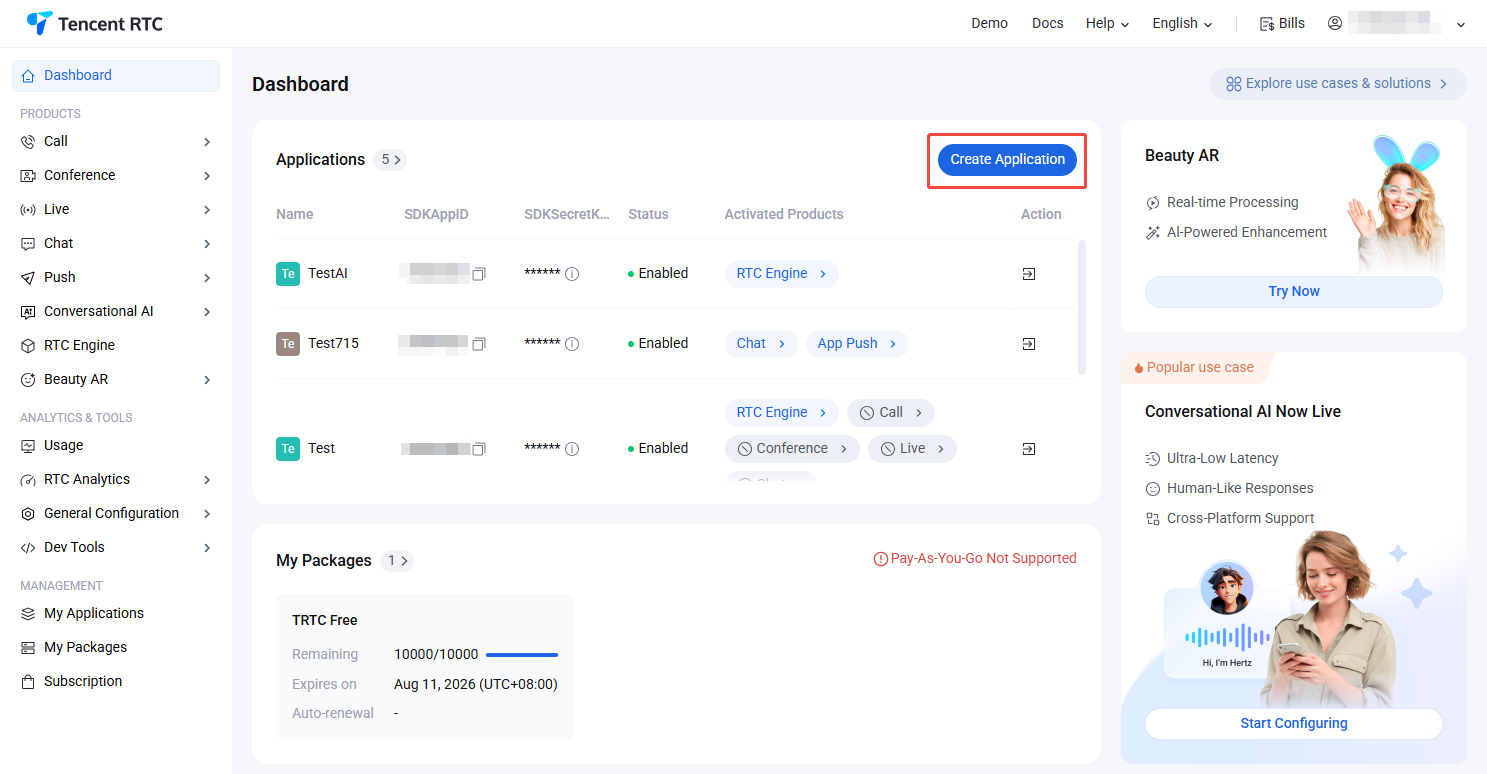
Tencent RTC provides a convenient testing and verification platform, supporting the connection to third-party STT, LLM, and TTS capacities for rapid configuration. It enables the quick implementation of conversational AI services without coding for verification tests, facilitating efficient development and deployment. This article will introduce how to use this tool.
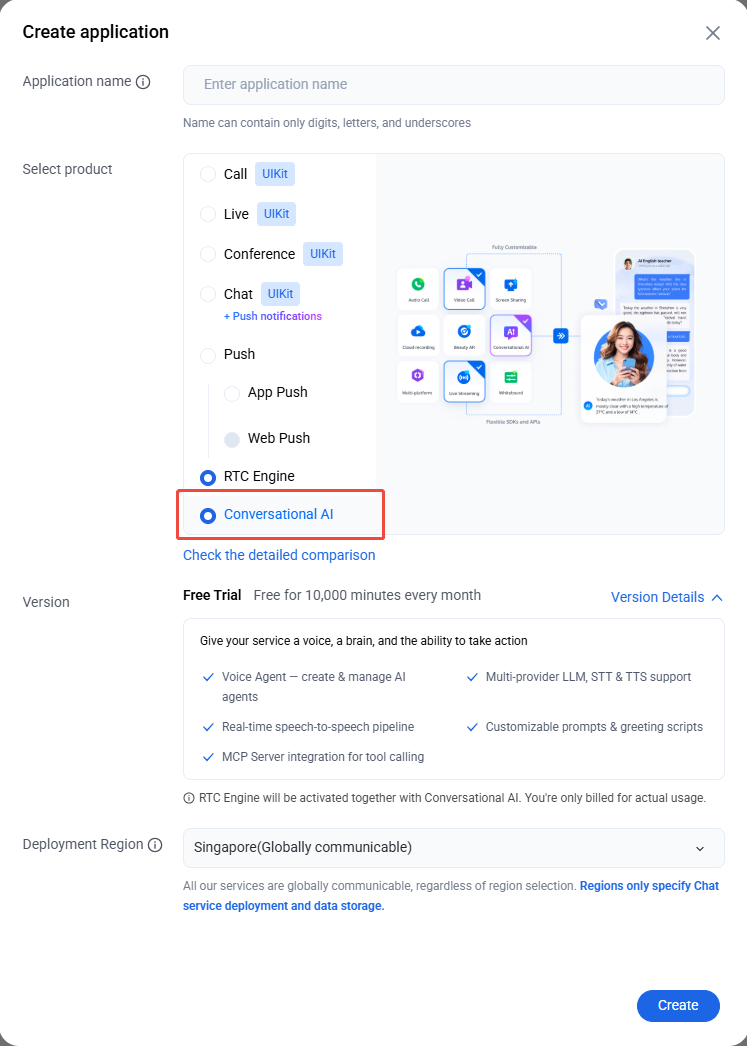
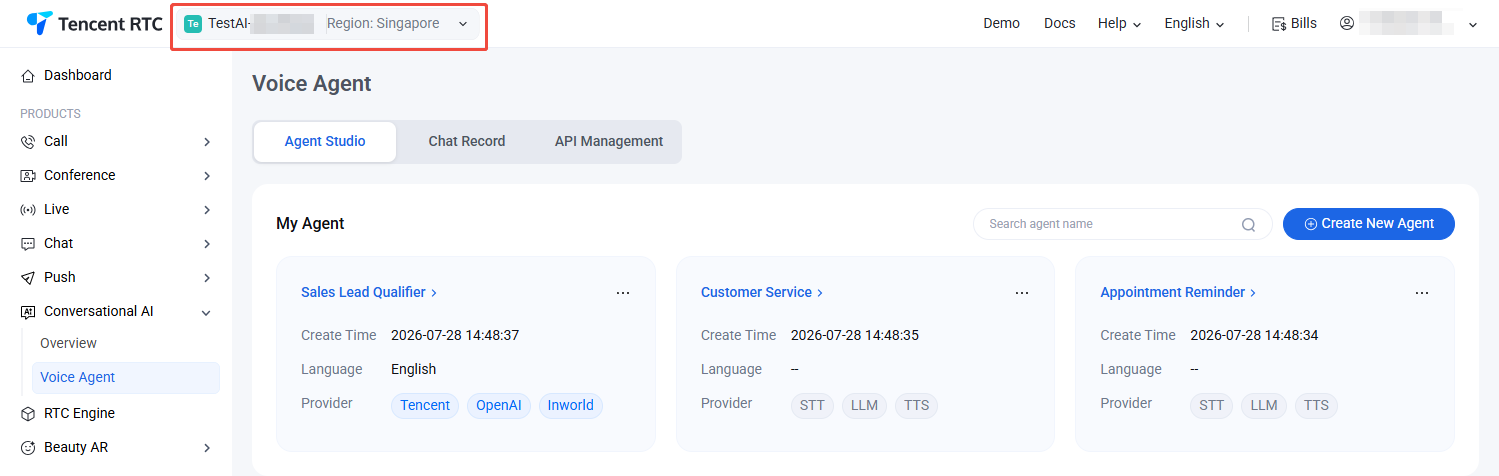
2. In the Create Application dialog, select Conversational AI. Enter your Application Name, choose the Deployment Region, and click Create.
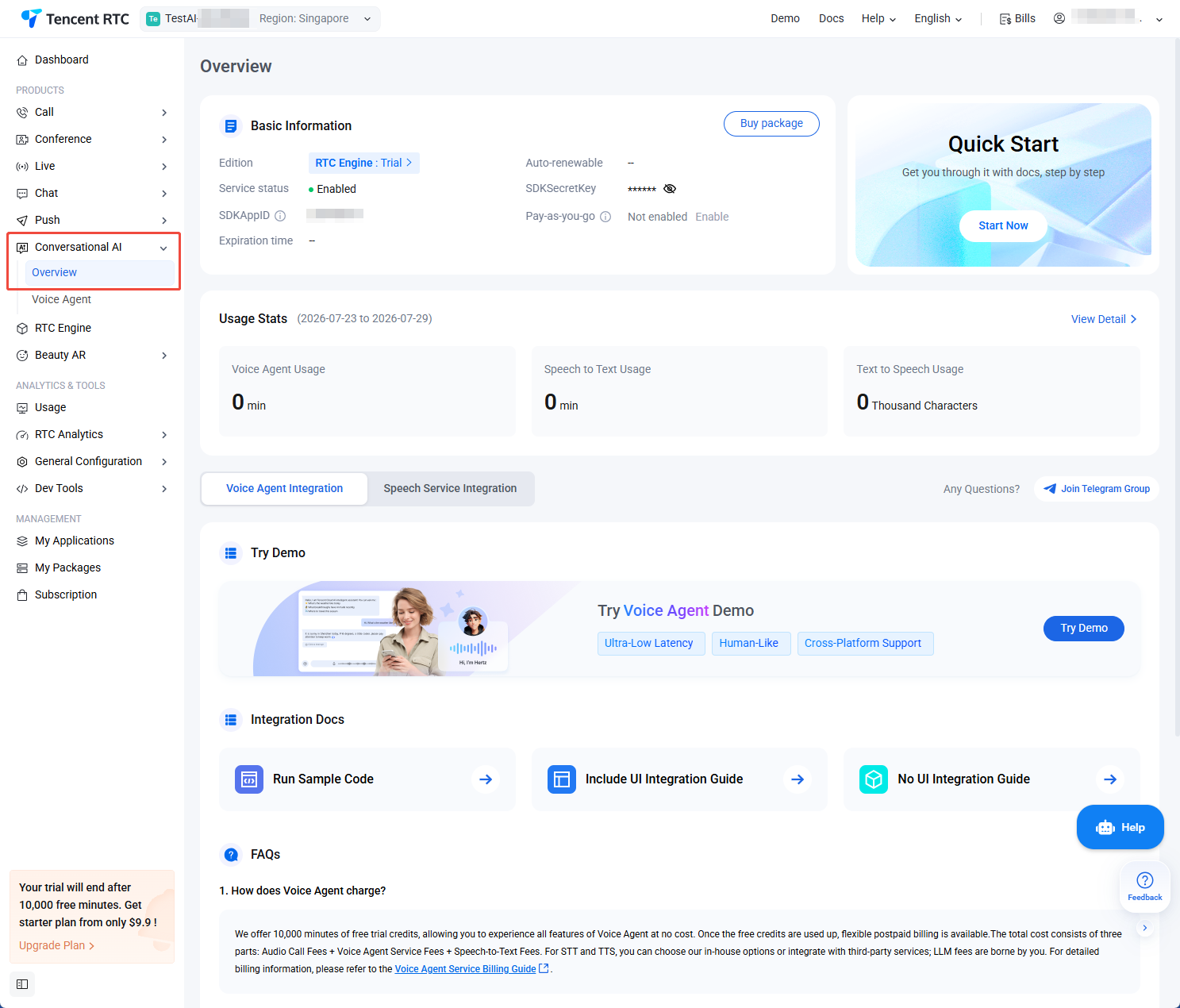
3. After the application is created, you’ll be redirected to the Conversational AI Overview, confirming successful activation.
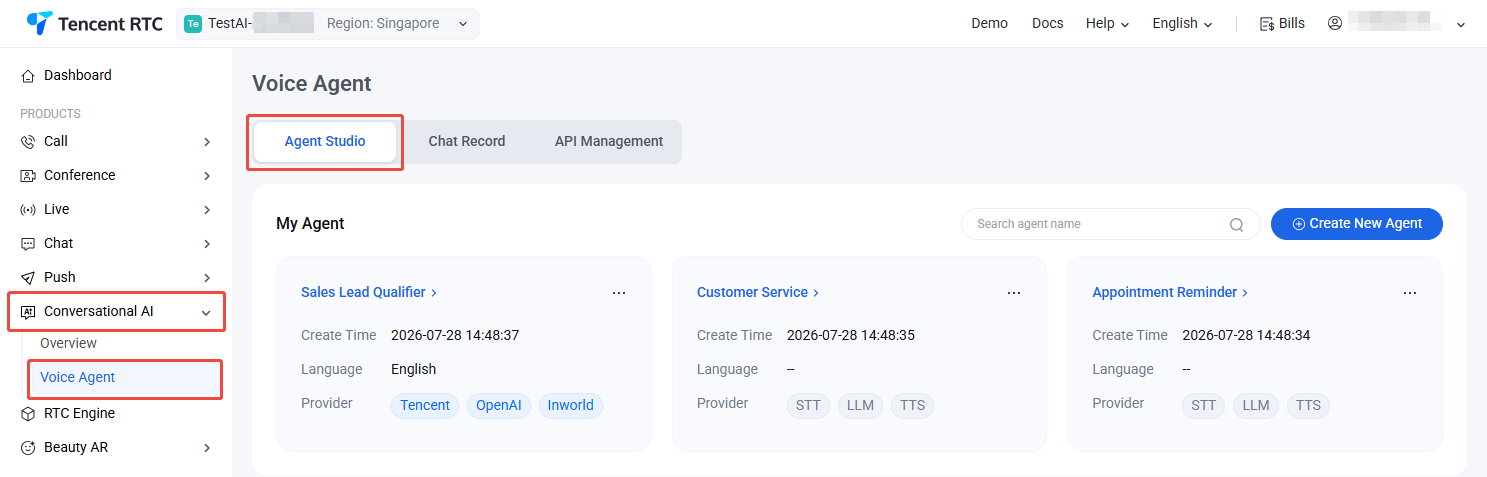
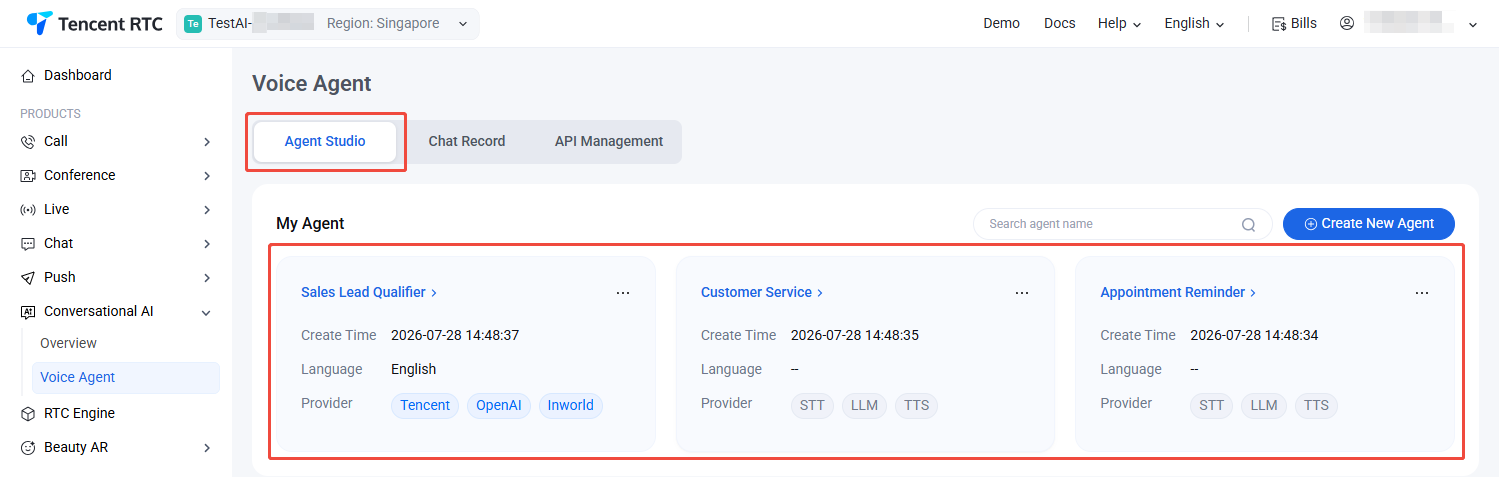
4. The platform provides three pre-configured sample Voice Agents. Navigate to Voice Agent > Agent Studio to begin configuration and explore the features.
Resource Configuration
Agent Studio supports integration with multiple STT, LLM, and TTS providers. Once your resources are configured, you can start voice tests directly.
Note:
To use Playground, you must supply your own LLM and TTS resources. If you only want to try the features, click Try Demo.
Go to Voice Agent > Agent Studio, and select the target application to test from the top menu.
2. Enter Playground
In Agent Studio, click any Voice Agent card to access its dedicated Agent Debug Console.
Resource Configuration
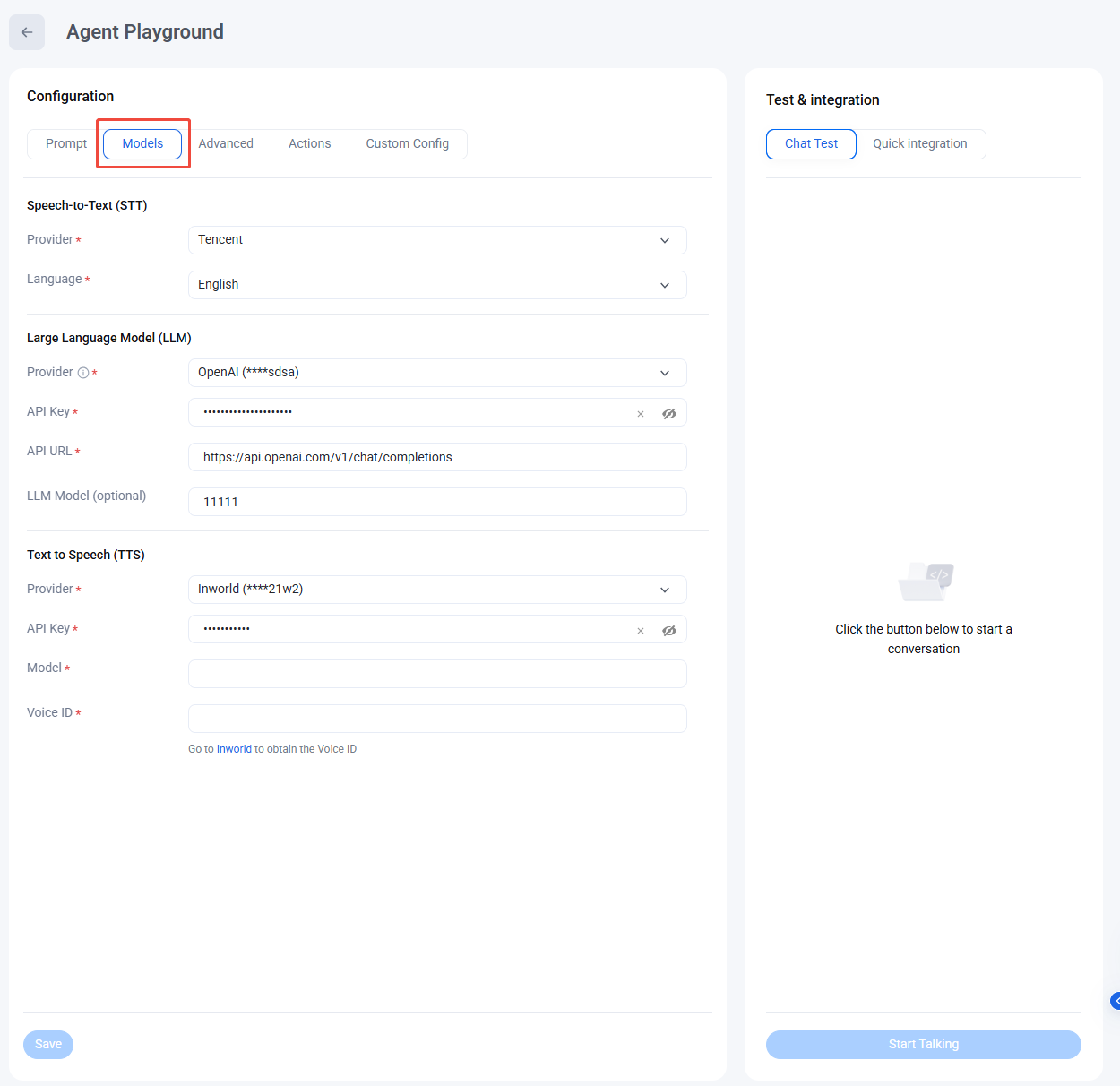
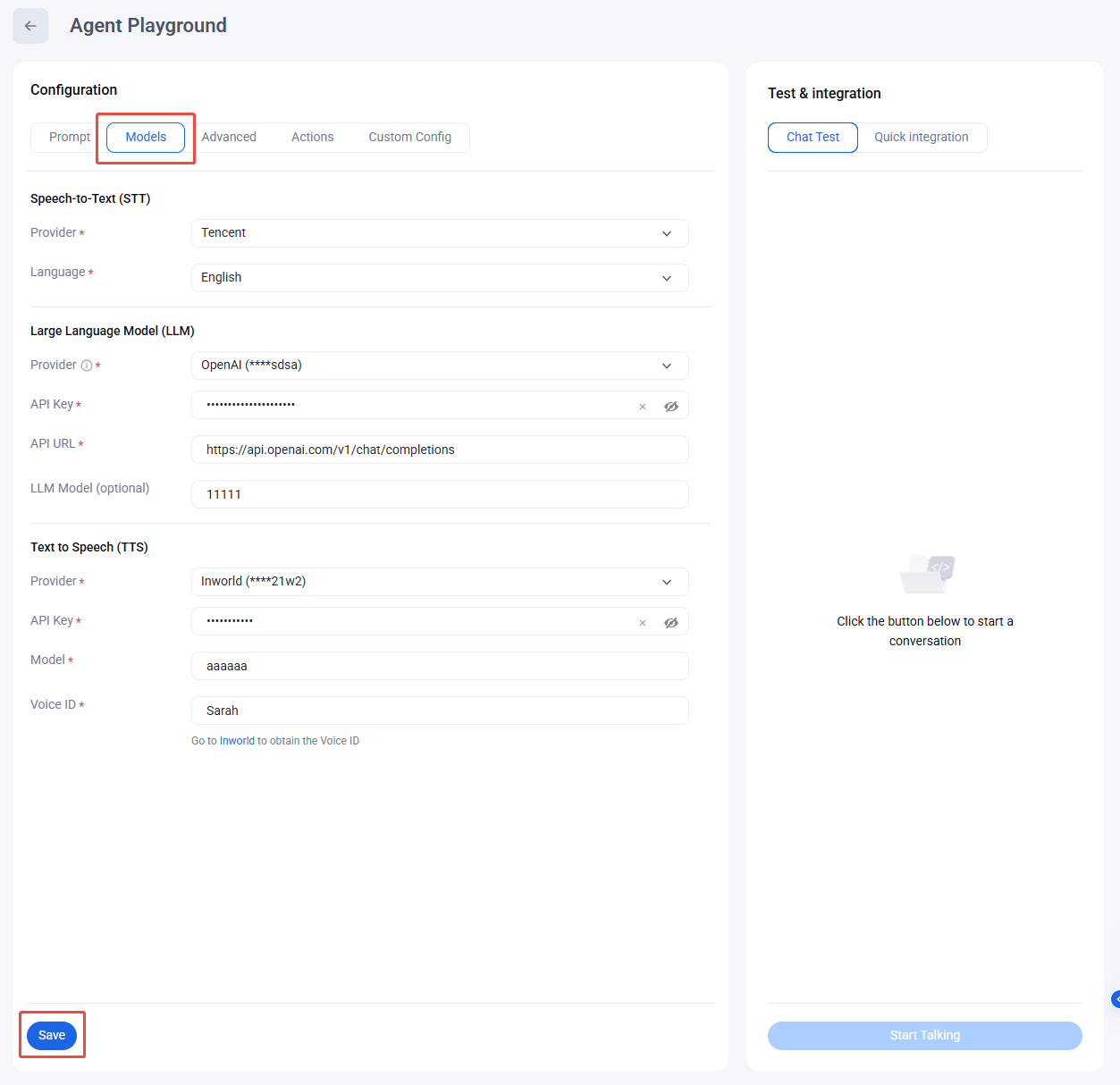
On the Agent Studio page, select Model and configure your STT, LLM, and TTS providers in sequence. If you have already set up keys in Voice Agent > API Management, you can select existing configurations from the dropdown to auto-fill credentials.
After completing the configuration, click Save.
STT (Speech To Text ) Configuration
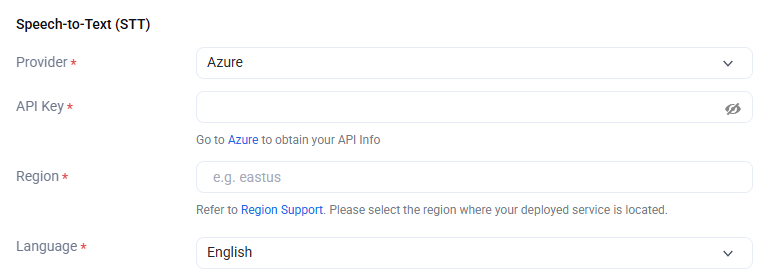
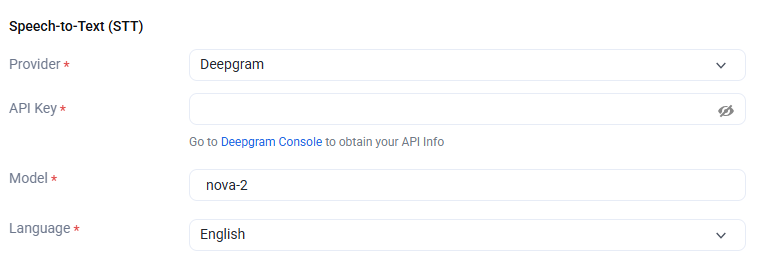
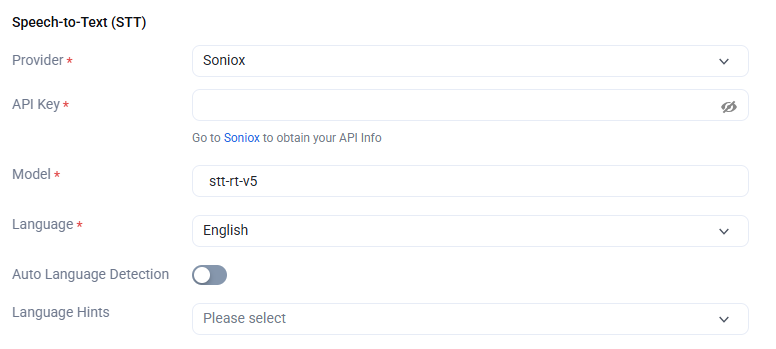
The STT speech recognition configuration model can choose Tencent, Azure, Deepgram, and Soniox. It supports multiple languages, and the VAD duration can be adjusted. The setting range is 240-2000. A smaller value will make the speech recognition sentence segmentation faster.
Tencent
Azure
Deepgram
Soniox
When selecting Tencent as the STT provider, we provide default parameters for other configurations, and you can fine-tune them according to your needs.
We provide default parameters for other configurations; you can fine-tune them according to your needs.
When selecting Deepgram as the STT provider, we provide default parameters for other configurations; you can fine-tune them according to your needs. The APIKey can be obtained from Deepgram.
If you select Soniox as the STT provider, default parameters are provided. Adjust as needed. Obtain your APIKey from Soniox.
LLM (Large Language Model) Configuration
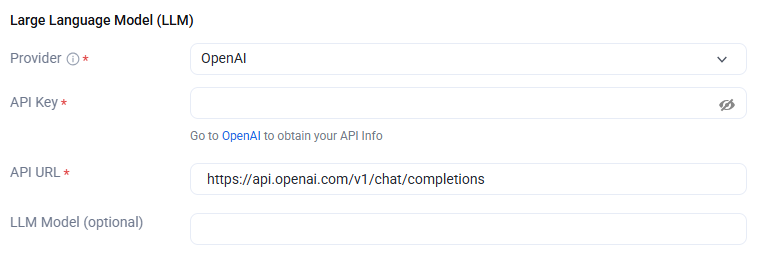
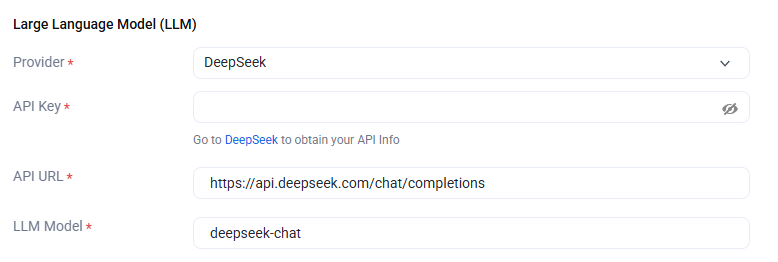
On this page, you need to apply for third-party resources for configuration: LLM providers support OpenAI, Deepseek, Minimax, Tencent Hunyuan, Coze, and Dify.
OpenAI
Deepseek
Minimax
Tencent Hunyuan
Coze
Dify
When selecting OpenAI as the LLM provider, this place supports any LLM model that complies with the OpenAI standard protocol, such as Google, Anthropic, etc. You can adjust the parameters of the model, Url and Key below by yourself for calling. When you choose to use the model provided by OpenAI, the API Key can be obtained from OpenAI.
When selecting Deepseek as the LLM provider, we provide default parameters for other configurations; you can fine-tune them according to your needs. The LLM model can be viewed at Deepseek by checking the supported model list, and the API Key can be obtained from Deepseek.
Besides Deepseek official, you can also choose to call the Deepseek service deployed on third-party cloud platforms. According to the OpenAI protocol, just replace the parameters of LLM Model, URL and Key below.
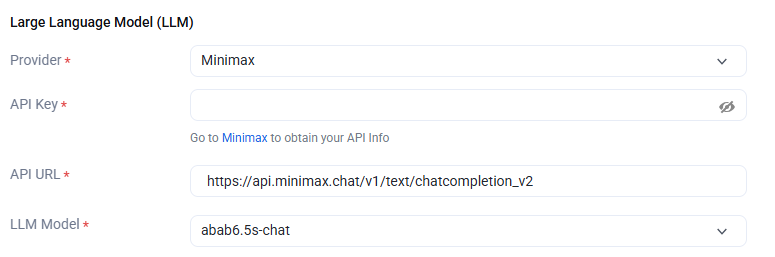
When selecting Minimax as the LLM provider, we provide default parameters; you can fine-tune them according to your needs. The LLM model can be freely selected from the dropdown option, and the API Key can be obtained from Minimax management console.
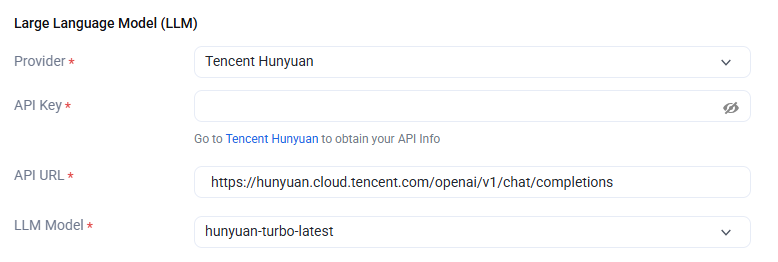
When selecting Hunyuan as the LLM provider, we provide default parameters for other configurations; you can fine-tune them according to your needs. The LLM model can be freely selected from the dropdown option, and the API Key can be obtained from API Token Management.
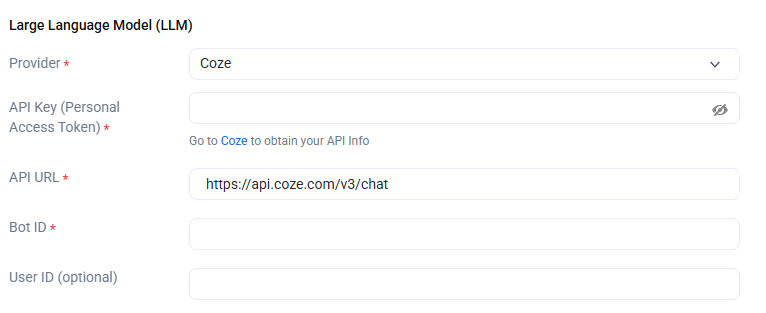
When selecting Coze as the LLM provider, we provide default parameters for other configurations; you can fine-tune them according to your needs. The API Key can be obtained by going to Coze to get the Secret token, and see guidance document to obtain BotId.
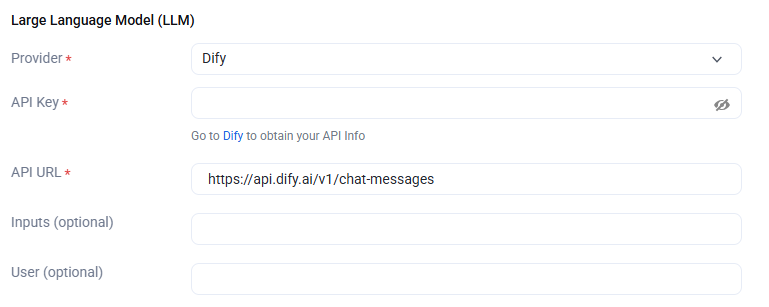
When selecting Dify as the LLM provider, we provide default parameters for other configurations; you can fine-tune them according to your needs. The API Key can be obtained from Dify.
TTS (Text To Speech) Configuration
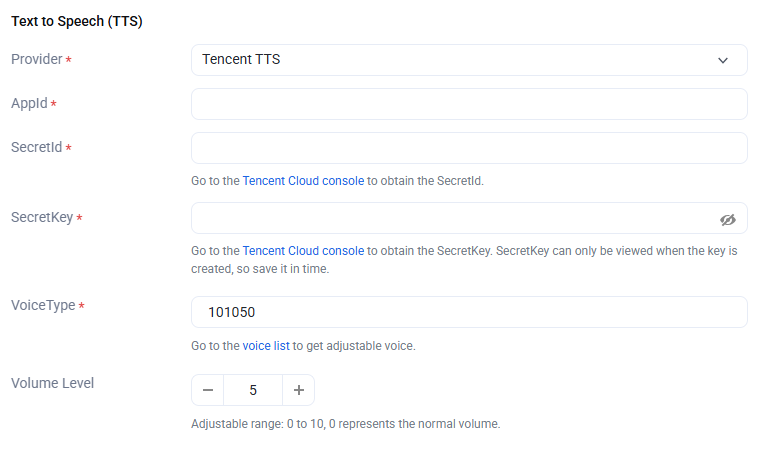
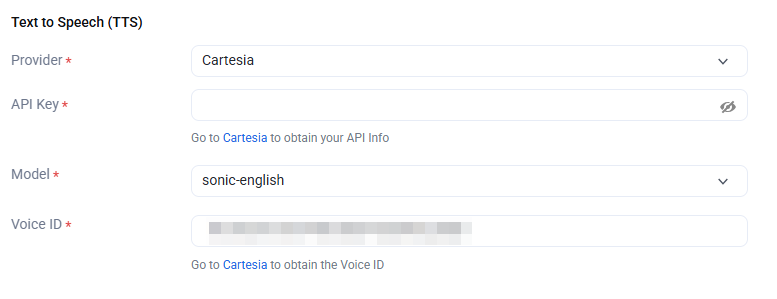
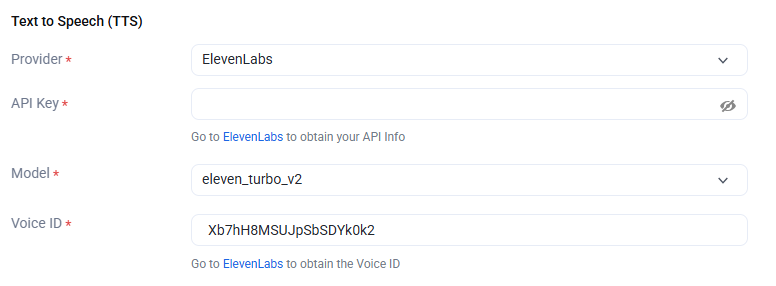
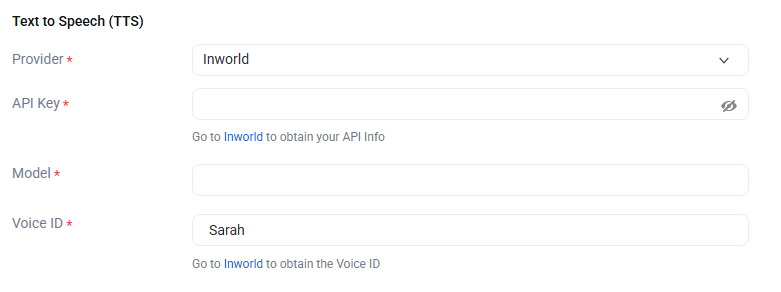
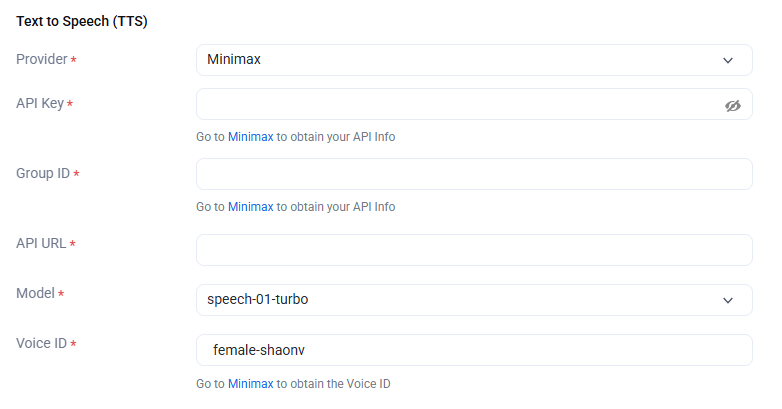
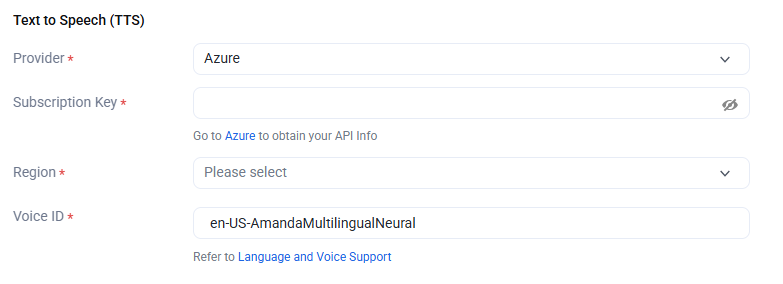
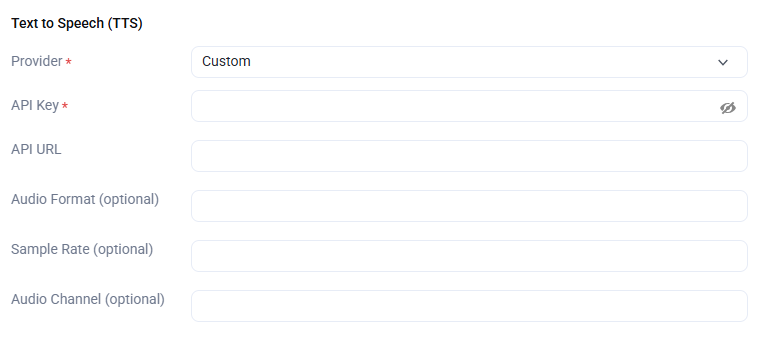
On the TTS (Text To Speech) configuration page: The TTS provider supports Tencent, Cartesia, Elevenlabs, Inworld, Azure, Minimax, and custom.
When the TTS provider is set to custom, you can fill in the API Key and API Url according to your actual situation.
We provide default parameters for other configurations; you can fine-tune them according to your needs.
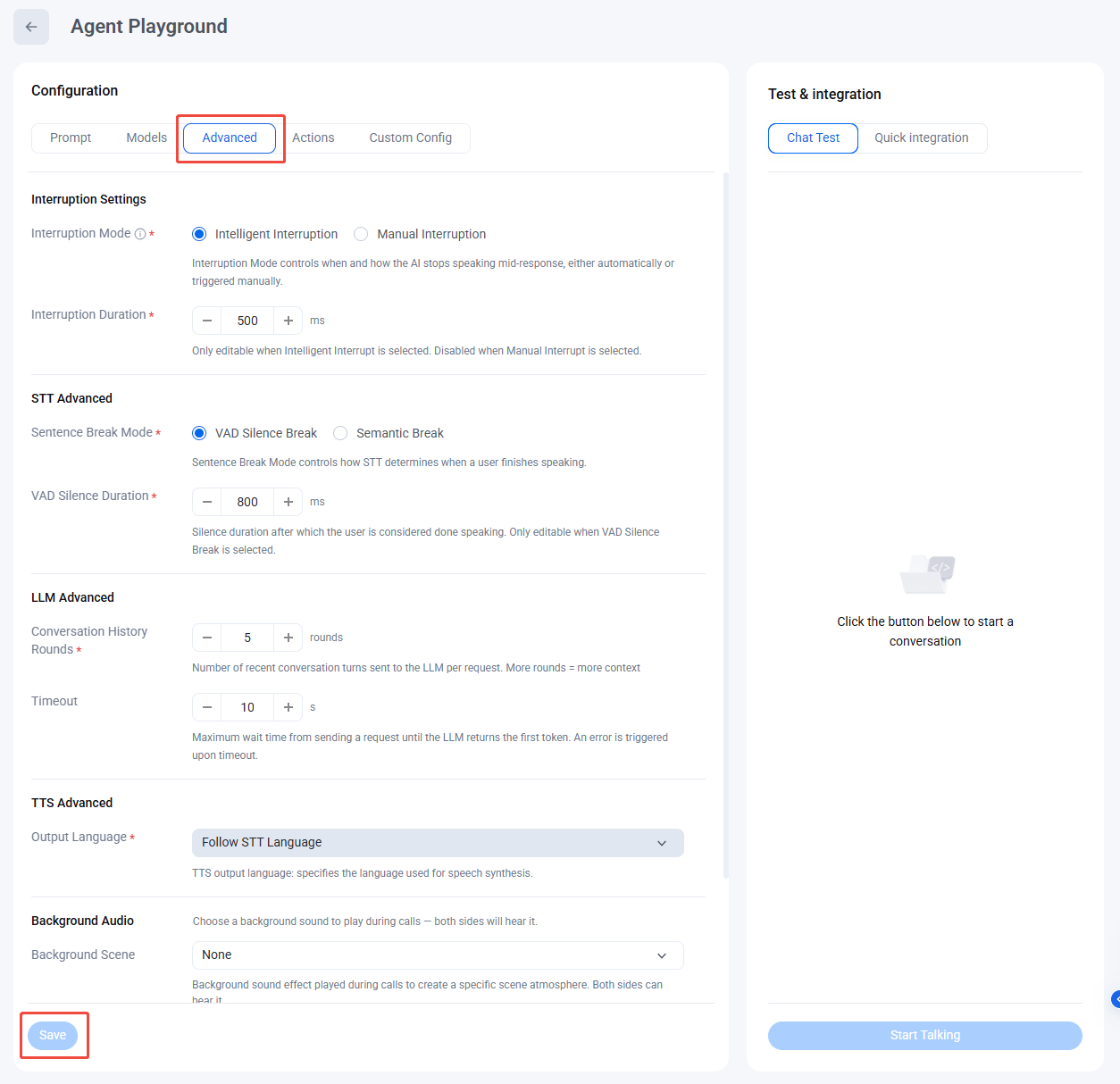
Advanced Feature Configuration
During a conversation, you cannot edit interruption duration, LLM configuration, or TTS configuration. End the current conversation round, update the relevant fields, and save your changes before starting a new conversation to apply the latest configuration.
Region Configuration
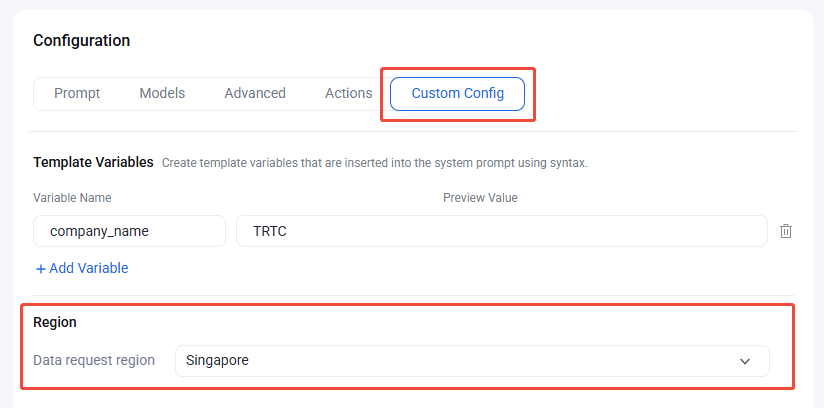
The system automatically connects to the nearest region to minimize latency. You can also manually select the data request region in the custom configuration section of the console.
Save Configuration
After configuring your STT, LLM, and TTS providers, advanced features, and region settings, click Save to apply the latest configuration.
Start Talking
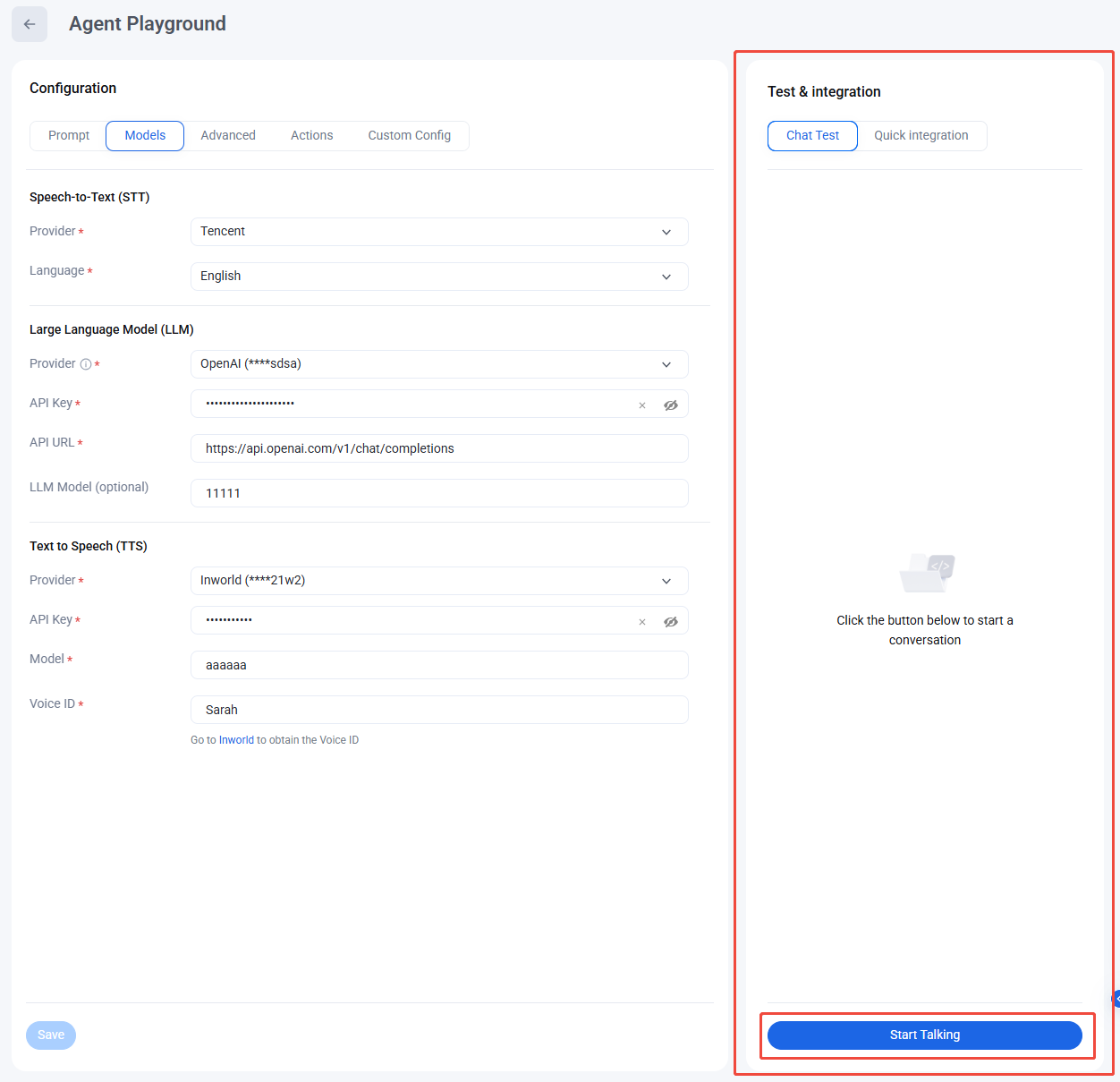
Once your configuration is complete, click Start Talking on the right to begin.
Conversation Errors
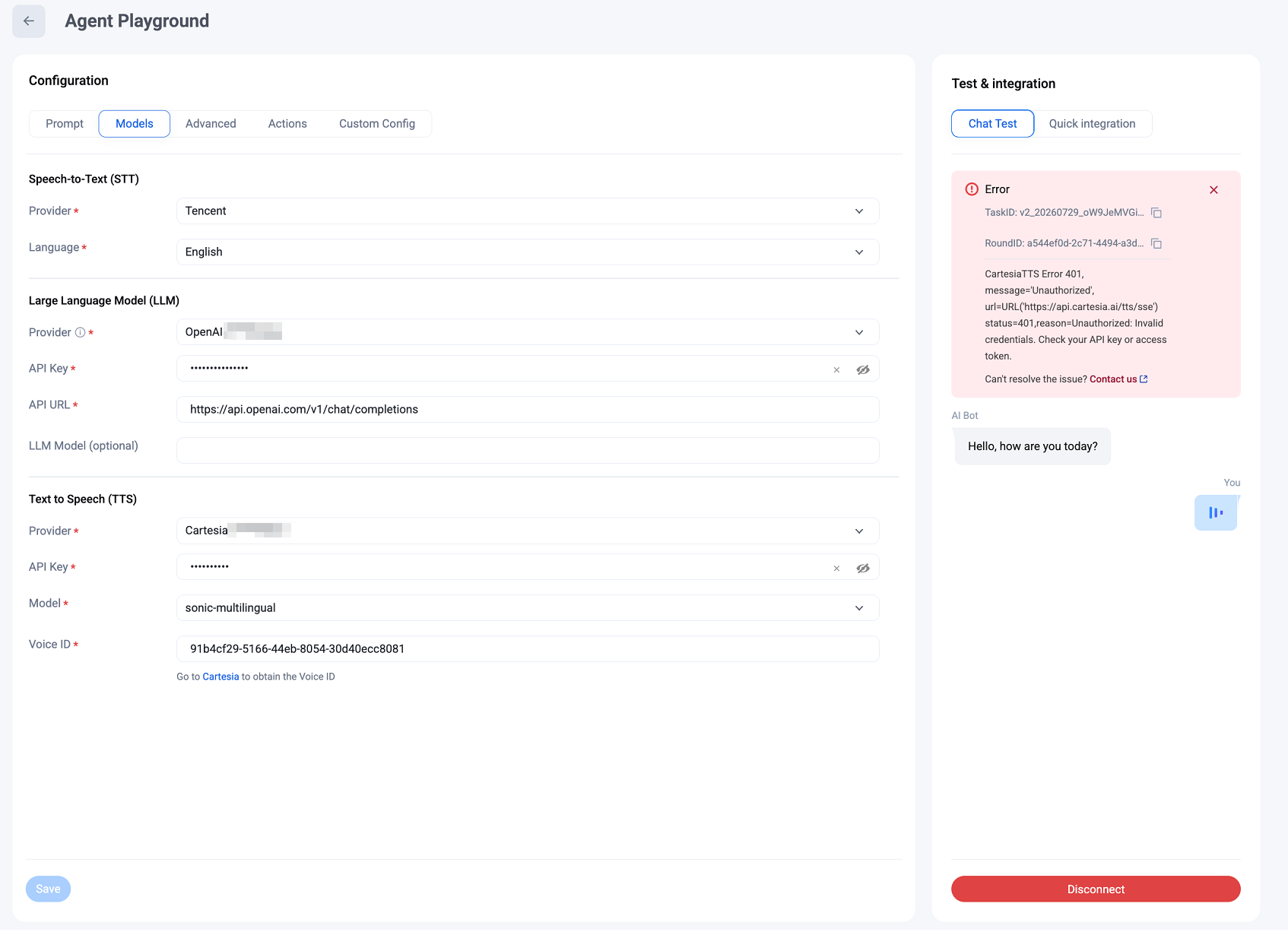
If error codes appear during the conversation, some may block the session. Update your configuration according to the error message. If you cannot resolve the issue, copy the Taskid and Roundid details and Contact Us for support. Some error codes, such as response timeouts, do not affect normal conversations. Handle these as appropriate.
Conversation Records
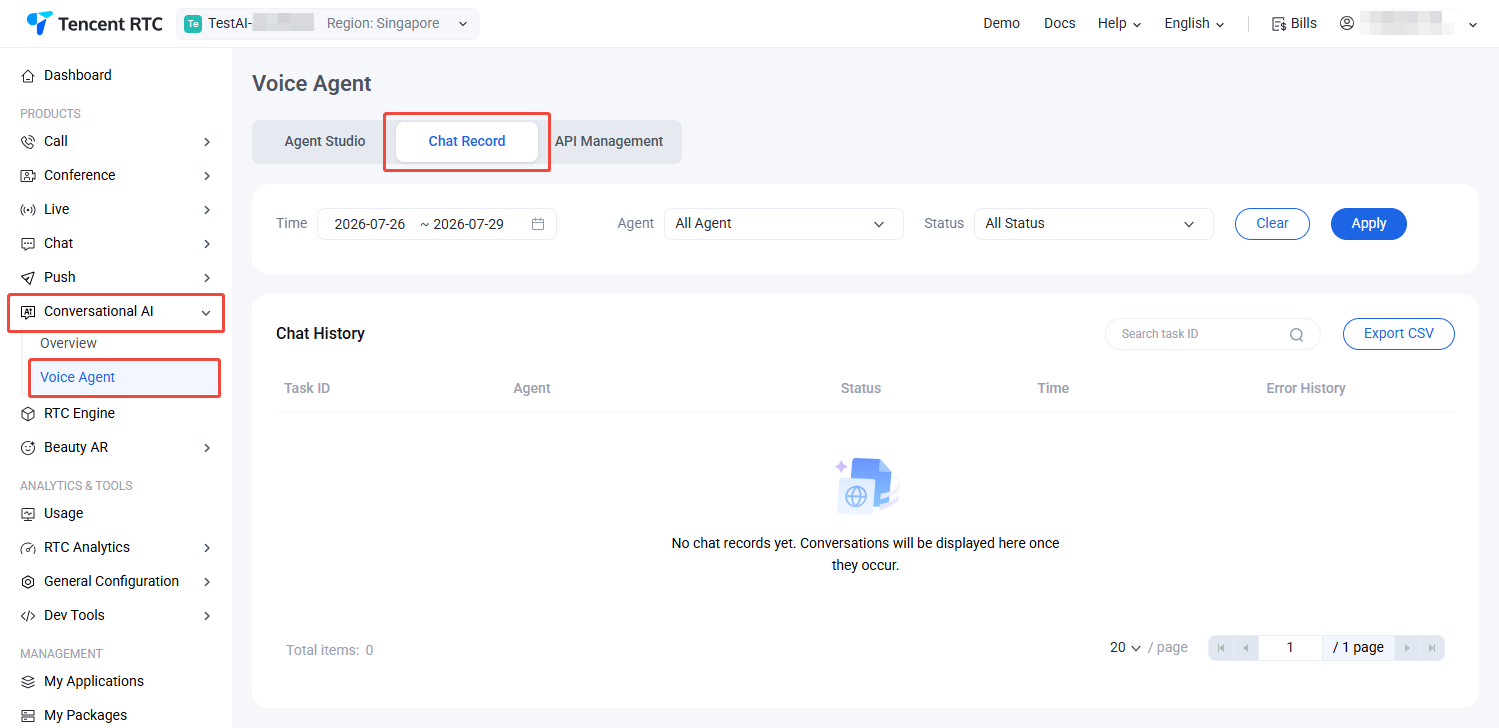
You can review previous conversation errors in Voice Agent > Agent Studio.
Quick Start
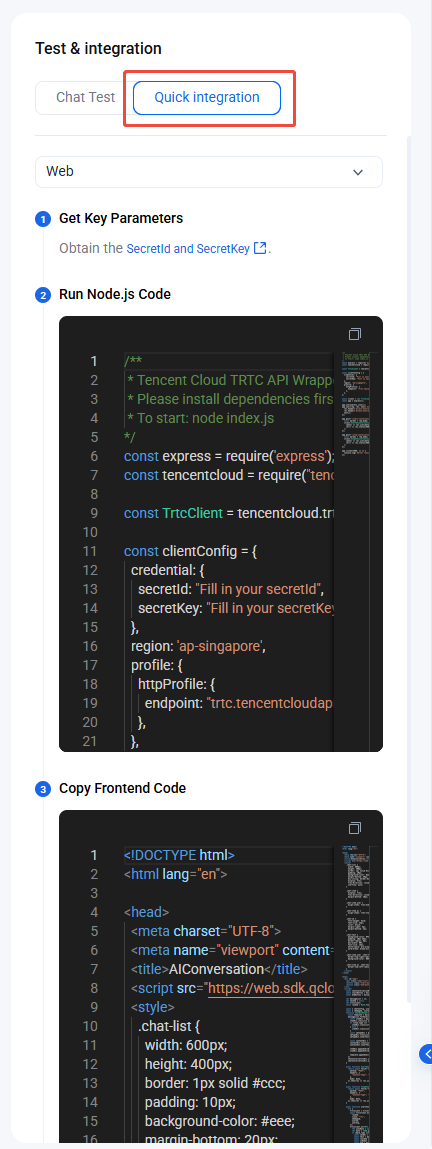
You can quickly run AI-powered real-time conversations in your local environment. All parameters from the system configuration are pre-filled, so you do not need to enter them again.