
Feature Overview
This document provides a comprehensive overview of the core concepts and capabilities of Web Push, clarifies its adaptability and usage boundaries across different platforms and business scenarios, and helps you leverage push services effectively to achieve efficient user engagement.
Core Concepts
Before using the push service, familiarize yourself with the following key concepts:
Term | Description |
SDKAppID | A unique identifier generated by the Tencent Cloud Chat backend to distinguish between different applications. Each application receives its own SDKAppID, and data is isolated between SDKAppIDs. Web Push uses SDKAppID to identify developer-created applications. |
Browser SecretKey | An authentication key for the browser, used to verify the integration when registering with the push service. |
Development Platform | Supports major browsers such as Chrome, as well as popular frontend development frameworks. |
Registration ID | A unique identifier for a terminal device on the Web Push platform. This ID is automatically generated upon successful registration via the registerPush API. If the app is uninstalled and reinstalled, the Registration ID changes. |
Online Push (Self-Built Push Channel) | Tencent Cloud Chat provides a self-managed long connection push channel. When users are online, messages are delivered instantly via this channel, ensuring global coverage, strong connectivity, high reliability, and robust security. |
Offline Push (Integrated Browser Push Channel) | Web Push channels offered by various browsers. Notifications are delivered through these channels when users close the webpage or the tab is running in the background. |
Push Capabilities
Web Push is an essential tool for engaging users. It enables you to break the application loop, deliver critical messages, event notifications, and business reminders to targeted users, increasing user activity, conversion rates, and retention. Core capabilities include:
Basic Push Capabilities
The push service supports three primary push types—All Users Push, Tag Push, and Specified User Push—covering a wide range of business scenarios:
Push Type | Description | Typical Scenario |
All Users Push | Sends messages to all reachable users within the application. For more details and usage, see All Users/Tag Push API. | Ideal for important announcements, marketing campaigns, and routine operations. |
Tag Push | Sends messages to targeted user groups based on tags or attributes (e.g., gender, region, interests). For more details and usage, see All Users/Tag Push API. | Suitable for targeted activation, coupon distribution, and segmented campaigns. |
Specified User Push | Sends messages directly to a selected batch of user IDs. For more details and usage, see Single Push API. | Best for small-scale or repeated batch pushes. |
Extended Push Capabilities
Category | Capability | Description |
Custom Styles | Allows you to set personalized redirect pages for web users who click on push content. | |
Custom Styles | Enables customization of the icon shown in push notifications. | |
Smart Push | Push Callback | Provides callbacks for All Users Push, Tag Push, and Single Push, giving you granular control over business functions and workflows. |
Browser Support for Key Capabilities
Capability | Chrome | Firefox | Safari | Microsoft Edge | Opera | Yandex |
Click Redirect | Supports customization | Supports customization | Supports customization | Supports customization | Supports customization | Supports customization |
Icon | Supports customization | Supports customization | Supports customization | Supports customization | Supports customization | Supports customization |
Online Push | Supported | Supported | Supported | Supported | Supported | Supported |
Offline Push | Supported | Supported | Supported | Supported | Supported | Supported |
Ringtone | Follows browser/system | Follows browser/system | Follows browser/system | Follows browser/system | Follows browser/system | Follows browser/system |
Data Statistics and Analysis
Robust data analytics tools are provided to help you track essential metrics such as Delivery Rate, Click Rate, and Conversion Rate, allowing you to optimize your engagement strategies.
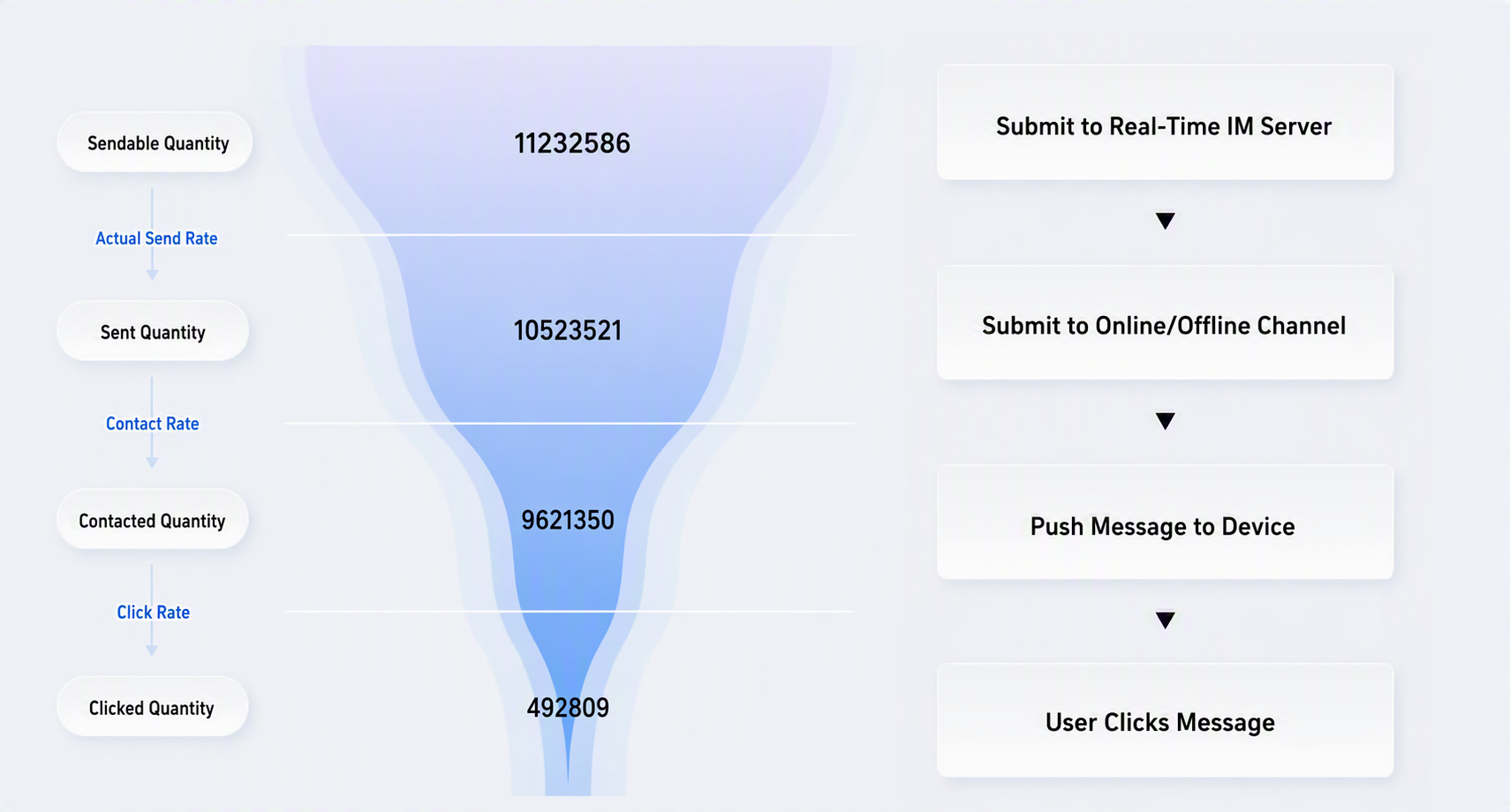
Push Data Conversion Funnel
Metrics include sendable quantity, sent quantity, delivered quantity, and clicked quantity, along with funnel conversion rates for Actual Send Rate, Delivery Rate, and Click Rate:
Term | Description |
Sendable Quantity | The total number of valid devices eligible for delivery after filtering the target audience for the push task. |
Sent Quantity | The total number of valid subscriptions successfully delivered via the online channel or browser push channel among the eligible devices. |
Delivered Quantity | The total number of acknowledgments received from terminal devices after delivery via online or browser push channels. |
Clicked Quantity | The total number of user click receipts after the push is successfully displayed, reflecting user engagement. |
Actual Send Rate | Measures the success rate of push task delivery. Formula: Sent Quantity / Sendable Quantity * 100%. |
Delivery Rate | Measures the success rate of message arrival at terminal devices. Formula: Delivered Quantity / Sent Quantity * 100%. |
Click Rate | Measures the likelihood of users clicking on push messages. Formula: Clicked Quantity / Delivered Quantity * 100%. |
Analysis Tools
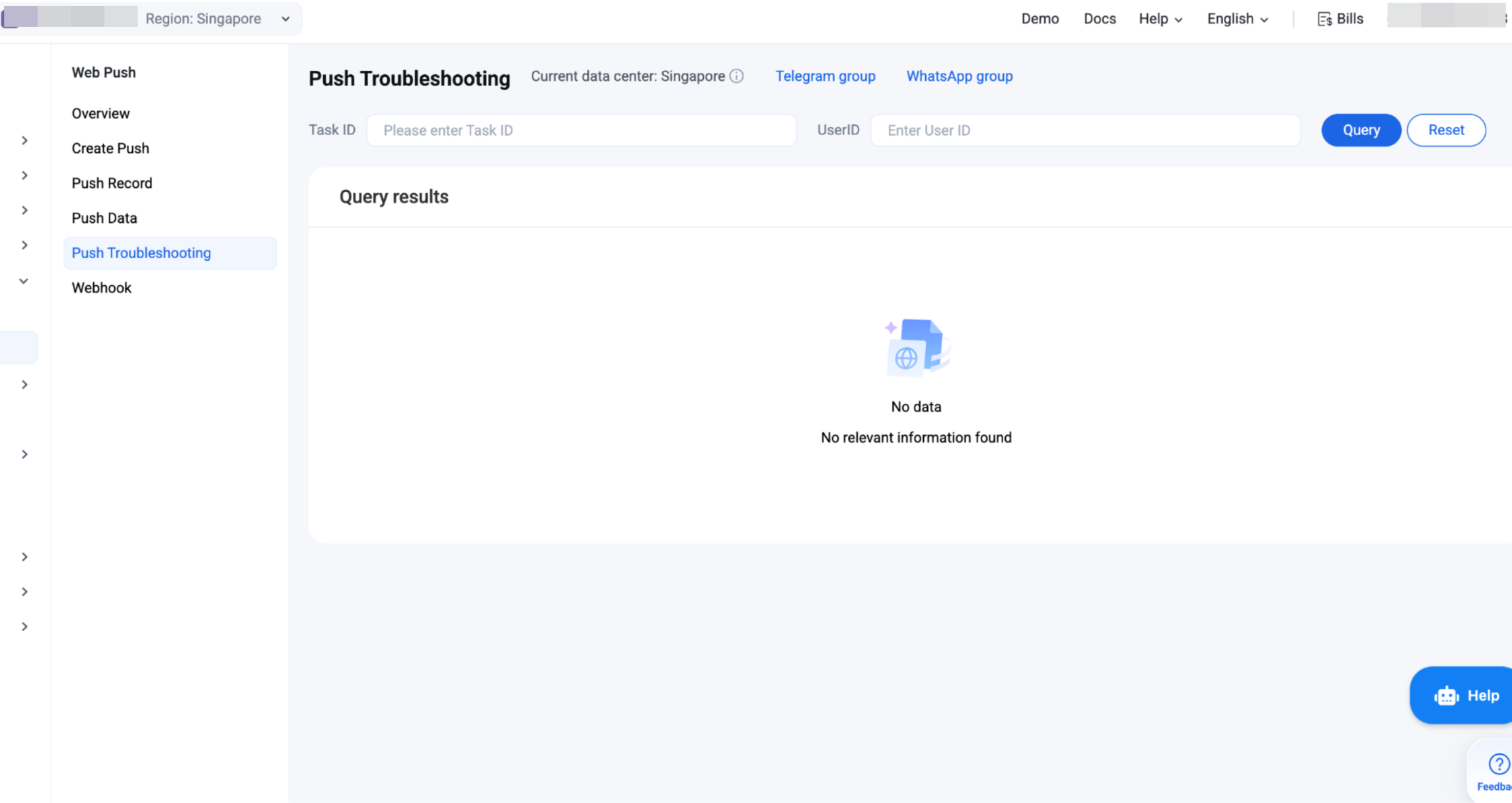
Term | Description |
Push Record | Query details of recent push records. Records generated via the console push tool or server-side API are available for review. |
Message Link | Query the complete link details, push message information, and device data for a specific target user within a push. |
Push Loss Analysis | Analyze loss and undelivered cases during push transmission. By measuring the loss rate at different stages, it helps identify bottlenecks, providing actionable data for optimizing push strategies and improving Delivery Rate. |
Comparison of Online Push and Offline Push
The push service offers both Online Push and Offline Push strategies. These methods differ in trigger conditions, channels, message formats, and feature boundaries. The following table summarizes the distinctions:
Comparison Dimension | Online Push | Offline Push |
Trigger Condition | Webpage is open (tab is active in foreground or background) | Webpage is closed, or browser process is not running but Service Worker can be awakened |
Channel Used | Self-built push channel | Integrated browser push channel - Chrome, Firefox, Safari, Microsoft Edge, Opera, Yandex \ |
Message Format | Supports notification messages and passthrough messages; developers can fully customize handling logic | Supports only browser notifications (system-level notifications triggered by the browser); passthrough messages are not supported |
Real-Time Performance | Millisecond-level, real-time delivery via persistent connection | Delivery within seconds to minutes, depending on browser push service scheduling policies |
Delivery Rate | Extremely high (messages are delivered as long as the connection is active) | May be affected by browser push service quotas, notification permissions, device settings, etc. |
Message Format | Supports custom formats | Restricted by each browser's Web Push specification |
User Perception | Can display notifications, in-page popups, or handle messages silently | Displayed in the system notification bar; clicking the notification launches the webpage |
Note:
Web Push supports the following three push strategies:
System Notification: Delivers system push notifications to both online and offline users. Recommended for messages that require reliable delivery as system-level notifications, ensuring consistent behavior for all users.
In-App Message: Delivers online push only to users who are online; offline users do not receive push. Suitable for time-sensitive messages that are no longer relevant after expiration, and only delivered when the user opens the webpage.
System Notification + In-App Message: Online users receive online push; offline users receive system notification messages. This is the recommended approach. Messages are presented instantly as in-app messages when users are online, and downgraded to system notifications when users are offline, maximizing message reach.