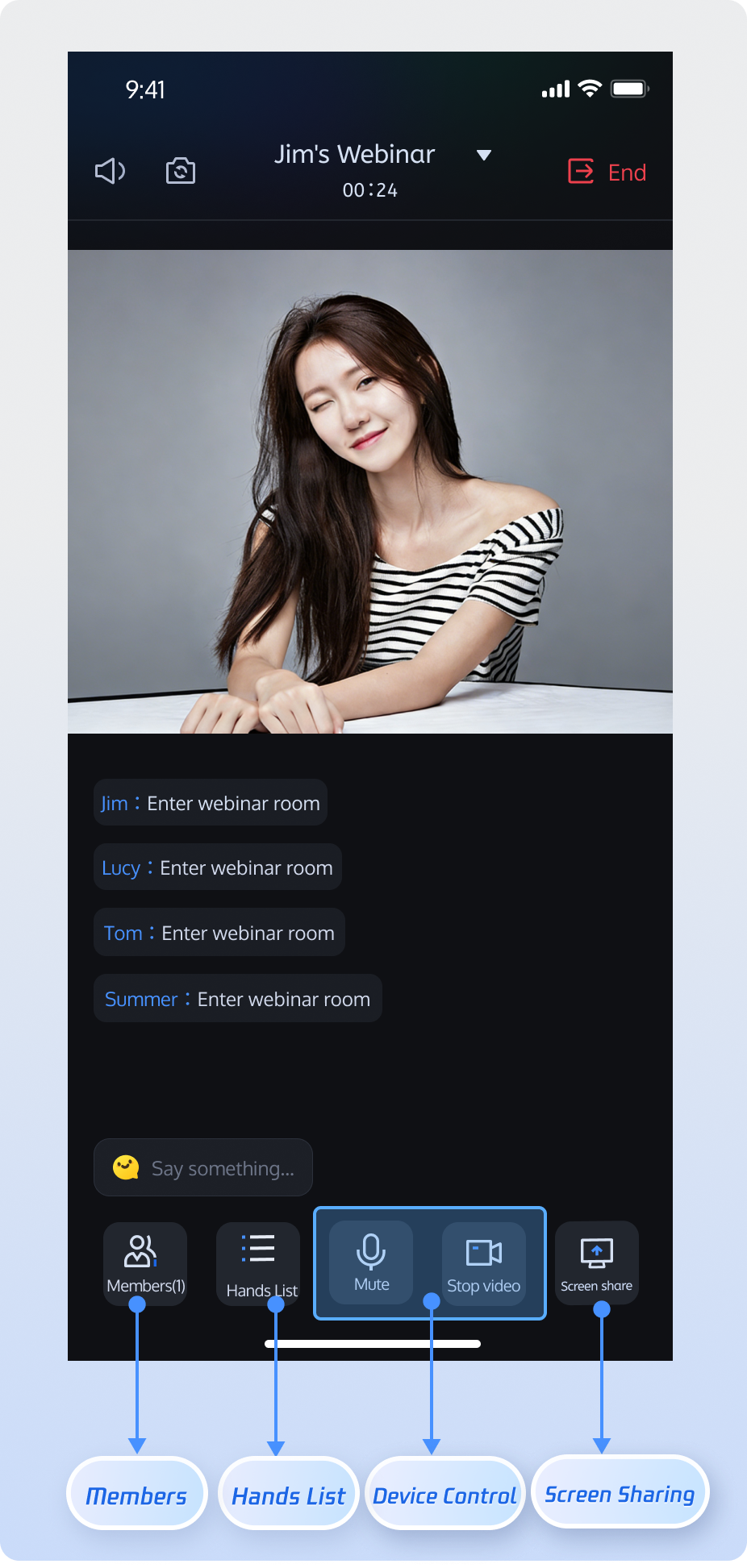
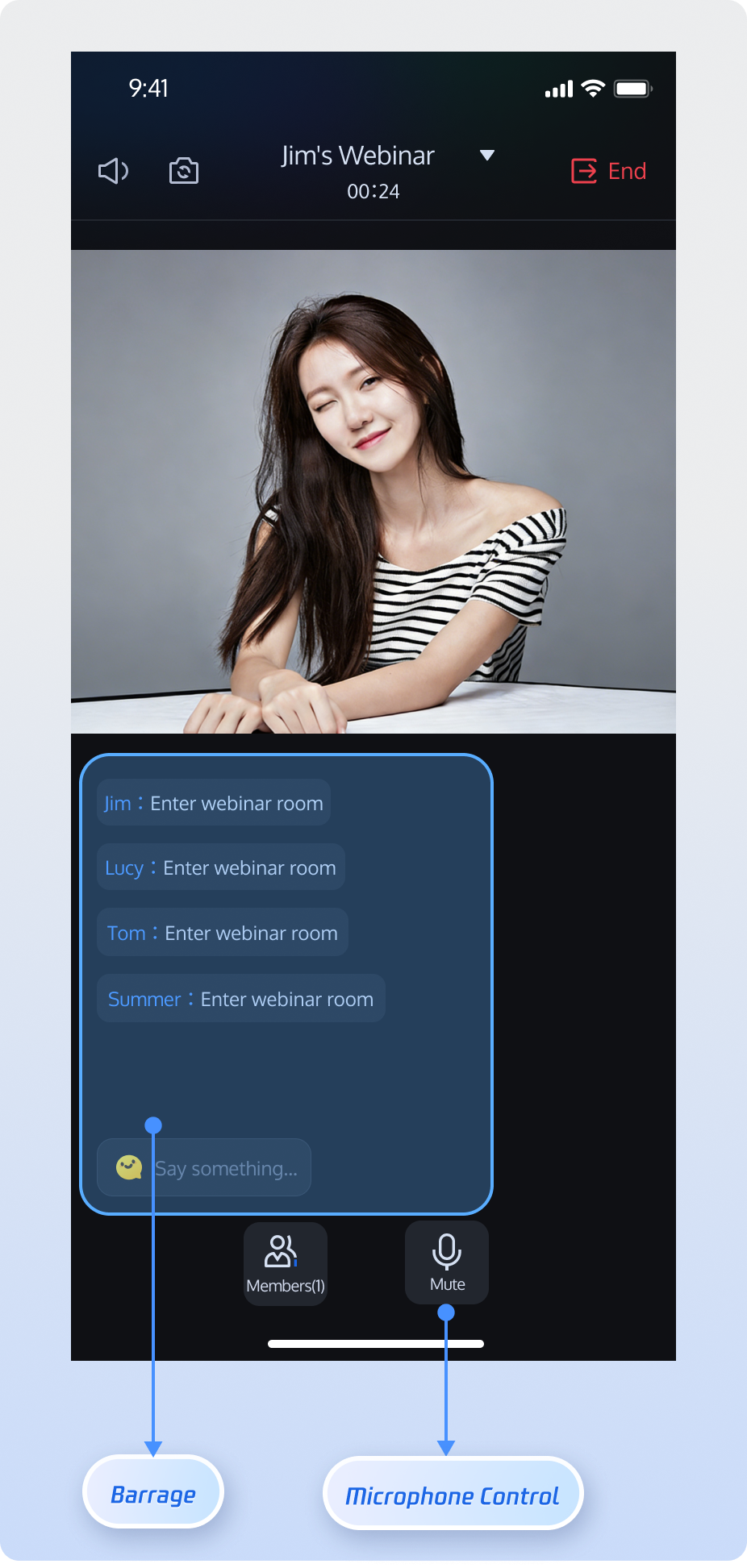
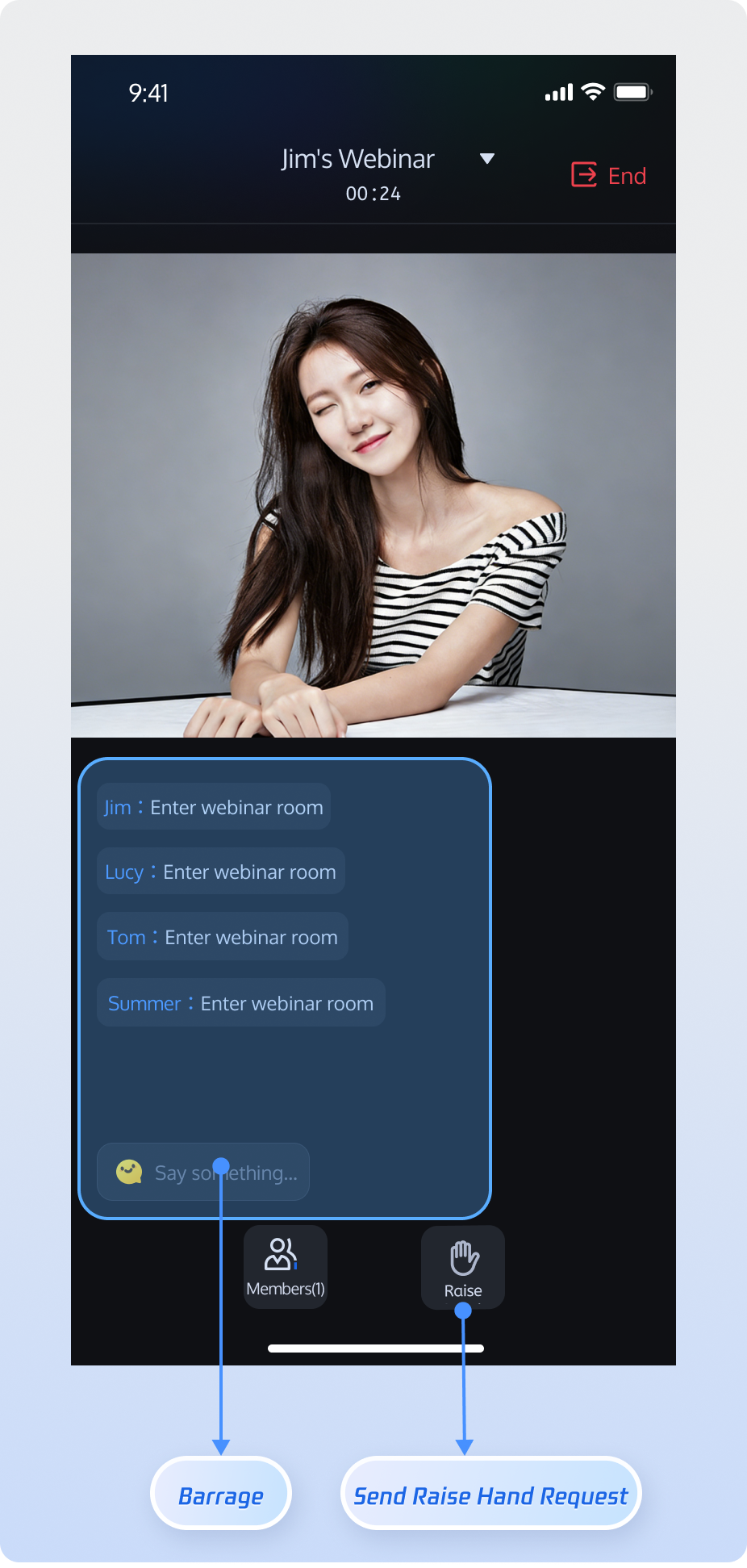
Build participant, role, and device-control capabilities for AtomicXCore-powered rooms in minutes. This guide walks developers through integrating AtomicXCore’s core features for large-scale webinars, company-wide meetings, and online education. The UI is fully customizable, so you can focus on business logic and refining the end-to-end user experience.
What’s the difference between a standard conference and a webinar?
Standard Conference: Ideal for small to medium collaborative environments. All participants have equal audio/video privileges, with interactive features such as screen sharing and member management.
Webinar: Designed for large-scale live presentations, supports unlimited concurrent audience entry. Audience members can use the "Raise Hand" feature to request guest access and participate in discussions. The system is optimized for high-concurrency chat, supporting tens of thousands of participants and professional presentation needs.
Feature Overview
Host
Guest
Audience
Host can start high-definition audio/video streaming, share screens, and manage participants.
Guest can enable their microphone for real-time voice discussions and sharing.
Supports unlimited concurrent audience entry, ultra-low latency viewing, and high-frequency chat. Audience can use "Raise Hand" to request guest access.
Core Features
AtomicXCore provides all the capabilities you need to build a professional webinar solution:
Dual-role system: Room members are classified as Guest (can speak via audio/video) and Audience (view-only). The host can dynamically invite audience members to participate or remove guests from the stage.
Screen sharing: Host can share their screen with all participants in real time to assist presentations and facilitate communication.
Member and permission management: Includes guest list, audience list, admin controls, mute/video-off, and other moderation tools.
Large-scale message interaction: Optimized message throttling for rooms with tens of thousands of participants, ensuring stable real-time chat and live comments.
Core modules of AtomicXCore include:
RoomStore: Handles room management tasks, including create, join, and lifecycle operations.
RoomParticipantStore: Manages room participants, including admin settings, guest/audience management, removing participants, device control, and more.
Preparation
Step 1: Activate the Service
Refer to Activate the Service to claim the TUILiveKit trial version or activate the official TUILiveKit version.
Note:
Webinar functionality is built on live streaming capabilities. Make sure you have claimed the TUILiveKit trial version or activated the official TUILiveKit version for full functionality.
Step 2: Environment Requirements
Android 5.0 (SDK API level 21) or above
Gradle 8.0 or above
Devices running Android 5.0+
Requires JDK version 17, 18, or 19
Step 3: Integrate the AtomicXCore SDK
Add the following dependencies to your build.gradle file, then sync your Gradle project:
Unique ID for the current user. Use only English letters, numbers, hyphens, and underscores. Avoid simple IDs like 1 or 123 to prevent multi-device login conflicts.
userSig
String
Authentication token for Tencent Cloud.
For development, generate with GenerateTestUserSig.genTestSig or the UserSig Helper Tool.
Follow the steps below to set up a webinar room quickly.
Tip:
For business logic related to host room creation and joining, see the open-source TUIRoomKit project. Refer to RoomMainActivity.kt and RoomMainView.kt for complete implementation details.
1. Creating and Joining a Room
Implementation Steps:
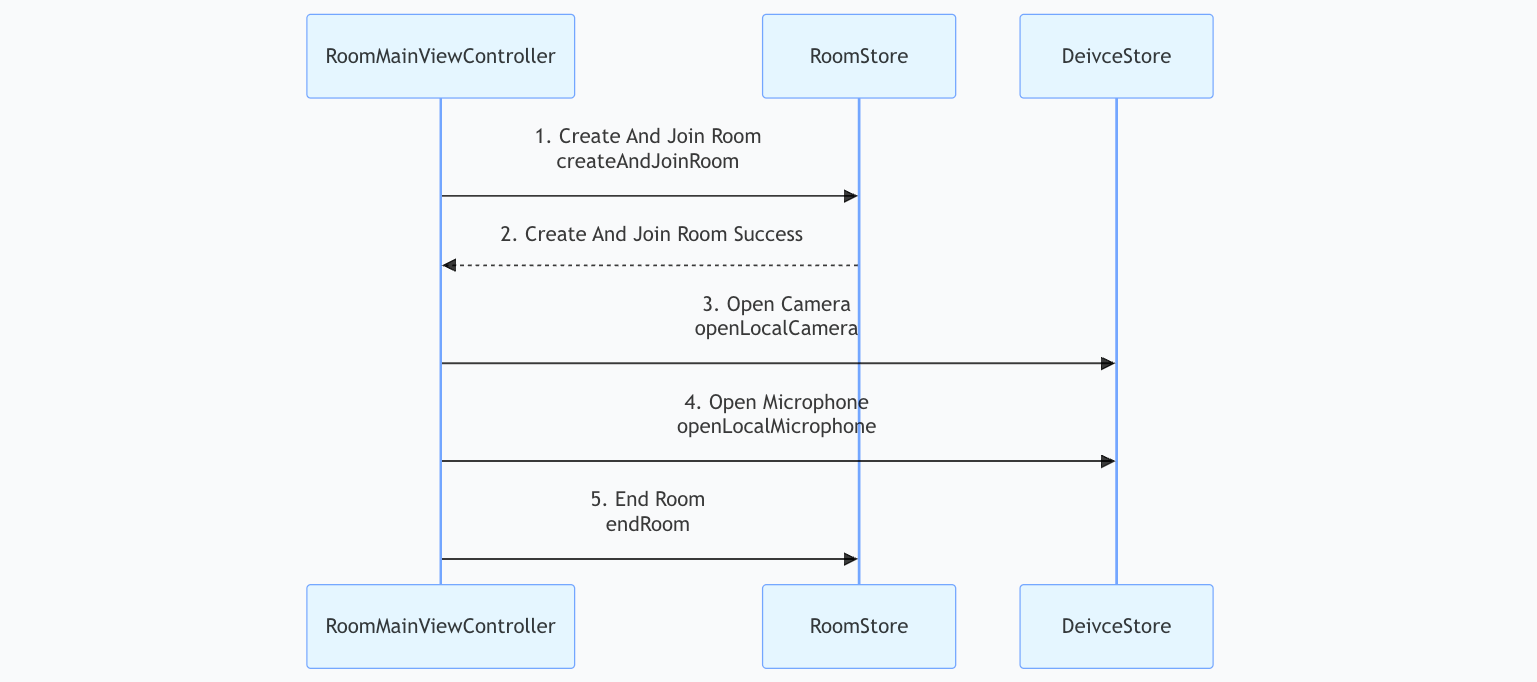
1.1 Configure Room Initialization Parameters: Create a CreateRoomOptions object and set room name and configuration.
1.2 Create and Join Room: Call RoomStore.createAndJoinRoom to execute the operation.
Callback for operation result; returns error code/message on failure.
CreateRoomOptions Struct
Parameter Name
Type
Required
Description
roomName
String
No
Room name (optional, defaults to empty).
0-60 bytes.
Supports English/Chinese, numbers, special characters.
password
String
No
Room password (empty means no password).
0-32 bytes.
Use 4-8 digit numbers for easy input. Avoid plain-text sensitive data. Passwords not supported for webinars; leave empty.
isAllMicrophoneDisabled
Boolean
No
Disable microphones for all. Only host/admin can open mic. Guests are muted by default.
true: Disabled.
false: Enabled (default).
isAllCameraDisabled
Boolean
No
Disable cameras for all. Only host/admin can open camera. Guests are video-off by default.
true: Disabled.
false: Enabled (default).
isAllScreenShareDisabled
Boolean
No
Disable screen sharing for all (only host/admin can share):
true: Disabled.
false: Enabled (default).
isAllMessageDisabled
Boolean
No
Disable chat messages for all (mute):
true: Disabled.
false: Enabled (default).
2. Role-Based Media Controls
Roles have distinct media device permissions:
Host: Can turn on the camera and microphone, publish audio/video, and share the screen.
Guest: Can turn on the microphone and publish audio for real-time discussion.
Audience: View-only; cannot turn on or publish audio/video.
After entering the room, call DeviceStore.openLocalCamera and DeviceStore.openLocalMicrophone to enable local audio or video capturing. To start screen sharing, call startScreenShare (the camera must be turned off before screen sharing).
Log.e("Room","Failed to leave room [Error code: $code]: $desc")
}
})
}
}
Step 3: Bind a Video View
The RoomView component encapsulates streaming logic for webinars. Simply render the RoomView component on your page to enable webinar room audio/video features. Pair video rendering with TUIRoomKit components.
RoomView built-in capabilities:
Host: Supports video and screen sharing.
Guest: Automatically plays the host’s real-time audio/video stream.
Audience: Automatically plays ultra-low latency live streams, providing smooth viewing even with massive concurrency..
Tip:
RoomView is a video rendering component for room streams. For full implementation details, see RoomView.kt in the open-source TUIRoomKit project.
<com.trtc.uikit.roomkit.view.main.RoomView
android:id="@+id/room_view"
android:layout_width="match_parent"
android:layout_height="match_parent"
app:layout_constraintStart_toStartOf="parent"
app:layout_constraintTop_toTopOf="parent" />
Step 4: Manage Guest and Audience Roles
As host or admin, call RoomParticipantStore.promoteAudienceToParticipant to promote an audience member to guest.
To demote a guest to audience, call RoomParticipantStore.demoteParticipantToAudience.
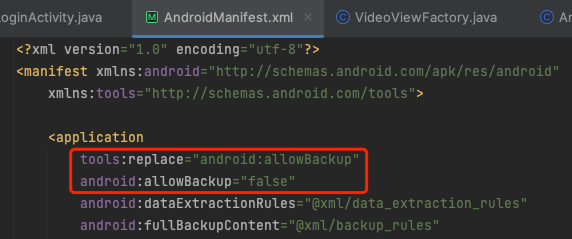
Why am I seeing a compilation error about allowBackup after integrating the SDK?
Cause: The allowBackup attribute is defined in multiple modules' AndroidManifest.xml files, resulting in a conflict.
Solution: Remove the allowBackup attribute from your project's AndroidManifest.xml or set it to false to disable backup and restore. To override settings from other modules, add tools:replace="android:allowBackup" to your application's manifest node. Example fix:
Why can't the other party see video after enabling devices via DeviceStore API?
Check whether camera and microphone permissions have been requested
On Android 6.0 and above, you must request permissions dynamically:
Why is there no video/audio when capturing in the background on Android 14 and above?
On Android 14+, apps that capture camera or microphone data in the background must start a foreground service and declare the corresponding service type. Otherwise, capture will not work. Solution:
1. Declare FOREGROUND_SERVICE, FOREGROUND_SERVICE_CAMERA, and FOREGROUND_SERVICE_MICROPHONE permissions and the service in AndroidManifest.xml.