
Comment Input
Feature Overview
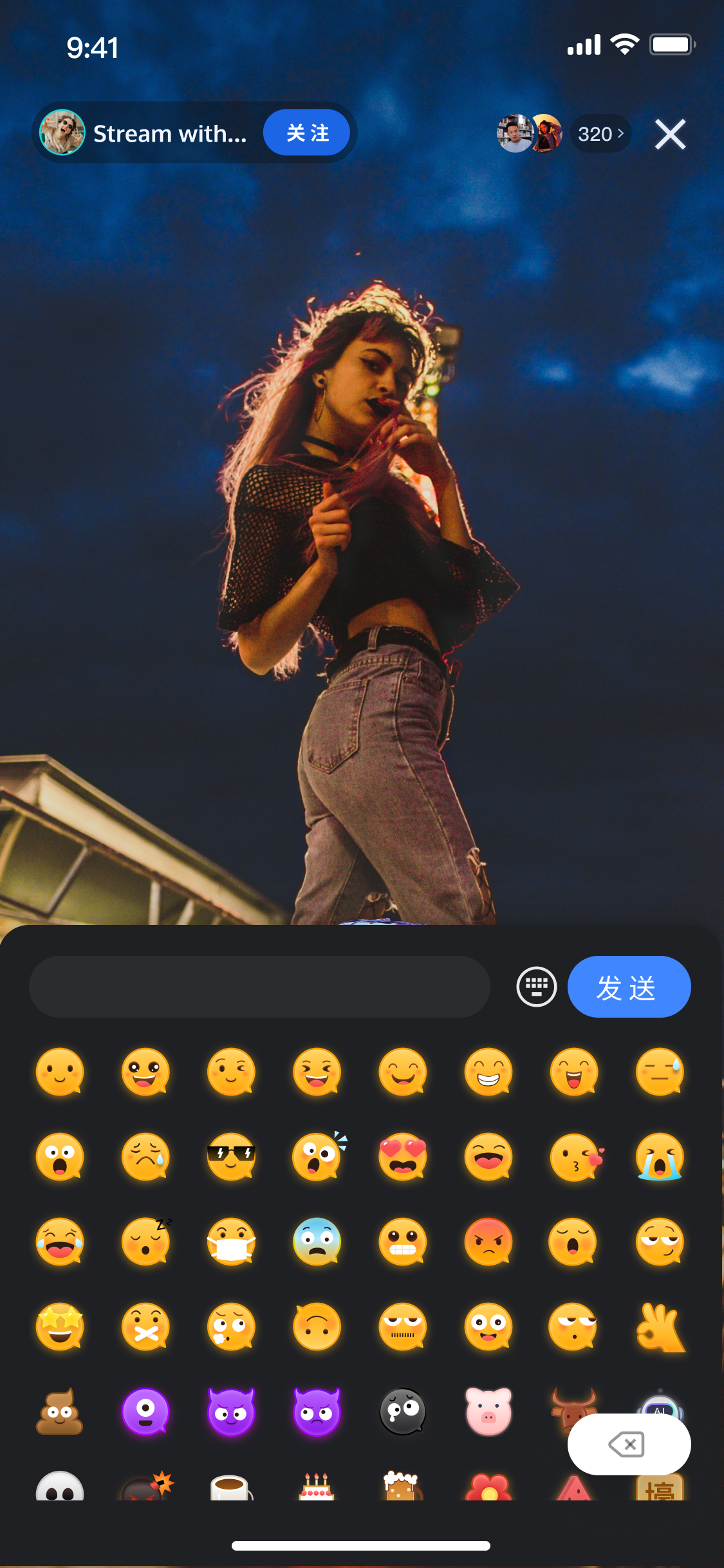
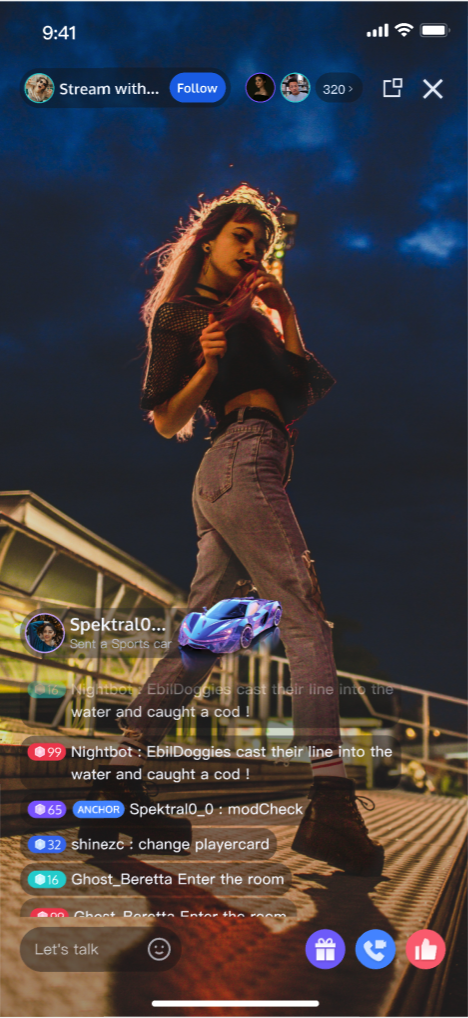
TUILiveKit live comments deliver a full-featured interactive solution for live streaming, increasing engagement and entertainment for your live broadcasts. This guide walks you through integrating live comment functionality into your streaming rooms, with robust customization options to fit your business needs.Live Comment Sending Component ( BarrageSendWidget) | Live Comment Display Component ( BarrageDisplayWidget) |
 |  |
Component Structure
Component Name | Description |
Live Comment Display Component ( BarrageDisplayWidget) | Handles real-time rendering and management of the live comment stream. Provides a complete solution for displaying messages, including message list rendering, message grouping by time, audience interaction, and responsive design. |
Message Sending Component ( BarrageSendWidget) | Offers a rich text input experience for sending live comments, featuring emoji selection, character limitations, state management, and cross-platform support for a seamless user experience. |
Quick Start
Step 1: Activate the Service
Step 2: Integrate the SDK
Step 3: Integrate the Live Comment Sending Component
Add the live comment sending component to your application to enable hosts and audience members to send live comments easily. Use the sample code below to create a
BarrageSendWidget and add it to your UI:import 'package:live_uikit_barrage/live_uikit_barrage.dart';BarrageSendController _sendController = BarrageSendController(roomId: "liveRoomId", /// liveRoomId Replace with your live room IDownerId: "liveOwnerId", /// liveOwnerId Replace with your host's user IDselfUserId: "selfUserId", /// selfUserId Replace with the current logged-in user's IDselfName: "selfUserName"); /// selfUserName Replace with the current logged-in user's nicknameBarrageSendWidget(controller: _sendController);
Note:
1. The live comment sending component allows switching between the system keyboard and an emoji keyboard.
2. To comply with emoji design copyrights,
TUILiveKit does not include full emoji asset packs. Before launching commercially, replace the default emojis with your own designs or packs you have rights to use. The default yellow face emoji pack shown below is owned by TRTC and available for commercial licensing. For authorization, submit a ticket to contact us.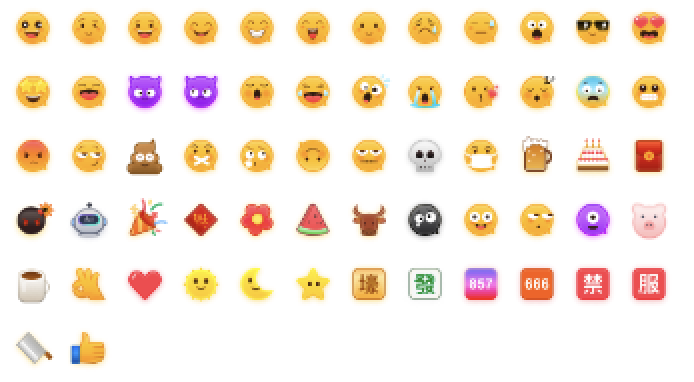
Step 4: Integrate the Live Comment Display Component
Wherever you want to display live comments, create and initialize a
BarrageDisplayWidget to present incoming messages. The ownerId parameter is used to distinguish between host and audience message display styles.import 'package:live_uikit_barrage/live_uikit_barrage.dart';BarrageDisplayController _displayController = BarrageDisplayController(roomId: "liveRoomId", /// liveRoomId Replace with your live room IDownerId: "liveOwnerId", /// liveOwnerId Replace with your host's user IDselfUserId: "selfUserId", /// selfUserId Replace with the current logged-in user's IDselfName: "selfUserName"); /// selfUserName Replace with the current logged-in user's nicknameBarrageDisplayWidget(controller: _displayController);
Step 5: Insert Local Live Comment Messages
BarrageDisplayWidget supports the insertMessage method for displaying custom messages (such as gift notifications, room announcements, etc.) with your own styles.Note:
Call this method only after you have successfully entered the room.
import 'package:live_uikit_barrage/live_uikit_barrage.dart';import 'package:atomic_x_core/atomicxcore.dart';Barrage barrage = Barrage();barrage.textContent = "gift";barrage.sender.userID = "sender.userId";barrage.sender.userName = "sender.userName";barrage.sender.avatarURL = "sender.avatarUrl";_displayController.insertMessage(barrage);
Customize Live Comment Message Styles
Sample Effect
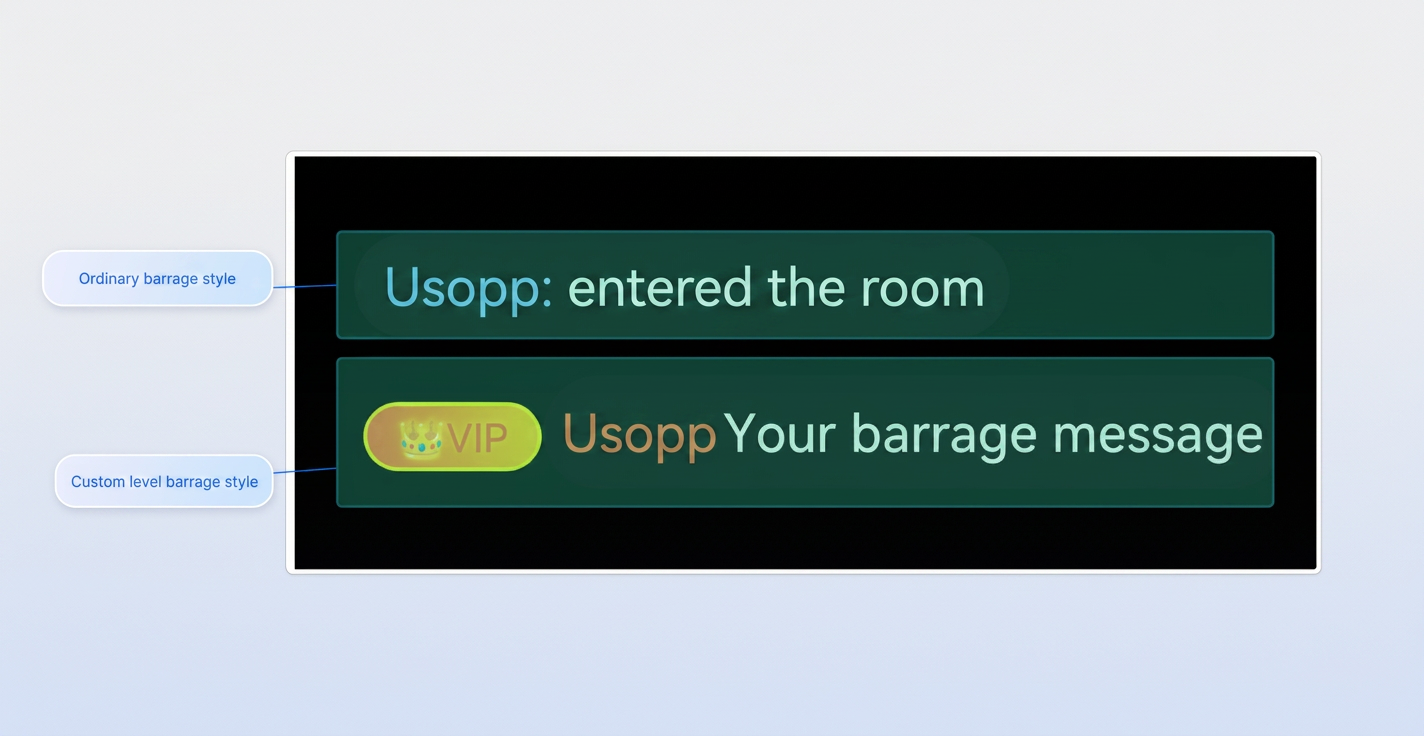
By default, live comments support two styles: the standard comment style (style 0) and a custom message style. For additional styles, implement the
CustomBarrageBuilder delegate in BarrageDisplayWidget:import 'package:flutter/cupertino.dart';import 'package:flutter/material.dart';import 'package:live_uikit_barrage/live_uikit_barrage.dart';import 'package:atomic_x_core/atomicxcore.dart';// 1. Implement CustomBarrageBuilderclass MyCustomBarrageItemBuilder extends CustomBarrageBuilder {@overridebool shouldCustomizeBarrageItem(Barrage barrage) {// Example: Only customize rendering for comments with customType=type1return barrage.extensionInfo['customType'] == 'type1';}@overrideWidget buildWidget(BuildContext context, Barrage barrage) {// Custom widget examplefinal type = barrage.extensionInfo['customType'];if (type == 'type1') {return Container();}return SizedBox.shrink();}}// 2. Set custom builder_displayController.setCustomBarrageBuilder(MyCustomBarrageItemBuilder());// 3. Insert custom messageBarrage barrage = Barrage();barrage.textContent = "gift";barrage.sender.userID = "sender.userId";barrage.sender.userName = "sender.userName";barrage.sender.avatarURL = "sender.avatarUrl";barrage.extensionInfo['customType'] = 'type1';_displayController.insertMessage(barrage);
FAQs
Why can't I see live comment messages?
Check the following:
Make sure both
BarrageSendWidget and BarrageDisplayWidget are properly initialized and that you are passing the correct roomId.Verify your network connection is stable.
How do I distinguish between host and audience in live comment messages?
When initializing
BarrageDisplayWidget, provide the ownerId parameter. The component automatically applies different styles to live comments sent by the host, based on the ownerId. For custom styles, you can also check if the message sender is the host by comparing the user.userId in the Barrage message and adjust the display accordingly.