This document describes how to rapidly integrate the TUICallKit component. You can complete the following key steps within 10 minutes and obtain a complete audio and video call interface.
Note:
You can also use the TRTC Agent Skill to integrate TUICallKit into an existing Flutter project. After installing the Skill, open your project and tell the AI, “Help me add audio and video calling to this Flutter project.” It will analyze the project structure and assist with dependencies, platform configuration, login, call entry points, and verification.
Preparations
Environmental Requirements
Flutter 3.24.0, Dart 3.5.0 and above.
Service Activation
Please refer to the Service Activation documentation to obtain your SDKAppID and SDKSecretKey. These credentials will be required in the subsequent login step.
Implementation
Step 1.Importing Components
Add the tencent_calls_uikit plugin dependency in your project's pubspec.yaml file:
flutter pub add tencent_calls_uikit
Step 2.Project Configuration
Native Project Configuration:
Android
iOS
1. Configure ProGuard Rules (Code Obfuscation):Since the SDK internally uses Java reflection, certain SDK classes must be added to the non-obfuscation list.
Enable Obfuscation Rules: In the android/app/ directory, find the build.gradle.kts (or build.gradle) file and configure ProGuard rules:
Grant Camera and Microphone Permissions:Because TUICallKit requires audio and video functionality, you must obtain authorization for the microphone and camera. Add the following two privacy usage descriptions to the top-level <dict> directory in your iOS project's Info.plist file:
<key>NSCameraUsageDescription</key>
<string>CallingApprequiresaccesstoyour camera todisplay video during calls.</string>
<key>NSMicrophoneUsageDescription</key>
<string>CallingApprequiresaccesstoyour microphone tocapture audio during calls.</string>
Note:
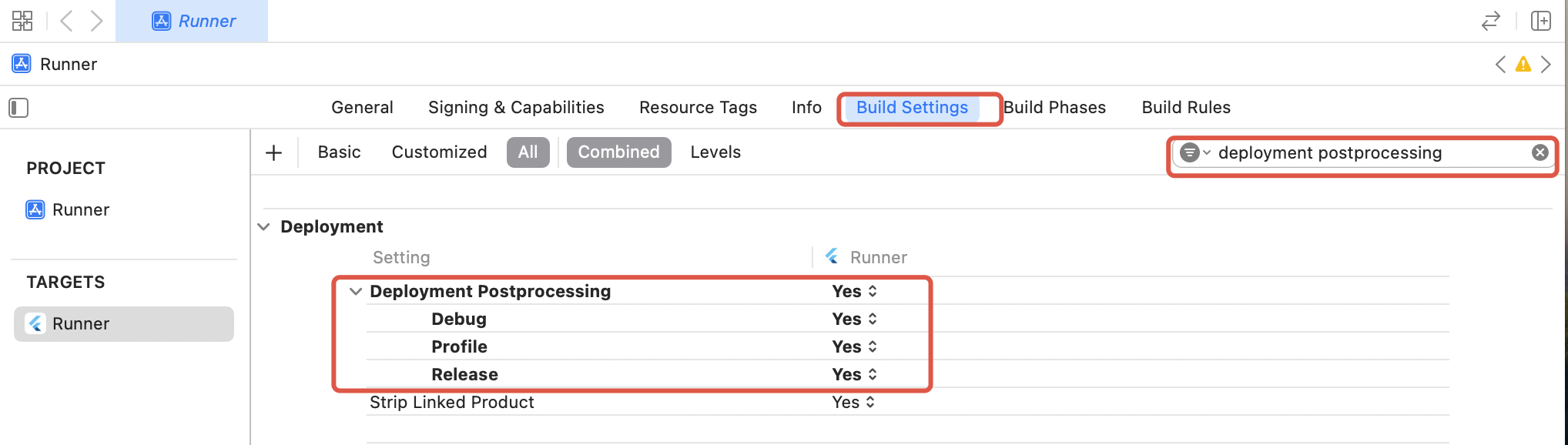
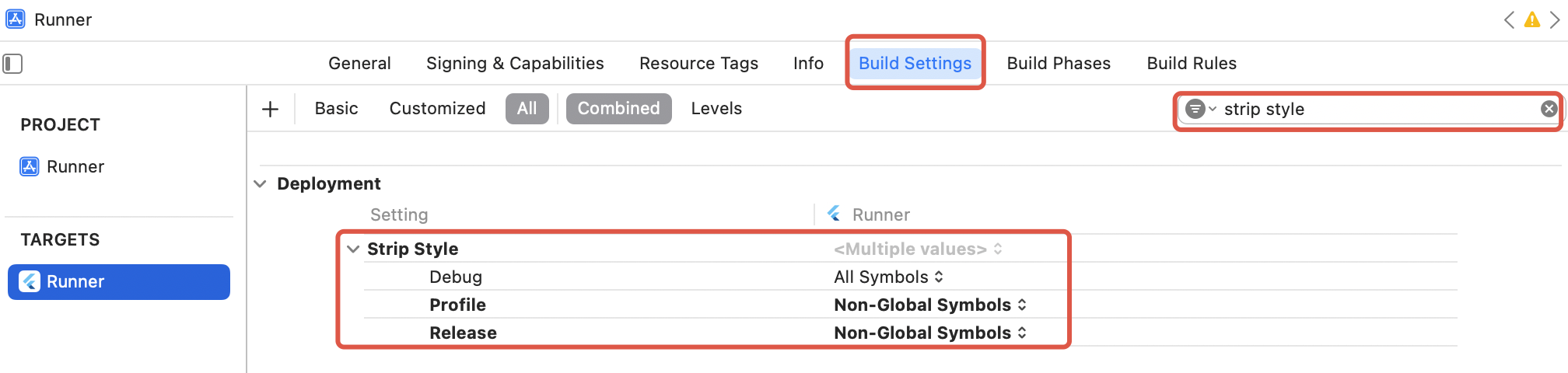
Since tencent_rtc_sdk calls interfaces through Flutter FFI, Xcode's symbol stripping optimization during iOS Release builds may mistakenly remove TRTC's C symbols, causing a `symbol not found` error. The solution is as follows:
1. In the project's Build Settings, find deployment postprocessing and set it to Yes.
2. In the project's Build Settings, find strip style and set the Release value to Non-Global Symbols.
Flutter Project Configuration:
To ensure TUICallKit can properly manage page navigation and display multi-language interfaces, configure the following in your Flutter application framework:
Add TUICallKit.navigatorObserver to navigatorObservers to monitor page route changes and manage component lifecycle.
Add the localization delegate to localizationsDelegates to ensure interface text is displayed correctly according to the system language.
A security protection signature used to authenticate user login, confirm whether the user is genuine, and prevent malicious attackers from misappropriating your cloud service usage rights.
Note:
Development environment: If you are in the local development and debugging stage, you can adopt the local GenerateTestUserSig.genTestSig function to generate userSig. In this method, the SDKSecretKey is very easy to decompile and reverse engineer. Once your key is leaked, attackers can steal your Tencent Cloud traffic.
After a successful login, you can call the setSelfInfo function to set your nickname and avatar. The set nickname and avatar will be displayed on the caller/callee interface.
CompletionHandler result =TUICallKit.instance.setSelfInfo(nickname, avatar);
}
Parameter
Type
Description
nickname
String
Target user's nickname
avatar
String
Target user's avatar
Step 5.Initiating a Call
The caller initiates a call by invoking the calls function and specifying the media type (voice or video) and the callee's User ID list (userIdList). The calls interface supports both one-to-one and group calls. A one-to-one call is initiated when the userIDList contains only a single User ID; a group call is initiated when it contains multiple User IDs.
Media type of the call, such as video call, voice call.
params
CallParams
Call extension parameters, such as room number, call invitation timeout, offline push custom content.
Step 6.Answering a Call
Once the callee successfully logs in, the caller can initiate a call, and the callee will receive the call invitation, accompanied by a ringtone and vibration.
More Features
AI Transcription and Translation
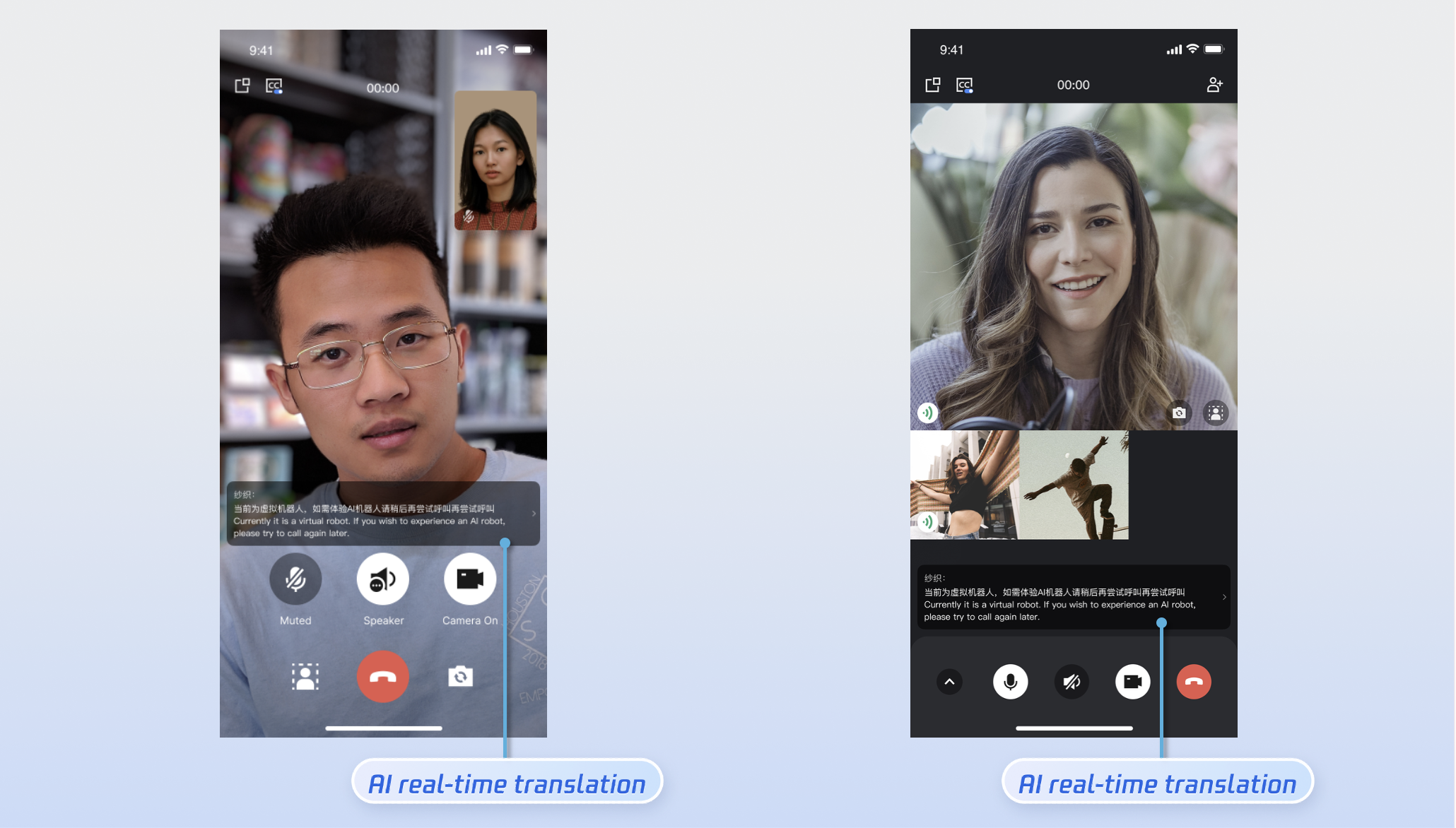
You can enable/disable the AI transcription and translation feature by calling enableAITranscriber.
Note:
1. This feature is enabled by default (enable = true). To disable it, call enableAITranscriber(enable: false) before initiating a call.
2. AI real-time transcription and translation is a value-added service. The trial version comes with free quota for direct experience. To activate the official version, please purchase a package at the TRTC Console.
Details: Default is true, which displays the AI translation related page on the call interface. Set to false to disable.
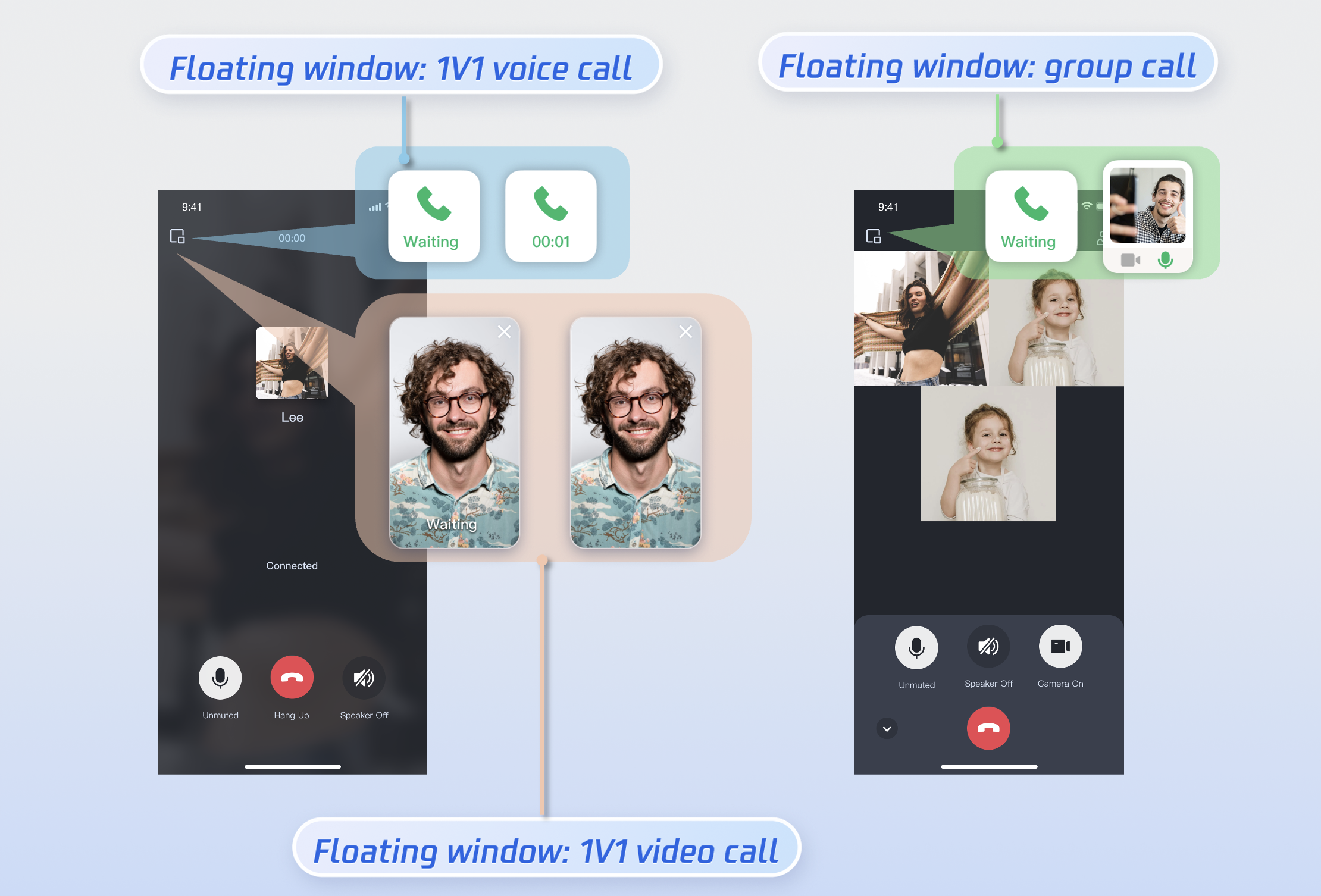
Enabling Floating Window
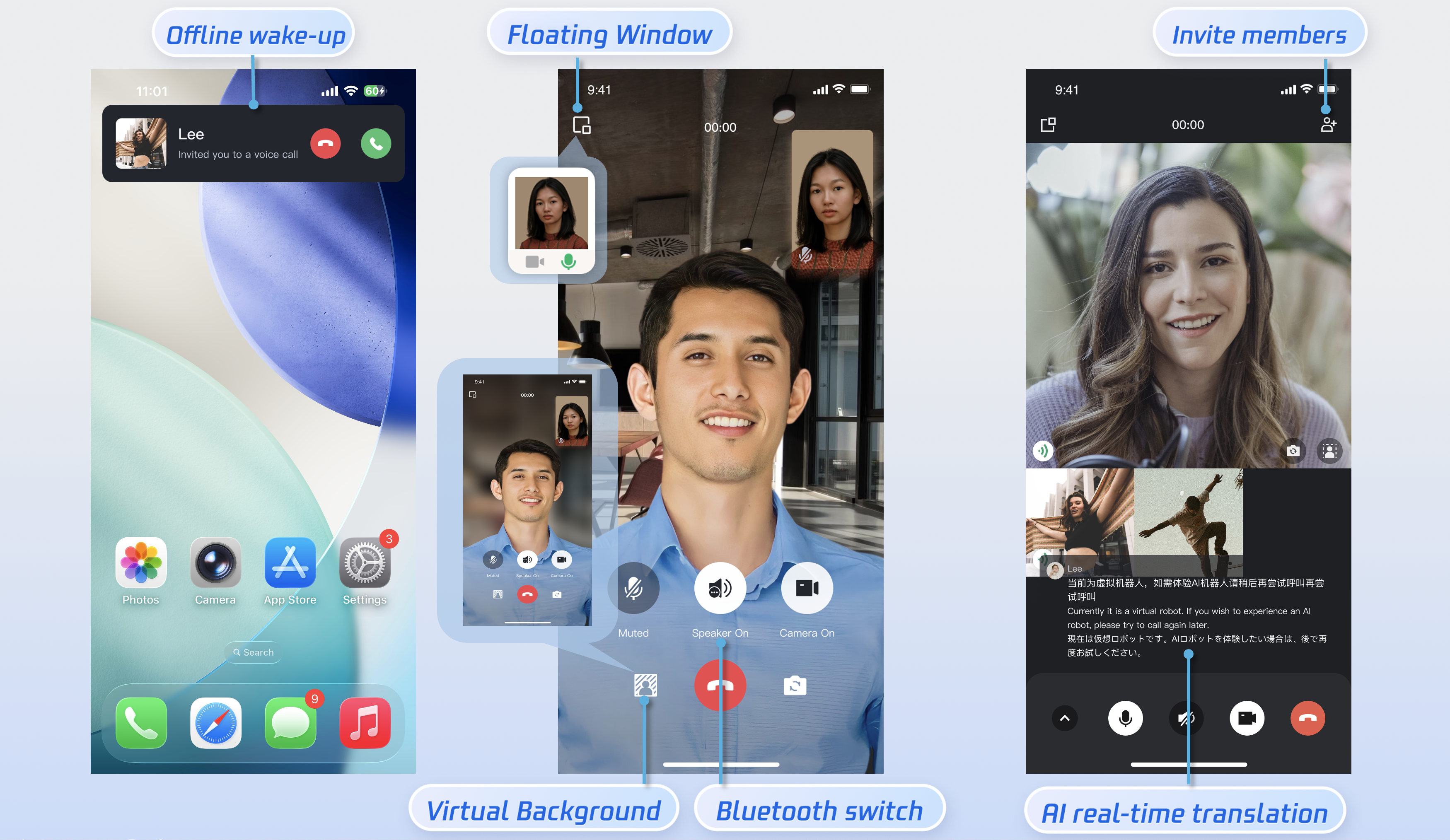
You can enable/disable the floating window feature by calling enableFloatWindow. This feature should be enabled when initializing the TUICallKit component, with the default status being Off (false).
Details: Default false, the floating window button in the top-left corner of the call interface is hidden. Set to true to display.
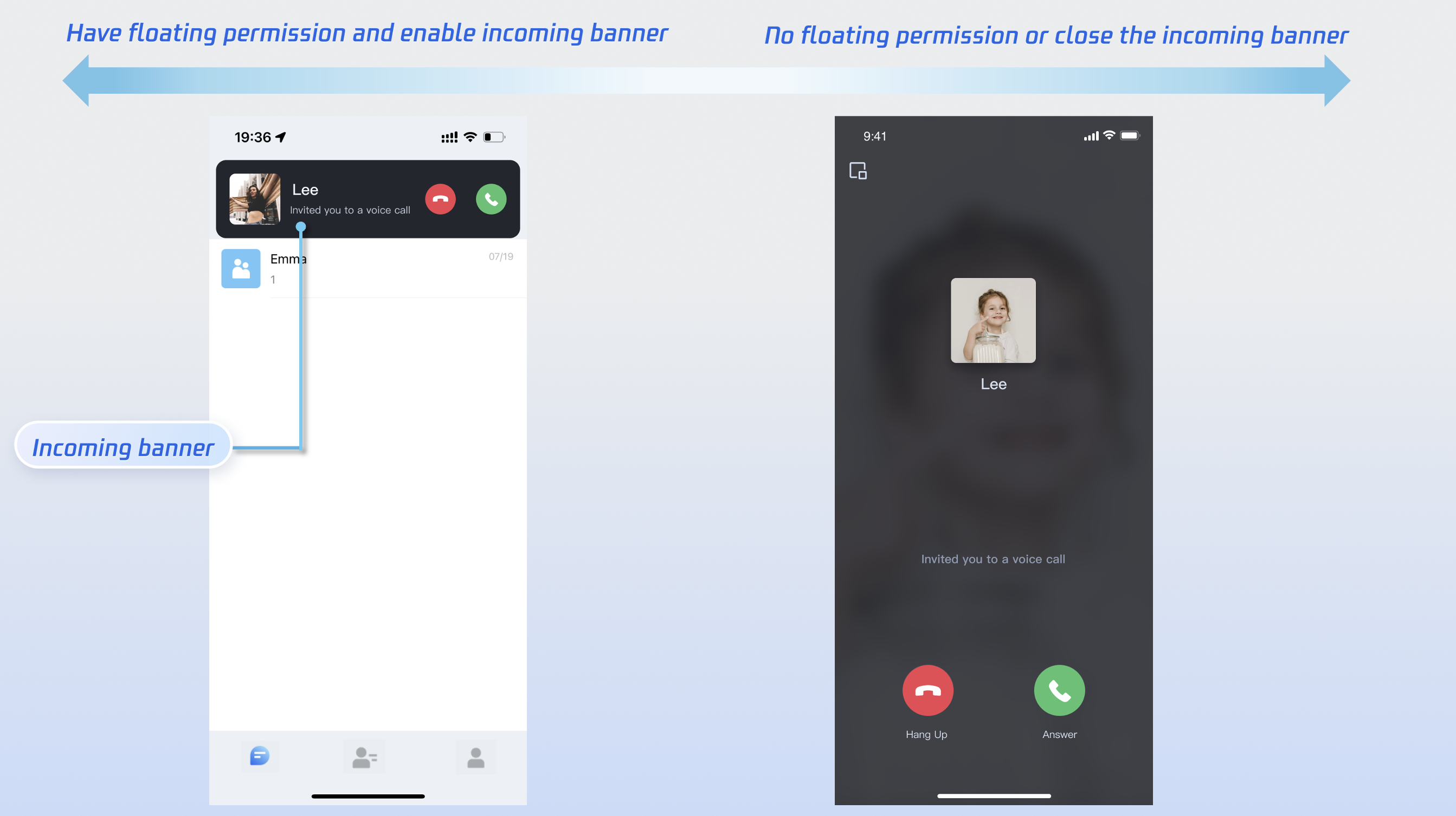
Enabling Banner
You can enable or disable the incoming call banner display by calling enableIncomingBanner. By default, this feature is disabled (false). When the callee receives an inbound call, the full-screen call waiting interface is shown first. When the banner is enabled, a notification banner will display initially, switching to the full-screen view as required. Note that displaying the banner requires floating window permission. The exact display behavior depends on permission settings and whether the app is running in the foreground or background.
Details: Default false. The callee side pops up the full-screen call waiting interface by default when receiving an invitation. When enabled, a banner is displayed first, then the full-screen call interface is pulled up as needed.
Multi-Person Calling
When the caller uses the calls method to initiate a call, if the list of called users exceeds one person, it is automatically recognized as a multi-person call. Other members can then join this multi-person call using the join method.
Initiating a Multi-person Call: When the calls method is used to initiate a call, if the callee User ID list (userIdList) contains more than one user, it will be automatically deemed a multi-person call.
Supported Languages: We currently support Simplified Chinese, English, and Japanese. The default language is English.
Switching Languages: TUICallKit does not provide a separate language switching API. Its interface language will automatically align with the language setting used by the application's current root component (such as MaterialApp or CupertinoApp).
Note:
If you need to set up other languages, please contact us at info_rtc@tencent.com for assistance.
Ringtone Setting
You can set the default ringtone, and incoming call silent mode in the following ways:
Details: When set to true, incoming call requests will not trigger ringtone playback (silent mode).
Customizing Your UI
Replacing Icon Button
You can directly replace the icons under the assets/images folder to ensure the icon color and style remain consistent throughout the entire App. The following list shows basic feature buttons. You can replace the corresponding icons to fit your own business scenario.